Publishing a Build
This page explains how to upload a build after the Steam Publishing Tool has been set up.
At this stage, the tool should already be ready on the dashboard. Publishing usually only requires reviewing the Pre-flight Summary and clicking Publish to Steam.
Before Publishing
Before starting the upload, make sure the dashboard shows that:
- SteamCMD is ready.
- Steam Account is authorized.
- Publishing Settings are valid.
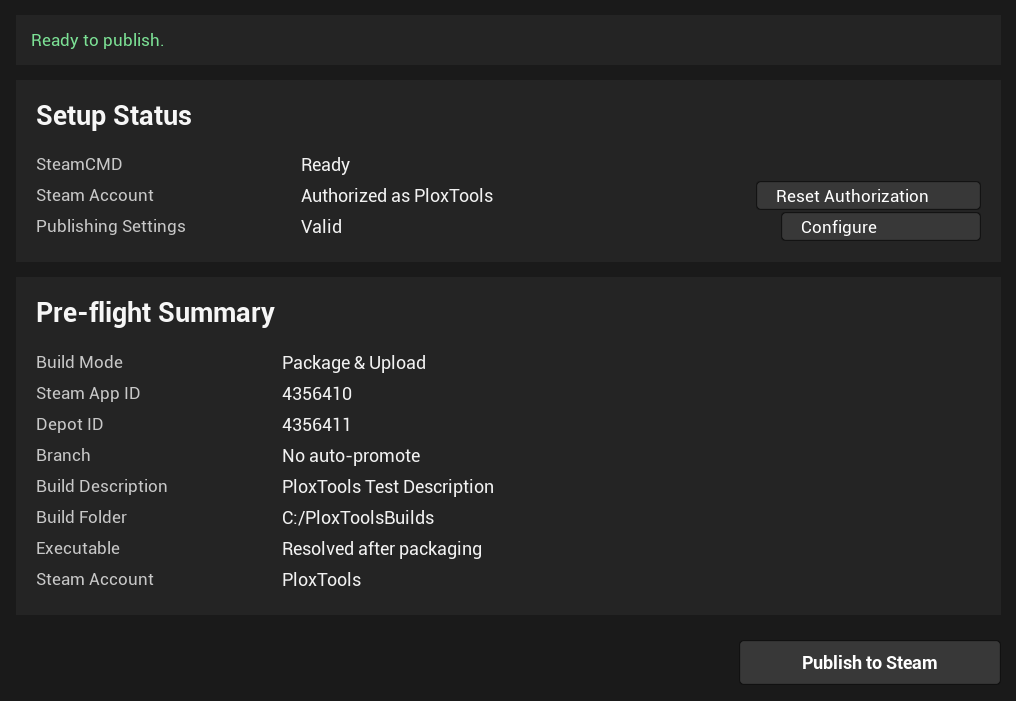
Review the Pre-flight Summary before publishing.
Make sure the required values are correct:
- Build Mode
- Steam App ID
- Depot ID
- Build Folder
- Steam Account
The summary may also show optional or automatically resolved values:
- Branch — shown as No auto-promote if no target branch is set.
- Build Description — optional text used for the uploaded Steam build.
- Executable — resolved automatically from the selected or packaged build folder.
Warning
Disable Live Coding before starting the publishing workflow.
Live Coding can interfere with Unreal Engine packaging and may cause the publishing operation to fail. If Live Coding is enabled, disable it before clicking Publish to Steam.
Start Publishing
After the setup status is ready and the pre-flight summary is correct, click Publish to Steam.
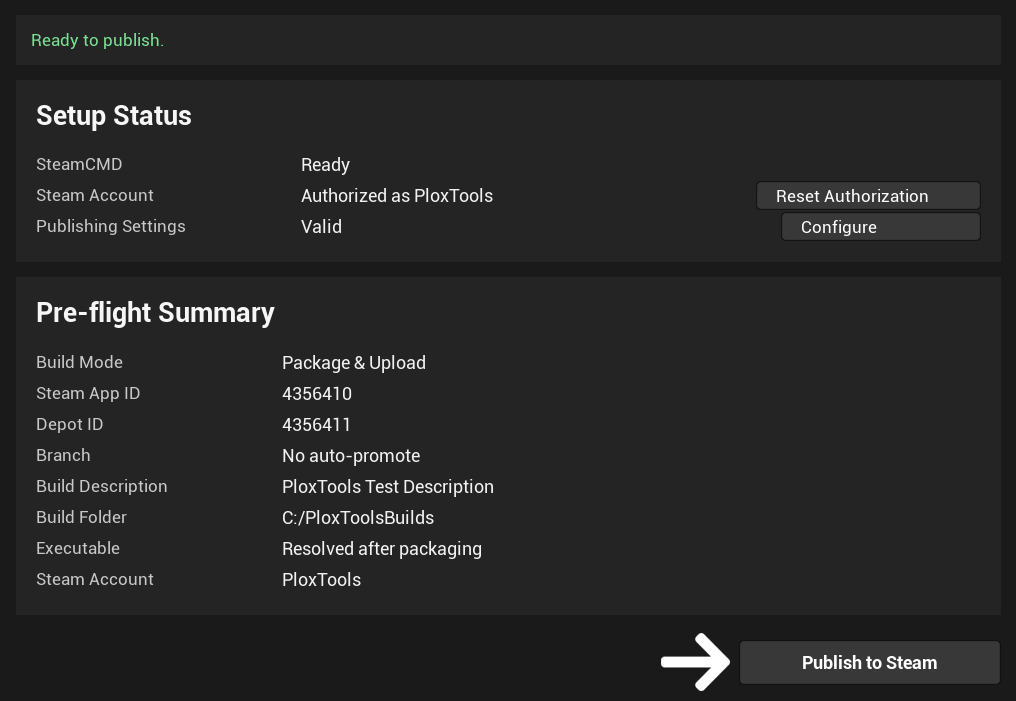
The tool uses the selected Build Mode from the publishing settings:
- Package Project and Upload packages the current Unreal project first, then uploads the packaged build.
- Upload Existing Build Folder uploads the selected packaged build folder without running Unreal packaging.
For a detailed explanation of build modes and paths, see Settings.
During Publishing
While publishing is running, the tool shows the operation progress screen.
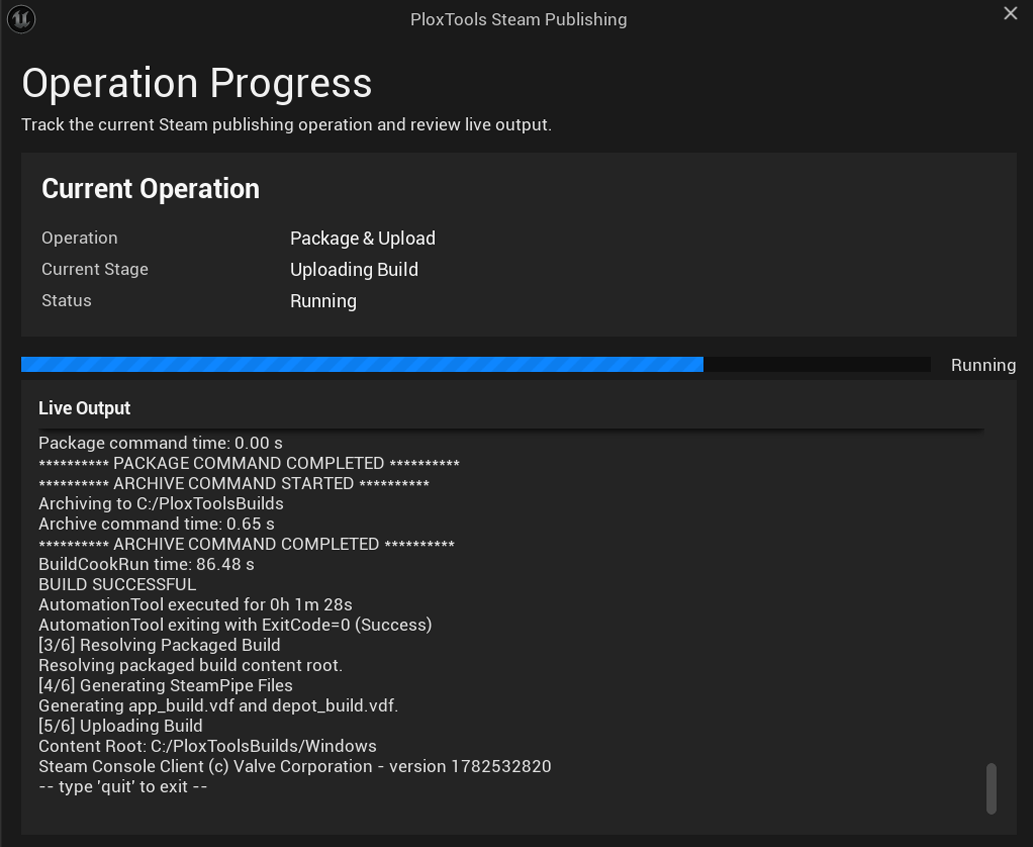
This screen shows:
- the current operation;
- the current stage;
- the operation status;
- the progress bar;
- live output from Unreal packaging or SteamCMD.
The operation can take some time depending on the project size, disk speed, network speed, and whether Unreal needs to package the project first.
Note
If SteamCMD requires authorization again during publishing, the tool may pause and ask for the Steam password or Steam Guard code. This can happen when the saved SteamCMD authorization token expires or becomes invalid.
Result Summary
After the upload finishes, the tool shows a result summary.
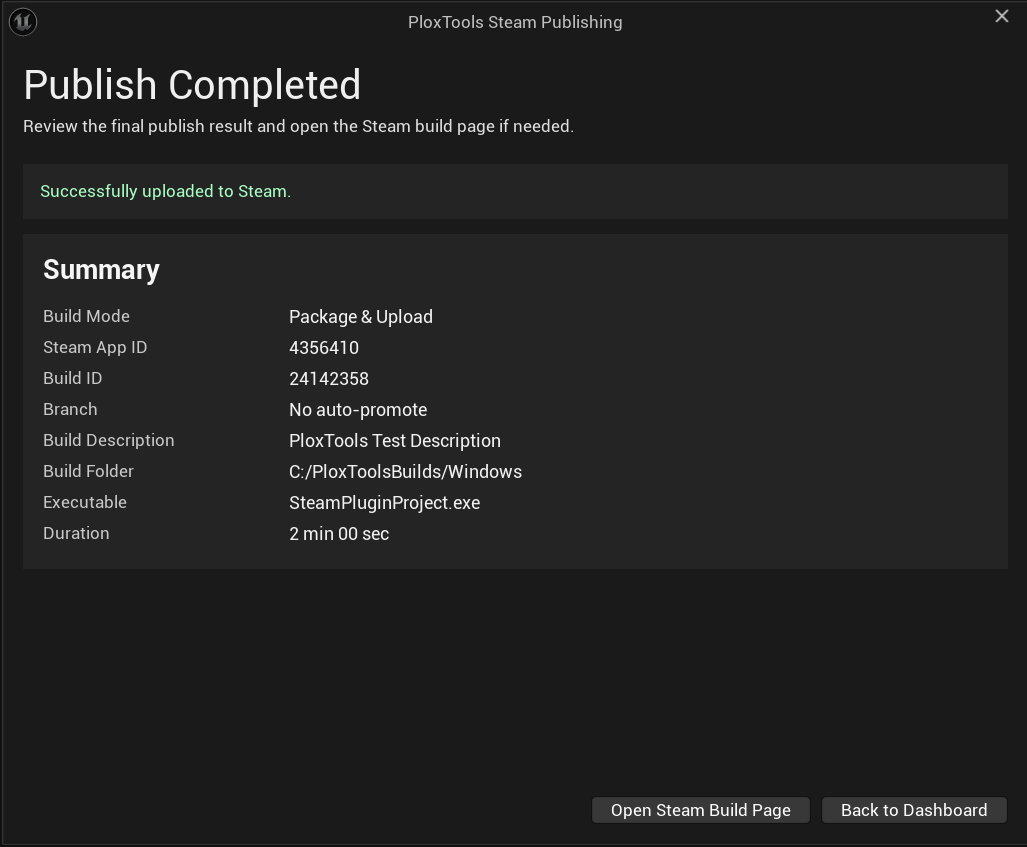
The result summary includes:
- Steam App ID
- Build ID
- Branch
- Build Description
- Build Folder
- Executable
- Duration
A successful result means that SteamCMD accepted the upload and Steamworks created a new build entry.
Important
A successful upload does not mean that the game has been publicly released. Steamworks release configuration, review, packages, branches, and store visibility are still handled through Steamworks.
If available, click Open Steam Build Page to review the uploaded build in Steamworks.
After Uploading
After the build is uploaded, open Steamworks and review the new build.
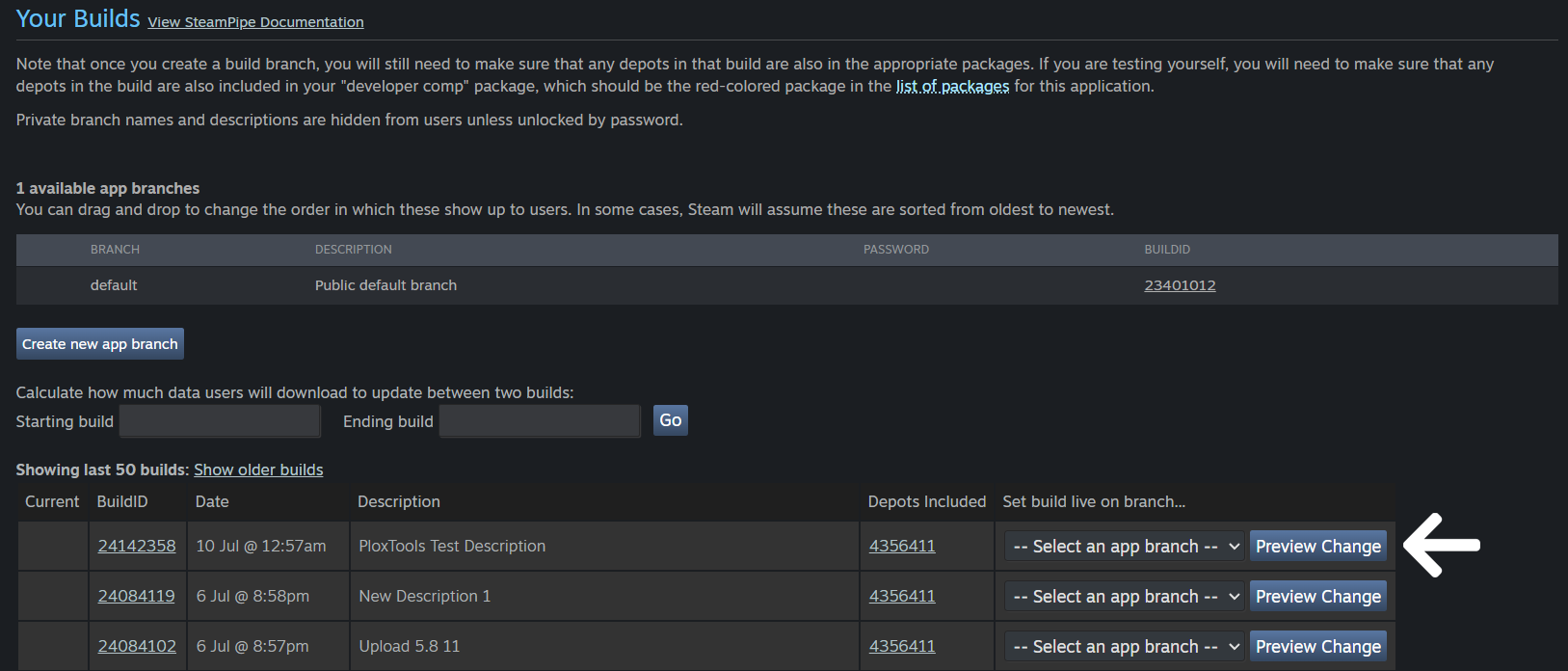
If Target Branch was empty, the build is uploaded without automatic branch promotion. You can assign it to a branch manually in Steamworks.
If Target Branch was set, SteamCMD attempts to set the uploaded build live on that branch after upload.
After that, test the build through the Steam client and continue with the normal Steamworks release process.