Testing
The recommended way to test Google Play Billing is to upload an Android App Bundle to a Google Play testing track and install the application through the official testing link.
This verifies the application package, signing, Google Play distribution, product configuration, and Billing integration in an environment close to production.
Before testing, make sure:
- The Android Package Name matches the application in Google Play Console.
- The required one-time products or subscriptions have been created and activated.
- The test Google account has been added under License testing.
- The application has been uploaded to a Google Play testing track.
- The application is installed through the official Google Play testing link.
A locally installed APK can also be used with a license tester account for additional development testing. This method is described at the end of this page.
Configure Products
Before a product can be queried or purchased, it must be created in Google Play Console.
For one-time products, open:
Monetize with Play → Products → One-time products
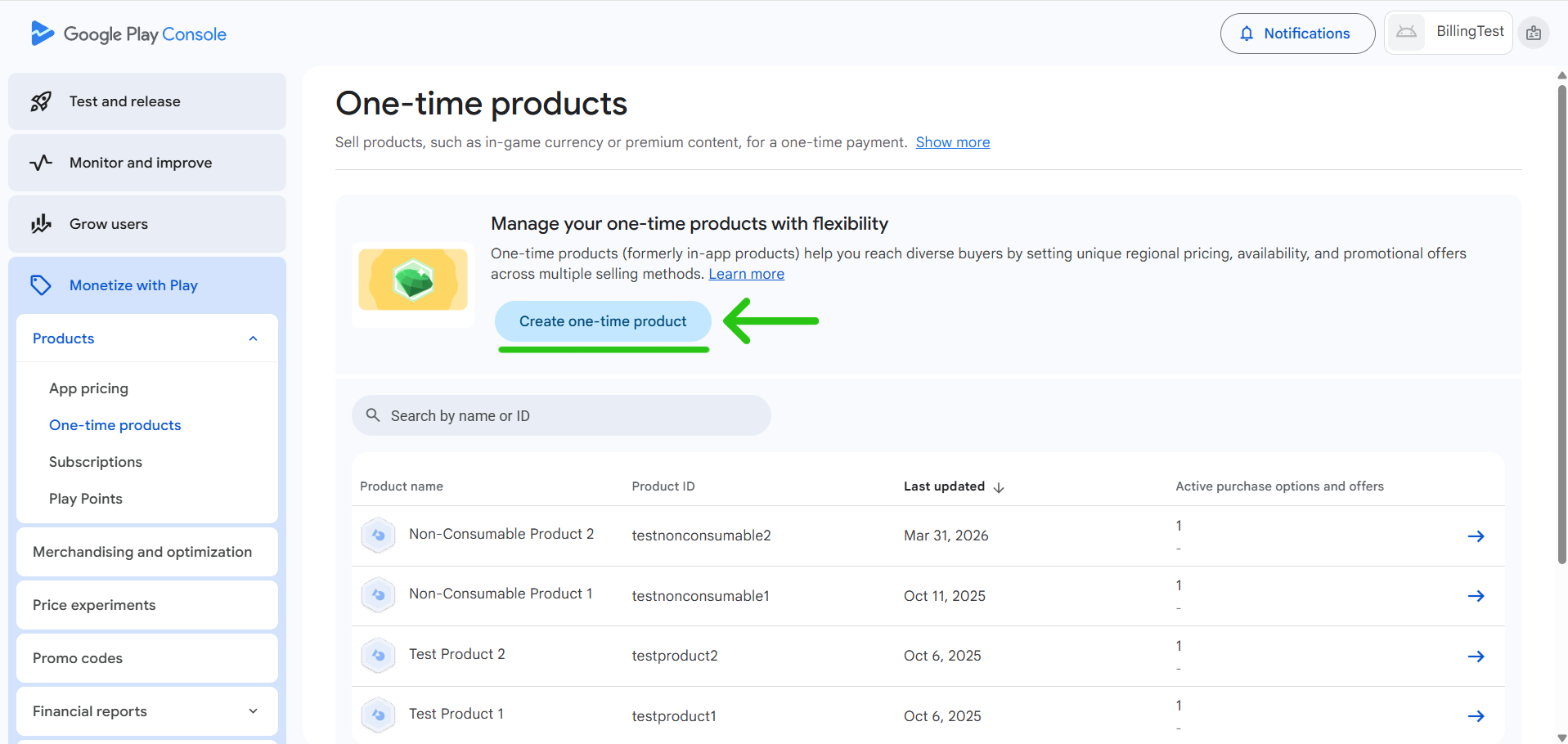
Create the product, configure its Product ID, price, and availability, then activate the required purchase option.
For subscriptions, open:
Monetize with Play → Products → Subscriptions
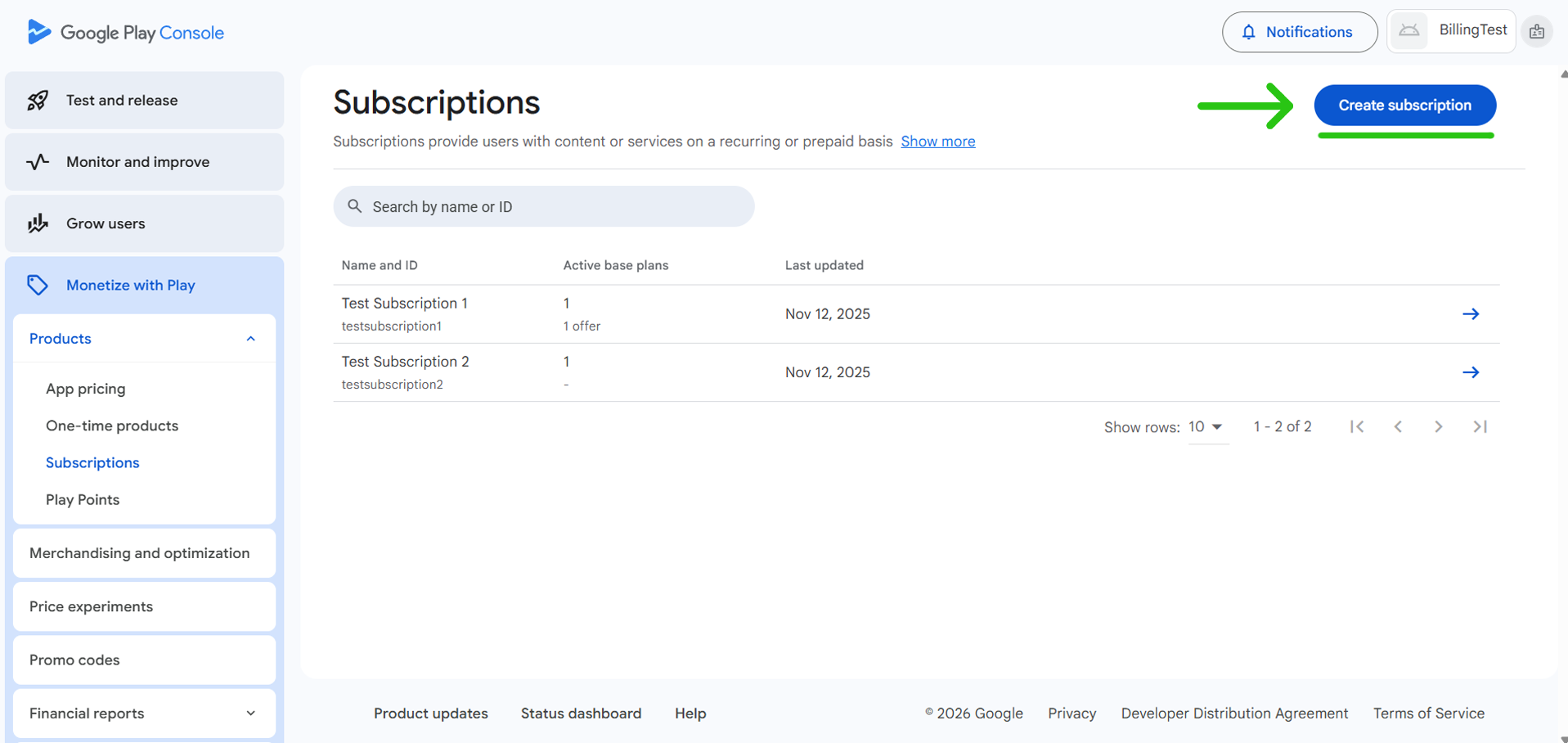
Create the subscription and configure at least one active base plan.
The Product ID used in Google Play Console must match the Product ID passed to the plugin.
Note
Consumable and non-consumable products are both created as one-time products in Google Play Console.
The difference is determined by how the purchase is processed in the application.
Add License Testers
License testing allows you to safely test purchases without charging real money.
To configure it:
- Open Google Play Console.
- Open the settings for your developer account, not the settings of a specific application.
- Go to License testing.
- Under License testers, select an existing email list.
If no suitable list exists:
- Click Create email list.
- Enter a name for the list.
- Add the Google accounts that will be used for testing.
- Save the list.
- Return to License testing and select the newly created list.
Set License response to LICENSED, then save the changes.
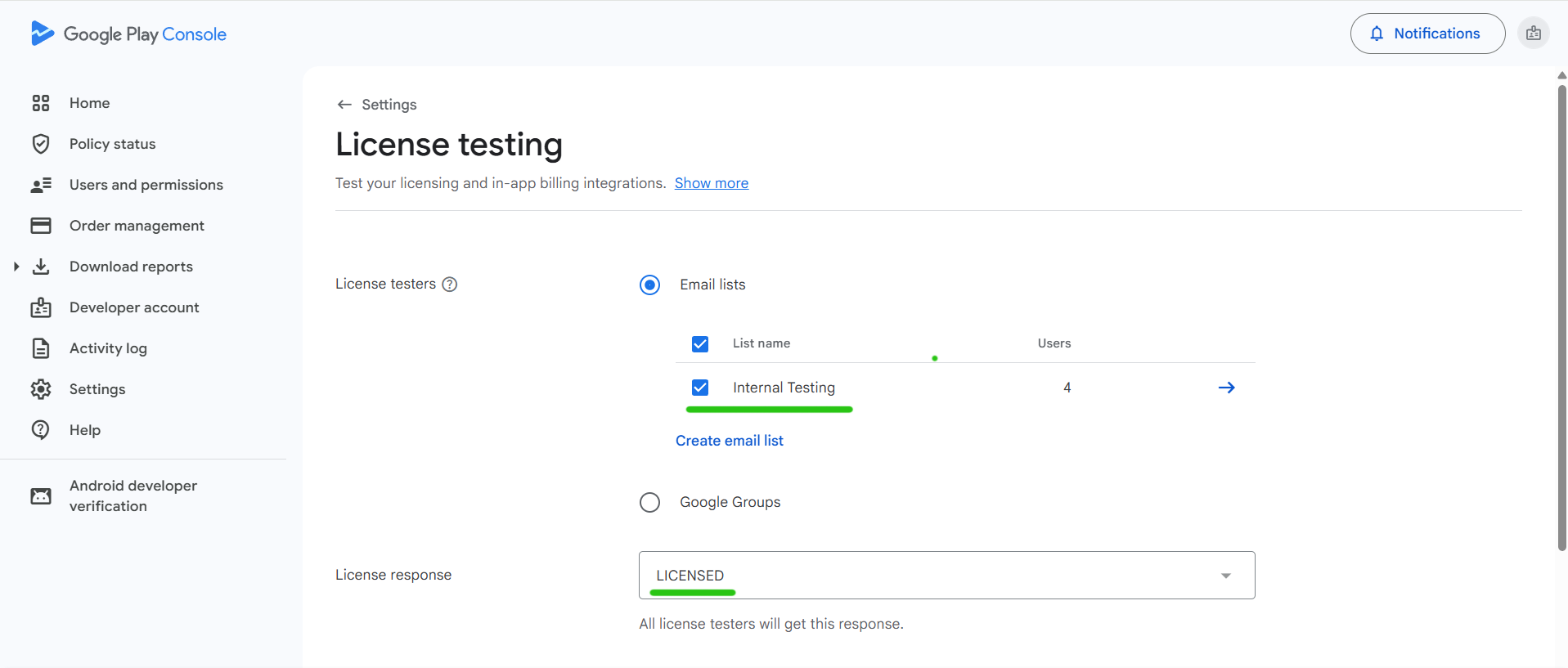
The same Google account must be signed in to Google Play on the Android device used for testing.
License testers have access to special test payment methods. Test purchases use the normal Google Play purchase flow, but no real money is charged.
Note
Adding an account to an Internal testing track does not automatically make it a license tester.
Add the account both to the testing track and to the License testing configuration.
Upload a Test Build
Package the Unreal Engine project as an Android App Bundle:
.aab
Upload the App Bundle to a Google Play testing track, such as Internal testing.
Before uploading, make sure:
- The Package Name matches the application in Google Play Console.
- The application is signed correctly.
- The Version Code is higher than the previously uploaded version.
Add the required Google account to the tester list and publish the test release.
Install Through Google Play
Open the official testing link on the Android device using the tester account.
Join the testing program and install the application through Google Play.
Important
Install the uploaded test build through the official Google Play testing link.
If another version of the application was installed manually, uninstall it before installing the test version from Google Play.
Test Purchases
Launch the application and initialize Google Play Billing.
After initialization succeeds:
- Optionally query the required product and confirm that its information is returned.
- Launch the Google Play Billing Flow.
- Complete or cancel the test purchase.
- Verify the returned callback.
The Google Play purchase interface should identify the transaction as a test purchase.
Warning
If the purchase interface does not indicate that the transaction is a test, close it and verify the Google account configured under License testing.
Test purchases do not charge the license tester through a real payment method.
Additional Testing with a Local APK
A locally installed APK can be used for additional development testing when the purchasing Google account is configured as a license tester.
The APK Package Name must exactly match the application registered in Google Play Console. The required products and subscriptions must also be created and activated.
To test with a local APK:
- Add the Google account under License testing.
- Sign in to Google Play on the Android device with the same account.
- Package the Unreal Engine project as an APK.
- Install the APK on the device.
- Initialize Google Play Billing and test the required products.
Note
A local APK does not need to be uploaded to a Google Play testing track when the purchasing account is configured as a license tester.
This method is useful for faster development testing, but it does not validate the final App Bundle, signing, Google Play distribution, or installation through the testing track.
Next Step
For information about retrieving product prices, purchase options, subscription base plans, and Offer Tokens, see Product Details.