Cloud Messaging Examples
Firebase Cloud Messaging is most commonly used to subscribe users to topics and deliver push notifications sent from the Firebase Console. For basic notification workflows, manual token handling or advanced message processing is usually not required.
Notification delivery depends on the current application state and platform behavior. When the game is running, incoming messages can also be received through Listen Cloud Messaging and handled in-game.
All examples below are shown using Blueprint nodes. Firebase is assumed to be already initialized.
Requesting Notification Permission
Use Request Cloud Messaging Notification Permission before relying on push notifications.
Platform behavior:
- iOS: Displays the system notification permission prompt. If permission is granted, the plugin automatically registers the application for remote notifications.
- Android 13+ (API level 33+): Requests the
android.permission.POST_NOTIFICATIONSruntime permission. - Android 12 and lower: No runtime notification permission is required.
The plugin already declares the required Android permission, so you do not need to use Unreal Engine's separate Android permission nodes for Cloud Messaging.
It is generally best to request notification permission at a point where the user can understand why notifications are being enabled, rather than repeatedly requesting it during gameplay.
iOS Push Notification Setup
Firebase Cloud Messaging on iOS uses Apple Push Notification service (APNs). The normal Firebase iOS setup with GoogleService-Info.plist is required, but push notifications also need Apple-side configuration.
Before using Cloud Messaging on iOS:
- Make sure the iOS Bundle ID registered in Firebase matches the Bundle ID used by your Unreal Engine project.
- In your Apple Developer account, enable Push Notifications for the application's App ID.
- Make sure the packaged application is signed with the Push Notifications capability and contains the
aps-environmententitlement. - Create an APNs Authentication Key (
.p8) in the Apple Developer portal, or use another APNs credential supported by Firebase. - In the Firebase Console, open Project Settings → Cloud Messaging and configure the APNs credentials for your iOS application. When using an APNs Authentication Key, provide the key together with its Key ID and your Apple Team ID.
- After Firebase has been initialized in the game, call Request Cloud Messaging Notification Permission.
The plugin handles APNs registration and passes the APNs device token to Firebase Messaging automatically. You do not need to add native iOS notification code manually.
Apple Push Notifications require the appropriate Apple Developer capabilities and provisioning. This setup cannot be completed using only Firebase configuration.
Subscribing to a Topic
The most common Cloud Messaging use case is subscribing a user to one or more topics. Once subscribed, the user can receive notifications sent to that topic from the Firebase Console or backend services.
Topic subscriptions are usually performed:
- on first application launch
- after user login or profile creation
- after the user agrees to receive notifications
Example: Subscribing to a Global Topic
In this example, the user is subscribed to multiple Cloud Messaging topics based on their account state.
First, the user is always subscribed to a general global topic. This topic is typically used for announcements, maintenance notices, or other notifications intended for all users.
Then, an additional conditional subscription is performed. If the user has a premium account (IsPremium is true), they are also subscribed to a premium topic. This allows you to send targeted notifications only to premium users, such as exclusive offers, bonuses, or feature announcements.
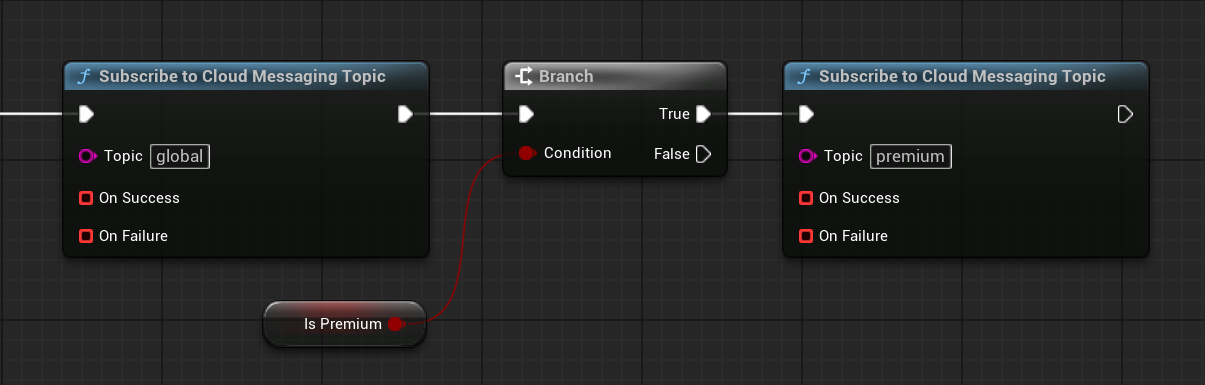
This pattern enables flexible and scalable notification targeting:
globaltopics for messages sent to all users- additional topics for specific user segments (for example, premium users)
If a subscription succeeds, the user will start receiving notifications sent to that topic. If a subscription fails, the failure callback can be used to log the error or retry the operation.
Using topic-based subscriptions like this avoids the need for manual token management and keeps notification logic simple and maintainable.
Receiving Messages in the Game
Use Listen Cloud Messaging when your game needs to react to incoming notification or data messages while it is running.
The callback provides:
- notification title
- notification body
- message data as JSON
This is useful for custom in-game notifications, refreshing content, updating UI, or processing data messages received from your backend.
Additional Notes
- Cloud Messaging tokens are generated automatically by Firebase and are used internally for message delivery.
- Automatic Cloud Messaging initialization is enabled by default and does not require manual configuration in most projects.
- If you store FCM tokens on your backend, use Listen Cloud Messaging New Token to detect token changes and update the stored value.
- Message behavior can differ between foreground, background, and terminated application states, especially between Android and iOS.
Summary
For a basic Cloud Messaging setup:
- Configure Firebase for the target platform.
- On iOS, complete the required APNs and Push Notifications capability setup.
- Request notification permission using Request Cloud Messaging Notification Permission.
- Subscribe the user to the required topics or use the FCM token for direct messaging.
For most projects, this is sufficient to start receiving Firebase Cloud Messaging notifications on Android and iOS.