Camera View
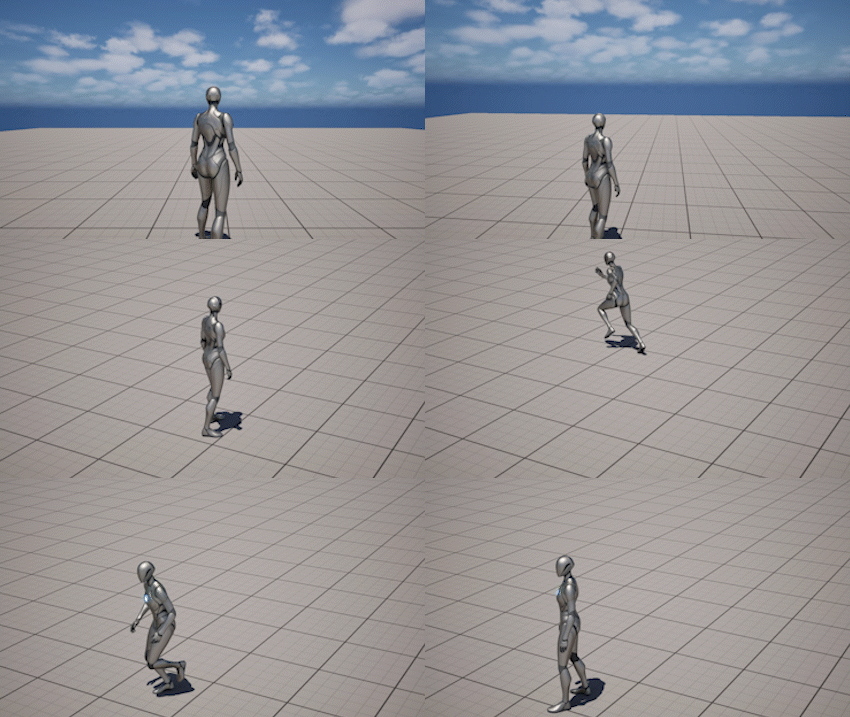
The Camera View system is responsible for switching the camera used as the player's view.
Unlike the Target Camera, which is used internally by the camera system, the View Camera defines which Camera Component is currently rendered on screen.
This allows you to switch the player's view to any camera independently of the Third Person Camera logic.
Overview
You can directly control the player's view using:
- Set View Camera
- Blend To View Camera
These functions allow you to switch to any Camera Component, whether it belongs to the player character or a different actor.
This is commonly used for:
- switching between multiple cameras on the same character
- transitioning to cinematic cameras
- implementing third-person ↔ first-person setups
- scripted gameplay sequences
Important
- The View Camera is not the same as the Target Camera
- Changing the View Camera does not affect how the camera system updates internally
- The Third Person Camera system continues updating its Target Camera in the background
- You are responsible for switching back if needed
Instant Switching
- Set View Camera
Instantly switches the player's view to the specified camera.
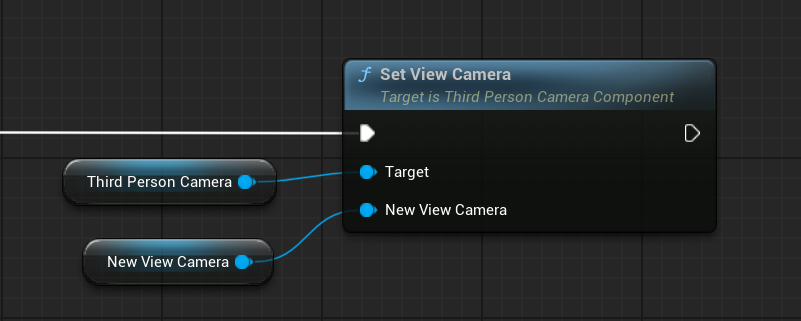
This is useful when:
- immediate camera changes are required
- switching between gameplay cameras
- reacting to player input
Smooth Transitions
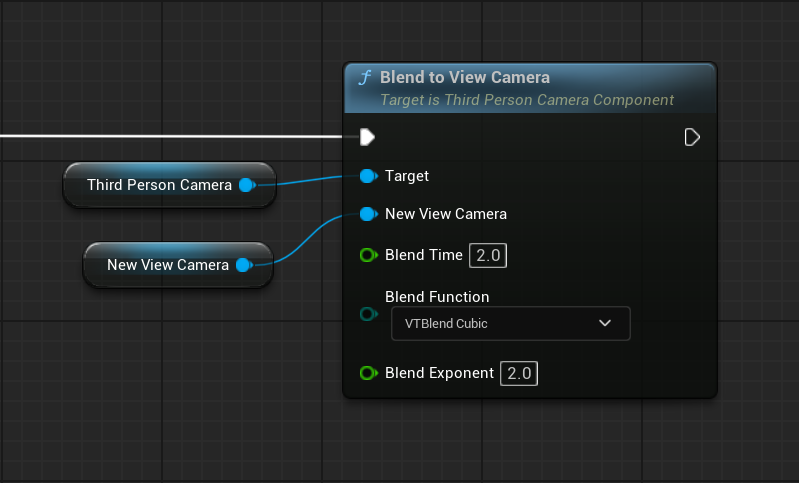
- Blend To View Camera
Smoothly blends the player's view to the specified camera.
Blend Parameters
Blend Time— controls how long the transition takes (in seconds)Blend Function— controls how the transition progresses over time (linear, ease in/out, etc.)Blend Exponent— controls how strong the easing effect is when using Ease functions
Local Camera Blending
When blending between cameras on the same actor, the system uses an internal transition camera.
This means:
- the transition is fully smooth
- no snapping occurs between camera components
- intermediate camera states are handled automatically
This allows you to:
- smoothly switch between multiple cameras on a character
- create perspective shifts (e.g. shoulder swap or first-person transition)
- implement advanced camera setups without additional logic
External Camera Blending
When blending to a camera on a different actor, the system uses Unreal Engine's built-in:
SetViewTargetWithBlend
This ensures compatibility with:
- cinematic cameras
- level cameras
- external camera actors
Querying View State
You can query the current view state using:
- Get Current View Camera
- Get View Target Camera
These functions allow you to:
- determine which camera is currently rendering the view
- check if a blend is in progress
- identify the target camera of an active blend
Runtime Control
The Camera View system is controlled through runtime functions.
For a complete list of functions and parameters, refer to the API Reference.
Main Functions
- Set View Camera - instantly switches the player's view to a specified camera
- Blend To View Camera - smoothly blends the player's view to a specified camera
- Get Current View Camera - returns the Camera Component currently used for the player's view
- Get View Target Camera - returns the Camera Component the view is currently blending toward
Notes
- View Camera functions only affect what the player sees
- They do not modify the Target Camera or camera system state
- Local blending is handled internally and does not require additional setup
- External blending relies on Unreal Engine's view target system