Dithering
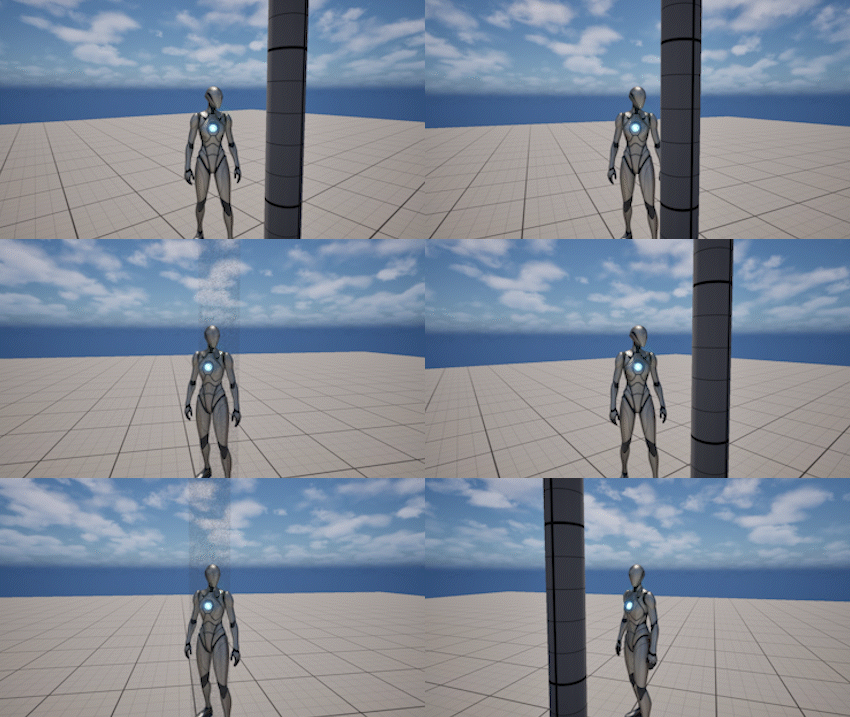
Object
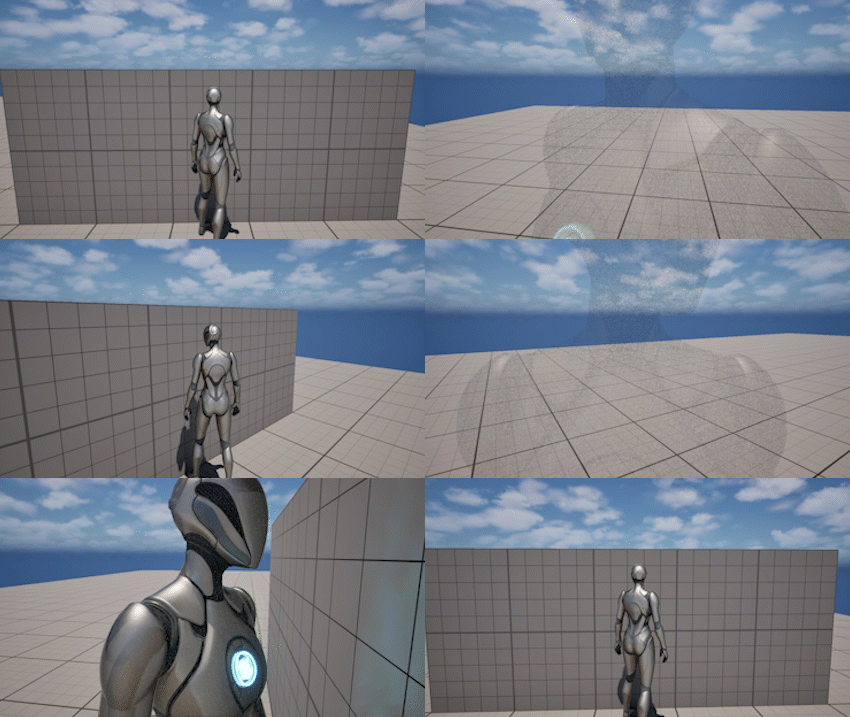
Player Character
The Dithering system allows objects between the camera and the character to fade out smoothly instead of fully blocking the view.
This improves visibility and prevents situations where the character is completely obscured by walls, foliage, or other geometry.
How It Works
The system detects objects between the camera pivot and the camera position.
When an object blocks the view:
- it is detected using collision traces
- a dithering effect is applied to its material
- the object smoothly fades to a lower opacity
When the object is no longer blocking the view, it fades back to its original state.
Setup
Dithering requires both material setup and correct collision configuration.
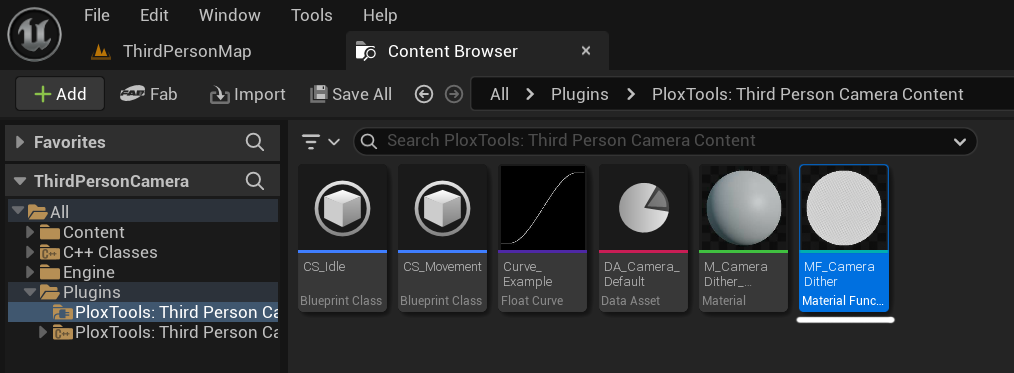
Step 1 - Locate the Material Function
The plugin provides a required material function:
- MF_CameraDithering
You can find it in the plugin content:
Step 2 - Prepare the Material
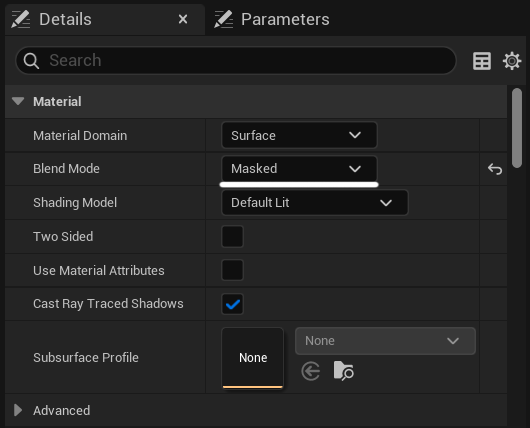
Open the material you want to support dithering.
Make sure the material uses:
- Blend Mode = Masked
Step 3 - Add the Dithering Function
Drag MF_CameraDithering into the material graph and connect it to:
- Opacity Mask
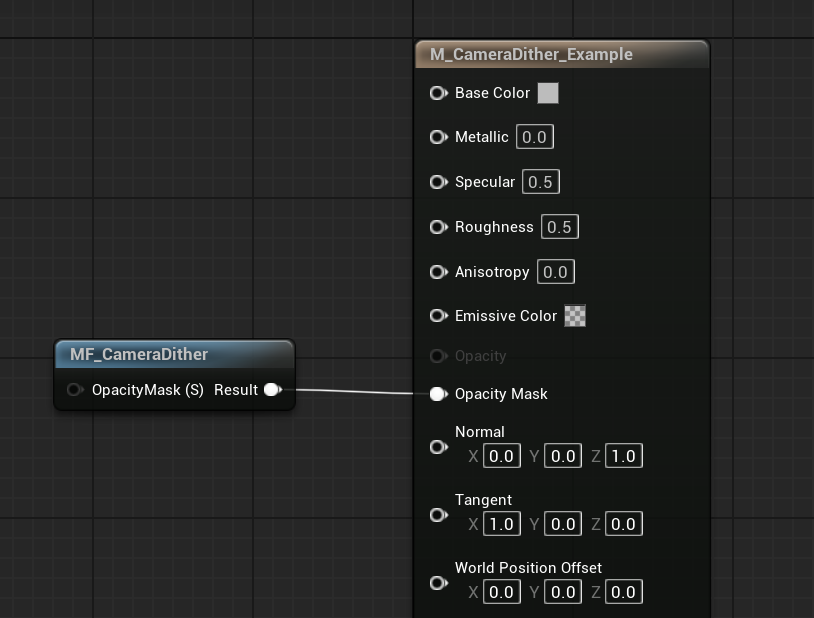
Step 4 - Optional Mask Texture
If your material uses a texture mask (for example foliage or patterned opacity):
- plug the texture into the OpacityMask (S) input of the function
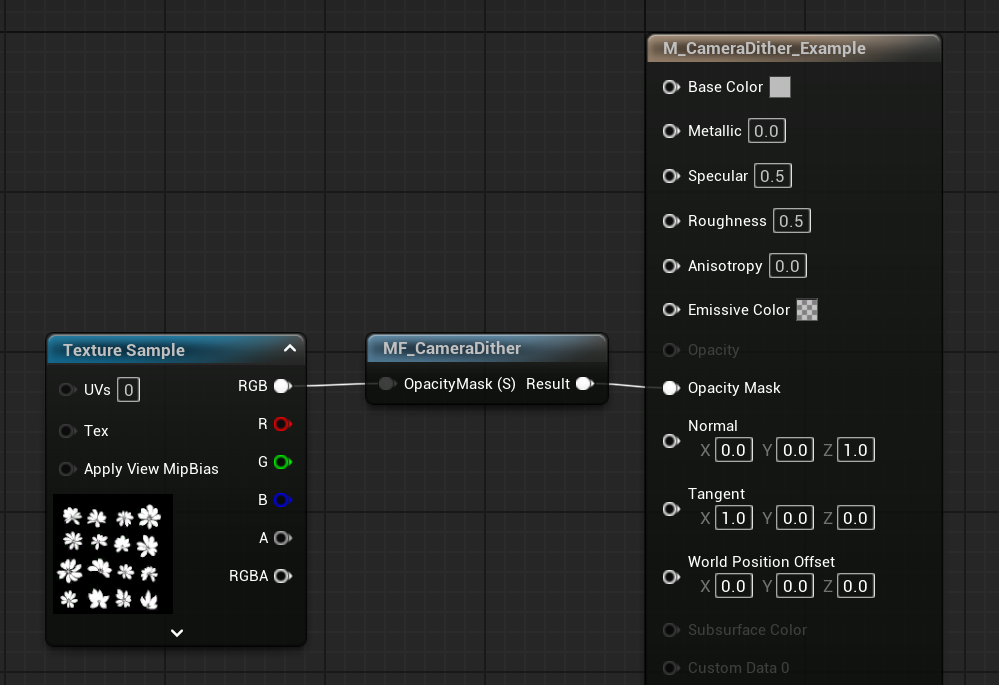
This allows dithering to work correctly with existing masked materials.
Step 5 - Configure Collision
For dithering to work, the object must have correct collision settings.
Open the mesh/component and configure:
- Collision Enabled = Query (or Query and Physics)
- Visibility = Block
- Camera = Ignore
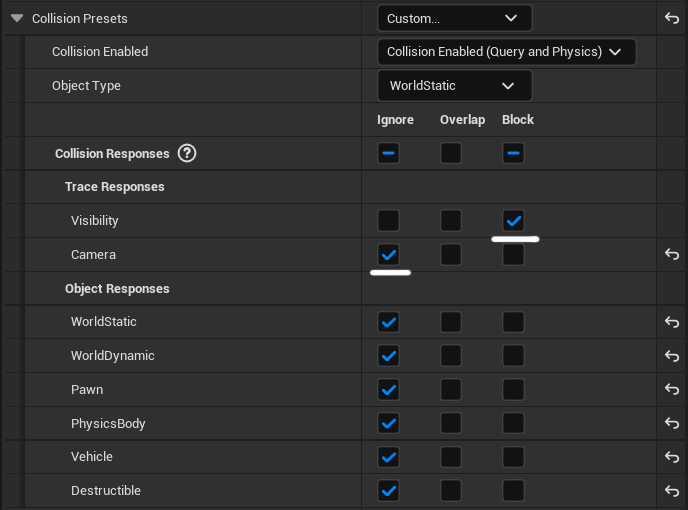
Step 6 - Configure Dither Tags
Objects must have a matching tag to be affected by the dithering system.
Add Tag to Actor
- Select the Actor in the level
- In the Details panel, find Actor → Tags
- Click + and add a tag (for example:
Dither)

Add Tag to Camera Settings
- Select the Third Person Camera Component
- Find the Dithering section
- Add the same tag to Dither Tags
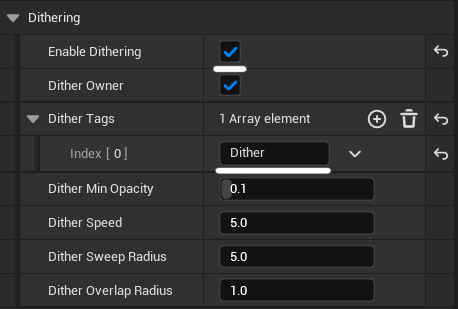
Only actors with matching tags will be affected by dithering.
Step 7 - Enable Dithering
Finally, make sure the system is enabled:
- Enable Dithering must be checked on the camera component
If this option is disabled, the dithering system will not run.
Settings
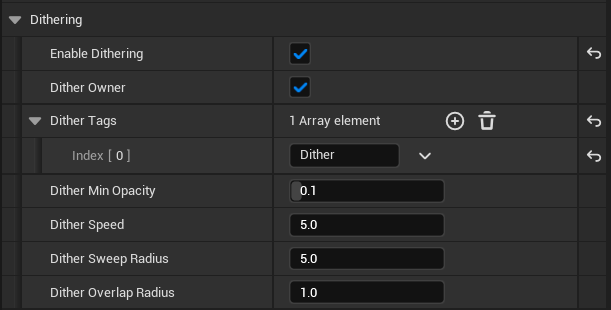
- Enable Dithering - enables the dithering system
- Dither Owner - allows the character to fade when the camera is very close or inside the character mesh
-
Dither Attached Actors - allows actors attached to the owner, such as weapons or equipment, to fade together with the character
-
Owner Dither Attached Actor Ignore Classes - excludes specific attached actor classes from owner dithering. This is useful for riders, passengers, AI characters, mounted characters, or other gameplay actors attached to the owner that should remain visible
-
Owner Dither Bounds Ignore Component Classes - ignores specific component classes when checking whether the camera is inside the owner or attached actor bounds. This is useful for helper components, widgets, particles, draw frustums, or custom gameplay components that should not trigger owner fading
-
Dither Tags - only actors with these tags will be affected
- Dither Min Opacity - minimum opacity applied during dithering
- Dither Speed - controls how quickly objects fade in and out
- Dither Sweep Radius - radius used to detect blocking objects
- Dither Overlap Radius - radius used for close-range detection around the camera
Attached Actor Filtering
When Dither Attached Actors is enabled, actors attached to the owner can fade together with the owner.
This is useful for objects that visually belong to the character or vehicle, such as:
- weapons
- armor pieces
- cosmetic attachments
- equipment
- vehicle parts
In some cases, an attached actor is a separate gameplay object and should not fade with the owner.
For example:
- a rider attached to a vehicle
- a passenger inside a vehicle
- an AI character attached to a mount
- a gameplay actor temporarily attached to the player
Use Owner Dither Attached Actor Ignore Classes to exclude these actors from owner dithering.
Excluded attached actors will not be used for owner dithering bounds checks and their components will not fade together with the owner.
Behavior
Dithering is applied automatically during camera updates.
- no manual calls are required
- only objects between the camera and the character are affected
- multiple objects can be faded at the same time
- multi-component actors fade as a single visual object
- owner dithering supports characters made from multiple mesh components
- attached actors, such as weapons or equipment, can fade together with the owner
- attached actor classes can be excluded from owner dithering when they should remain visible
- component classes can be ignored when checking owner or attached actor bounds
The system restores objects to their original appearance when they are no longer blocking the view.
Manual Reset
In most cases, dithering is restored automatically.
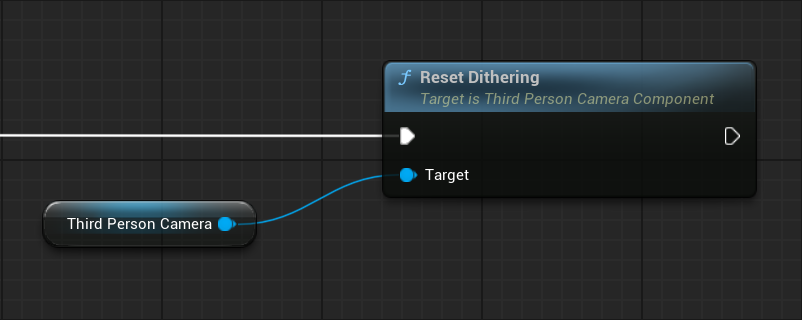
For custom gameplay flows, you can manually reset the current dithering state using:
- Reset Dithering
This immediately restores all currently dithered components back to full opacity and clears the internal dithering state.
This can be useful when using custom camera transitions, vehicle enter/exit logic, attach/detach flows, or direct view target changes outside the camera component.
Notes
- Dithering requires materials to include MF_CameraDithering
- Objects without the material setup will not be affected
- Actors with multiple mesh components fade as a single object when they use a matching Dither Tag
- If your object uses a separate invisible collision proxy, the Actor still needs a matching Dither Tag
- Owner dithering can also include attached actors when Dither Attached Actors is enabled
- Use Owner Dither Attached Actor Ignore Classes for attached gameplay actors that should not fade with the owner
- Use Owner Dither Bounds Ignore Component Classes for helper or non-visual components that should not trigger owner fading
- The system is fully automatic and runs at runtime
- Useful for improving visibility in dense environments such as foliage or tight spaces