C++ Usage
To use the plugin directly from C++ code, add its module to your project's *.Build.cs file.
Add the Module Dependency
Open your project's *.Build.cs file and add "PloxToolsInAppReview" to the public dependency modules list:
PublicDependencyModuleNames.AddRange(new string[]
{
    "Core",
    "CoreUObject",
    "Engine",
    "InputCore",
    "EnhancedInput",
    "PloxToolsInAppReview"
});
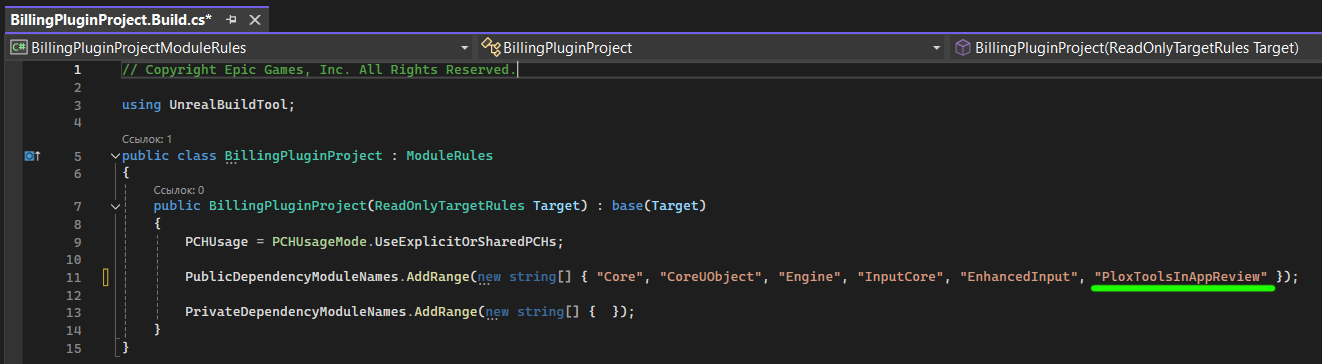
After adding the module, include the plugin header in the C++ class where you want to use the review functionality:
#include "InAppReviewCPPLibrary.h"
The plugin's C++ API is now available in your project. You can open InAppReviewCPPLibrary.h from your IDE to view all exposed functions and delegate types.
Launch In-App Review
The review flow can be launched directly from C++ using success and failure delegates.
#include "InAppReviewCPPLibrary.h"

void UMyGameInstance::LaunchInAppReview()
{
    FOnInAppReviewSuccessfulNative OnSuccess;
    OnSuccess.BindLambda([]()
    {
        UE_LOG(LogTemp, Log, TEXT("In-App Review request completed successfully."));
    });

    FOnInAppReviewFailedNative OnFailure;
    OnFailure.BindLambda([](EInAppReviewResponseCode Code, const FString& Message)
    {
        UE_LOG(
            LogTemp,
            Error,
            TEXT("In-App Review request failed: %s (Code: %d)"),
            *Message,
            static_cast<int32>(Code)
        );
    });

    UInAppReviewCPPLibrary::LaunchInAppReview(OnSuccess, OnFailure);
}
A successful callback confirms that the request was processed by the native platform API. It does not confirm that the review prompt was displayed or that the user submitted a review.
The failure callback returns an EInAppReviewResponseCode together with a diagnostic message.