Camera Animations
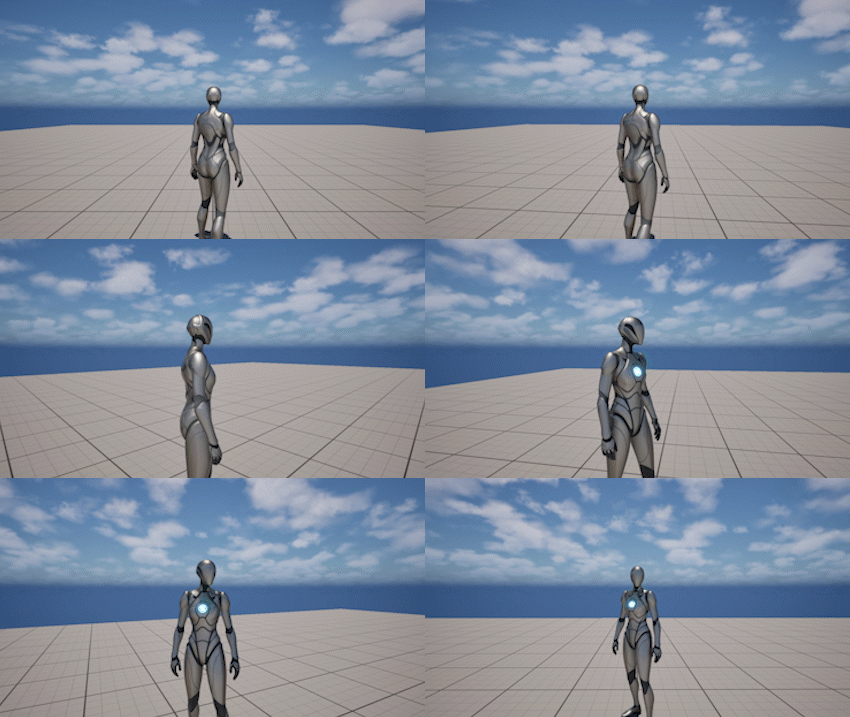
The Camera Animations system allows you to play procedural camera motion on top of the gameplay camera.
It is used to add controlled movement such as:
- impacts and impulses
- cinematic camera motion
- subtle handheld effects
Camera Animations do not replace the gameplay camera. Instead, they are applied as an additional layer, allowing multiple animations to blend together.
Creating a Camera Animation
Camera Animations are created as assets in the Content Browser.
To create a new Camera Animation:
- Right-click in the Content Browser
- Navigate to Cinematics → Camera Animation Sequence
- Select Camera Animation Sequence
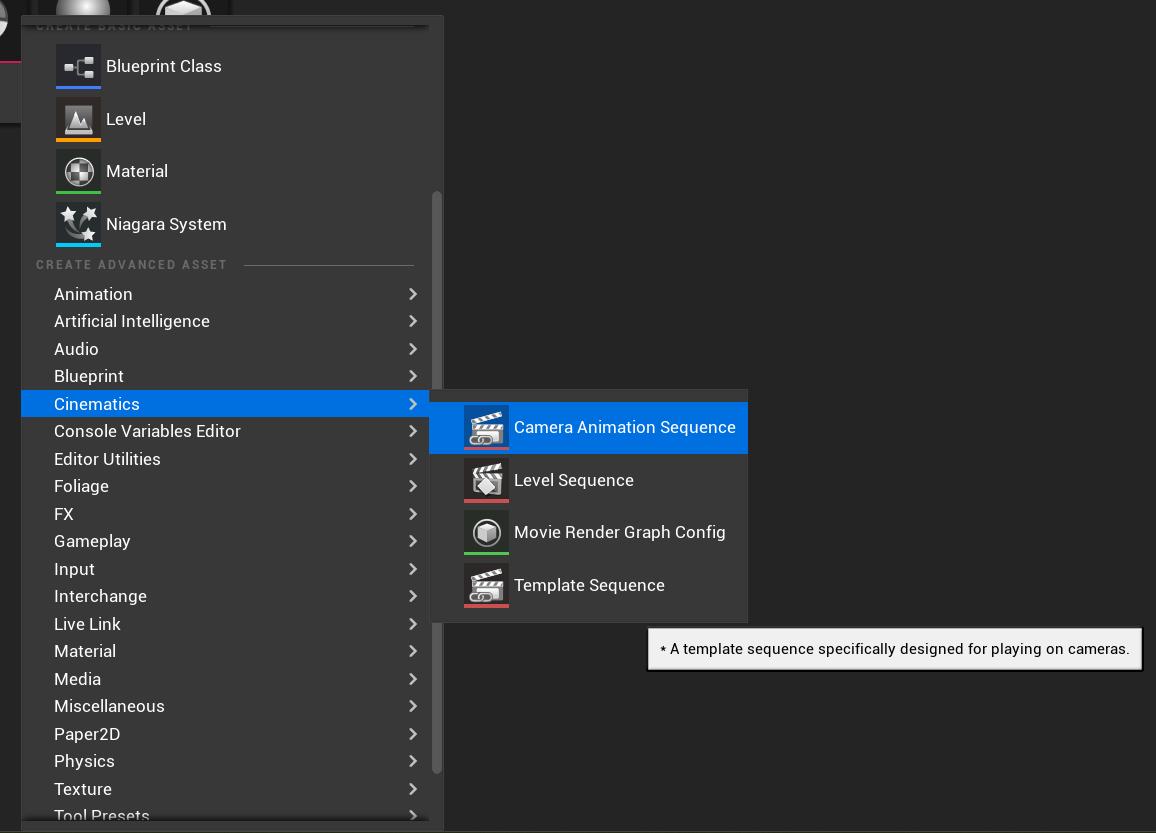
Once created, double-click the asset to open the animation editor.
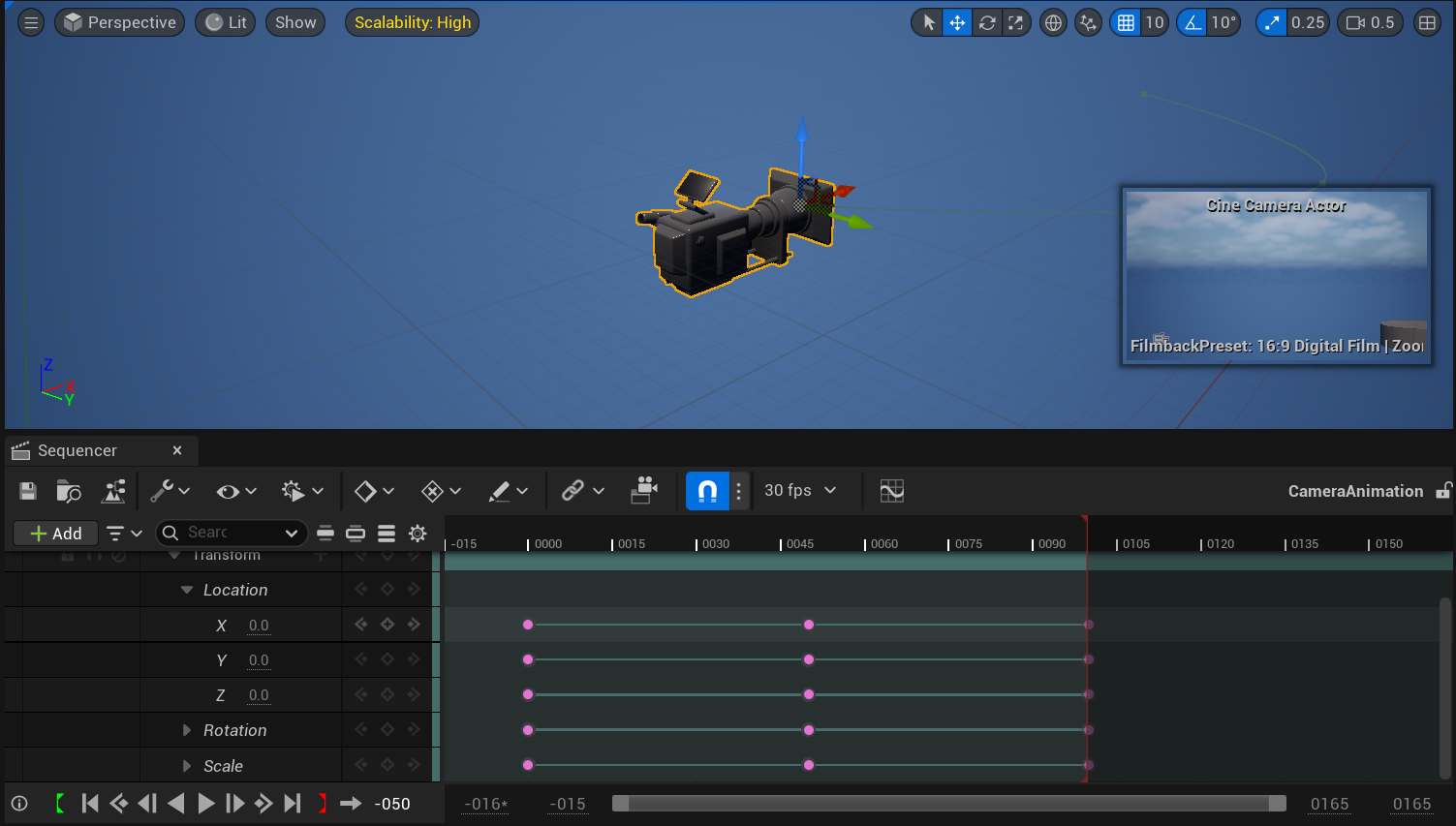
This opens a Sequencer-based editor where you can animate the camera using standard transform tracks.
Important Notes
- Camera Animations define relative motion, not absolute world position
- They are applied on top of the current gameplay camera
This means that:
- (0, 0, 0) produces no movement
- any values offset the camera relative to its current position
In most cases, you should animate small offsets rather than large positional changes.
For example:
- slight X/Y/Z movement for camera sway
- small rotation changes for impacts or motion
Large offsets can be used, but they effectively reposition the camera and may conflict with your framing setup.
Using Level Sequences
You can also create camera motion inside a Level Sequence and reuse it:
- Animate a camera in a Level Sequence
- Copy the Transform track
- Paste it into a Camera Animation Sequence
This is useful when working with complex or pre-existing animations.
Camera Animation Sequences do not support full scene context, so character animation syncing must be done in Level Sequences.
Using Camera Animations
Camera Animations are played at runtime using ThirdPersonCameraComponent.
To play an animation:
- Play Camera Animation
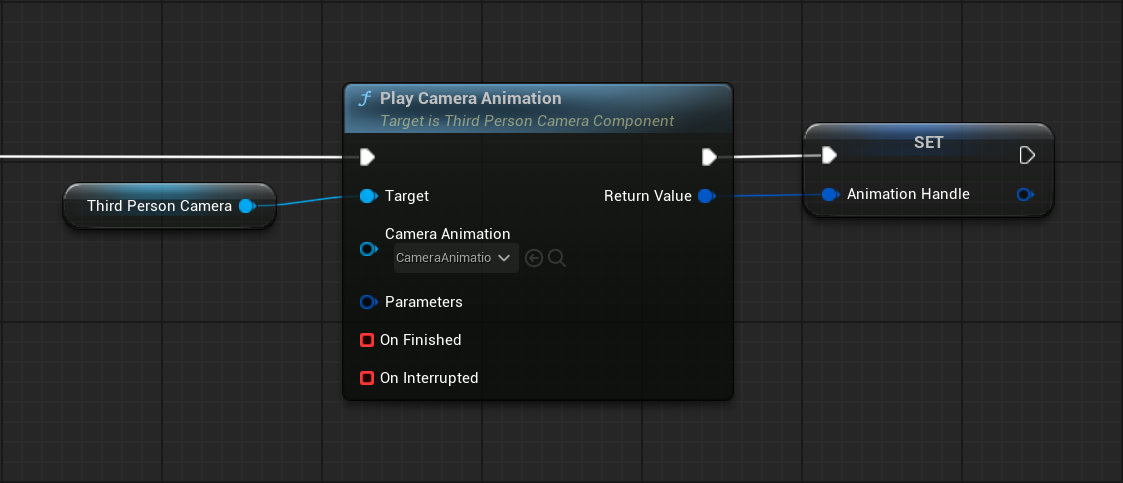
This function:
- plays the animation through the Player Camera Manager
- returns a handle that can be used to control it
- supports optional callbacks
Parameters
Camera Animations support an optional parameter struct that controls how the animation is played.
This struct is part of Unreal Engine’s built-in camera animation system and is passed into:
- Play Camera Animation
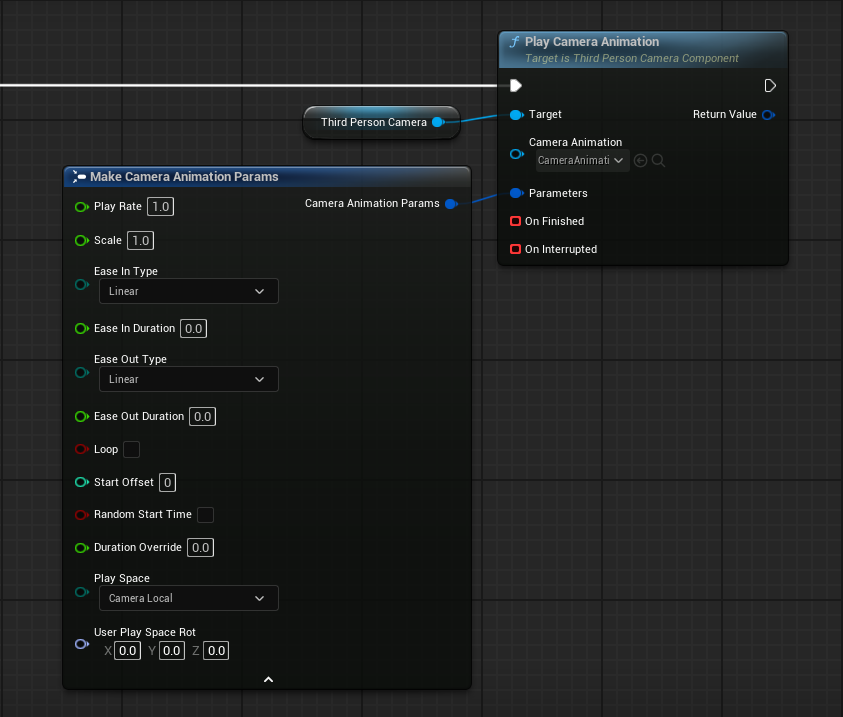
If no parameters are provided, default values are used.
Commonly used parameters include:
- Play Rate - controls animation speed
- Scale - controls animation intensity
- Ease In / Ease Out - controls how smoothly the animation starts and ends
- Loop - repeats the animation
- Start Offset - starts playback from a specific point
In most cases, only a few parameters need to be adjusted depending on the effect.
For a complete reference, see the API Reference.
Callbacks
Camera Animations support optional callbacks:
- On Finished - called when the animation completes
- On Interrupted - called when the animation is stopped early
These callbacks allow you to react to animation lifecycle events without polling.
Behavior
Camera Animations are additive.
This means:
- they are applied on top of the current camera state
- they do not override framing, rotation, or focus
- they can run simultaneously
Multiple animations can be active at the same time.
Each animation contributes to the final camera transform, allowing complex layered motion.
The final result is blended automatically by the engine.
Stopping Animations
You can stop animations at any time:
- Stop Camera Animation - stops a specific animation using its handle
- Stop All Camera Animations - stops all active animations
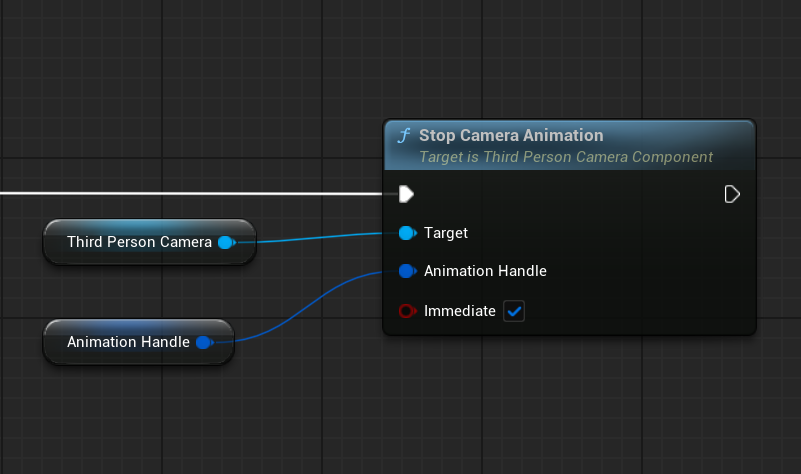
Stopping can be:
- immediate
- or smoothly blended out
Runtime Control
The Camera Animations system is controlled through runtime functions.
For a complete list of functions and parameters, refer to the API Reference.
Main Functions
- Play Camera Animation - plays a camera animation and returns a handle used to control it
- Stop Camera Animation - stops a specific camera animation using its handle
- Stop All Camera Animations - stops all active camera animations
- Is Camera Animation Playing - returns whether a specific camera animation is currently active
Notes
- Camera Animations are additive and do not override the gameplay camera
- Multiple animations can play simultaneously
- Animations are controlled using a returned handle
- Callbacks are optional and tied to individual animation instances
- Use Camera Animations for controlled motion, and Camera Shake for procedural noise