Collision
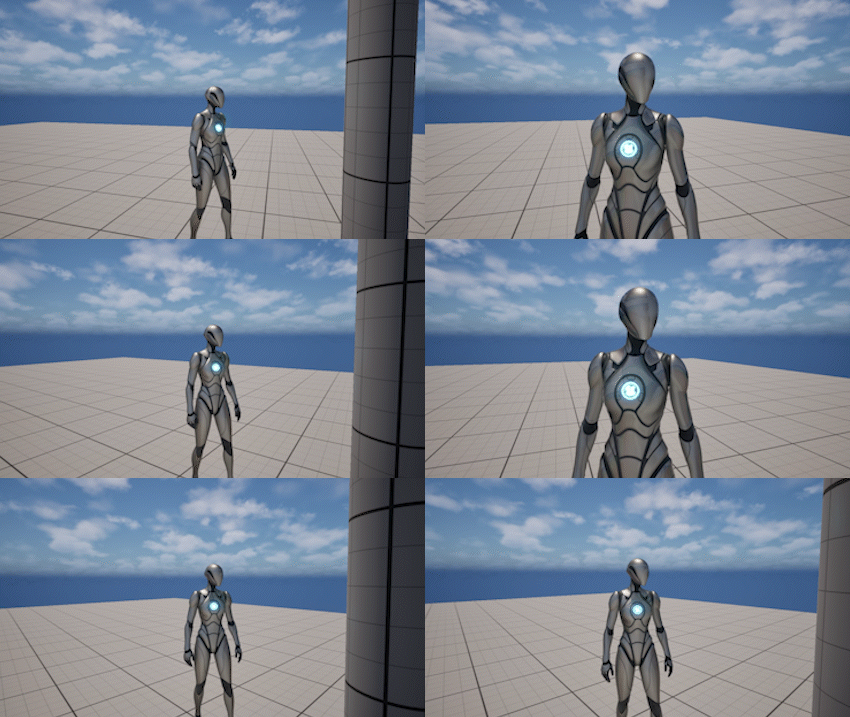
Default Collision
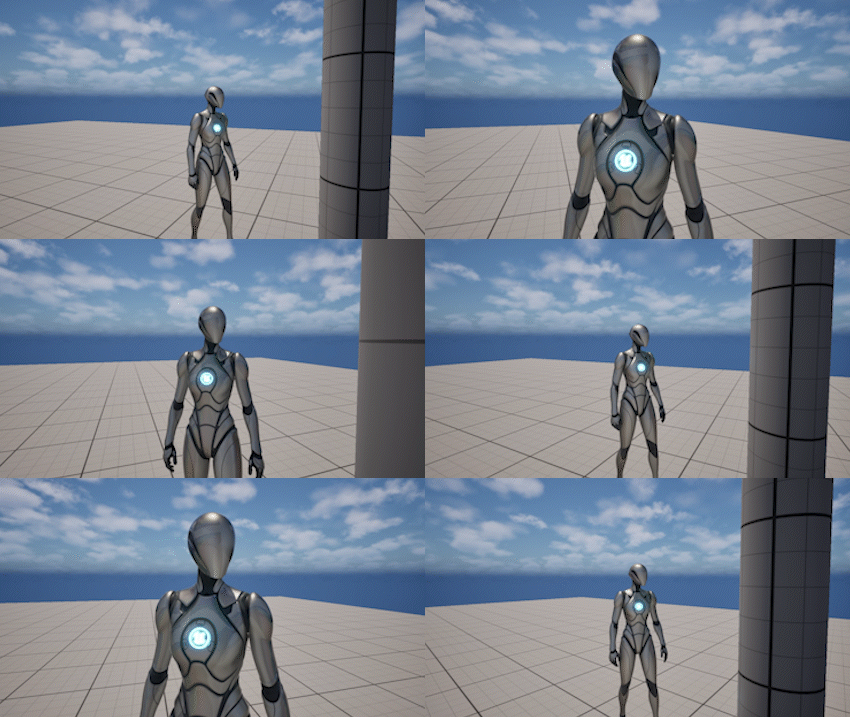
Smooth Collision
The Collision system prevents the camera from clipping through world geometry and ensures a stable and readable view during gameplay.
It dynamically adjusts the camera distance when obstacles are detected between the camera and the pivot.
The system is designed to remain smooth and predictable, even during fast movement and in tight environments.
How It Works
The system traces from the pivot toward the desired camera position.
If an obstacle is detected:
- the camera moves closer to the pivot
- a safe distance is calculated
- the transition is smoothed over time
Additional predictive probes can detect obstacles before they intersect the main camera path.
Collision Tuning
By default, collision settings are tuned for smooth and visually stable camera movement.
This prioritizes softness and responsiveness, but during fast camera movement it may allow slight clipping through geometry.
If more strict and reliable collision behavior is required, you can increase the following parameters:
- Collision Compression Speed
- Collision Distance Smoothing Speed
Example values for stronger collision:
- Collision Compression Speed ≈ 35
- Collision Distance Smoothing Speed ≈ 65–70
Higher values reduce clipping but make camera movement less smooth.
Camera Collision
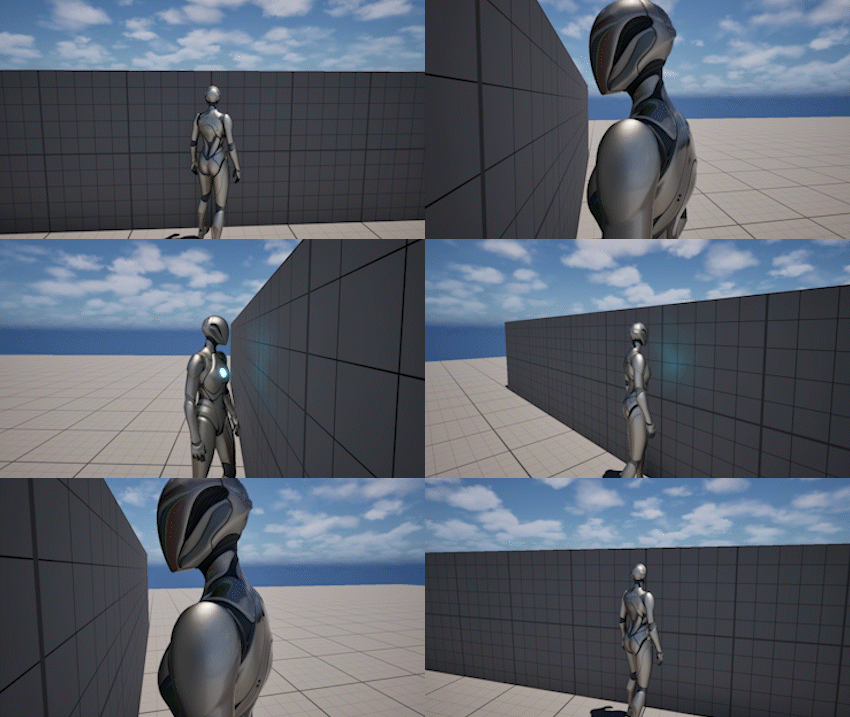
When an object blocks the view, the camera is pushed closer to the pivot.
This prevents clipping and keeps the character visible at all times.
Settings
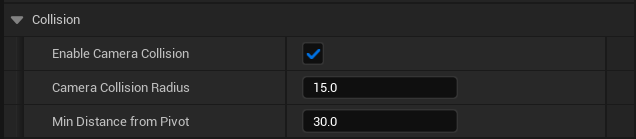
- Enable Camera Collision - enables or disables collision handling
- Camera Collision Radius - size of the collision probe used to detect obstacles
- Min Distance From Pivot - minimum allowed distance between camera and pivot
Collision Response
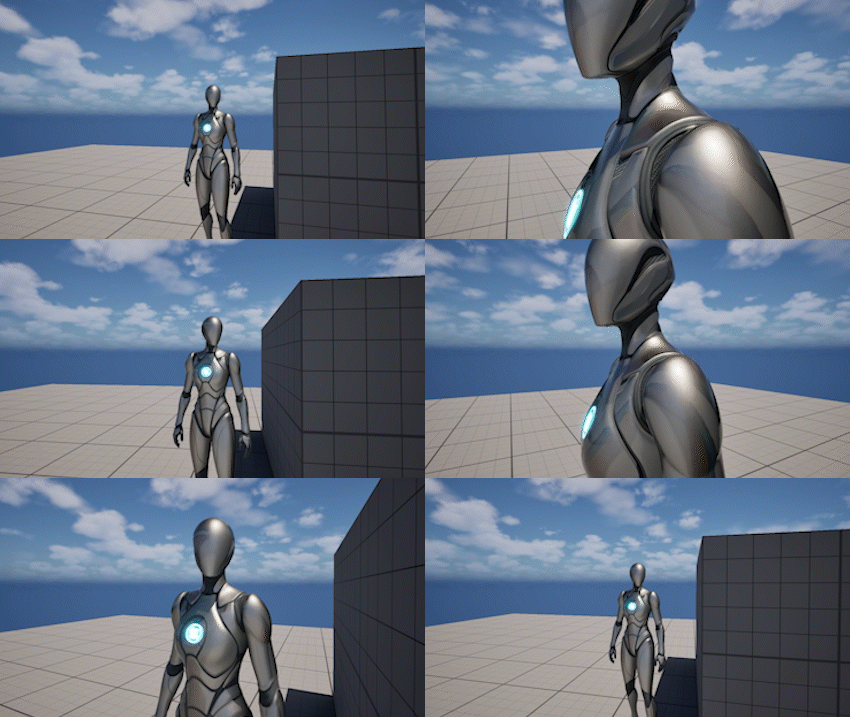
Slow Recovery
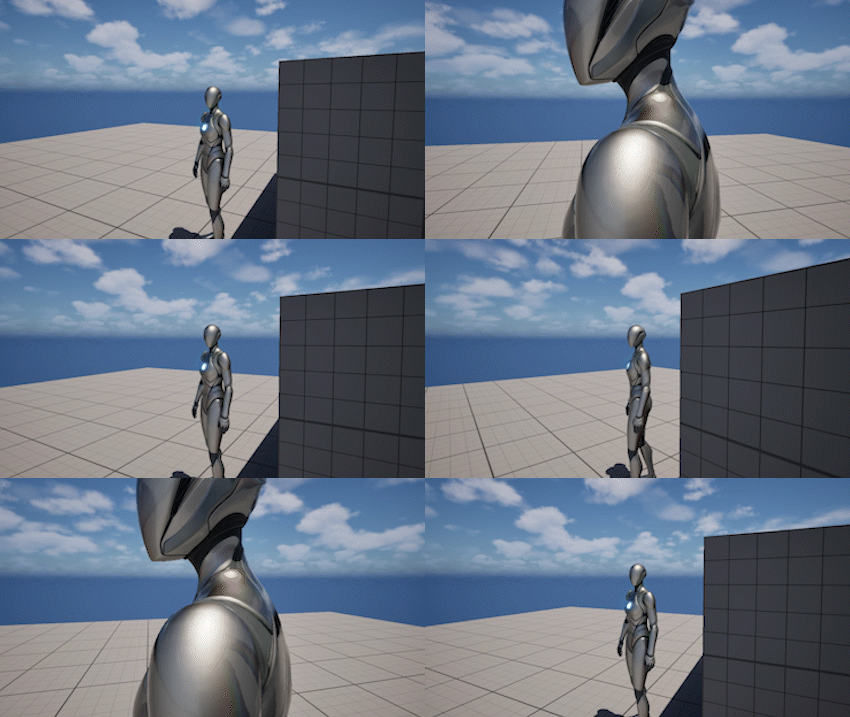
Fast Recovery
Collision Response controls how the camera reacts when obstacles appear or disappear.
It defines:
- how quickly the camera compresses toward the pivot
- how smoothly it returns to its original position
Settings
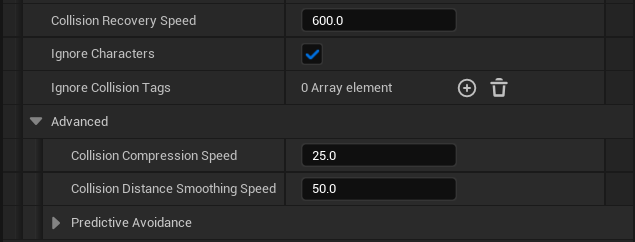
- Collision Compression Speed - how quickly the camera moves toward the safe distance
- Collision Distance Smoothing Speed - how smoothly the safe distance changes
- Collision Recovery Speed - how quickly the camera returns to its target distance
Predictive Avoidance
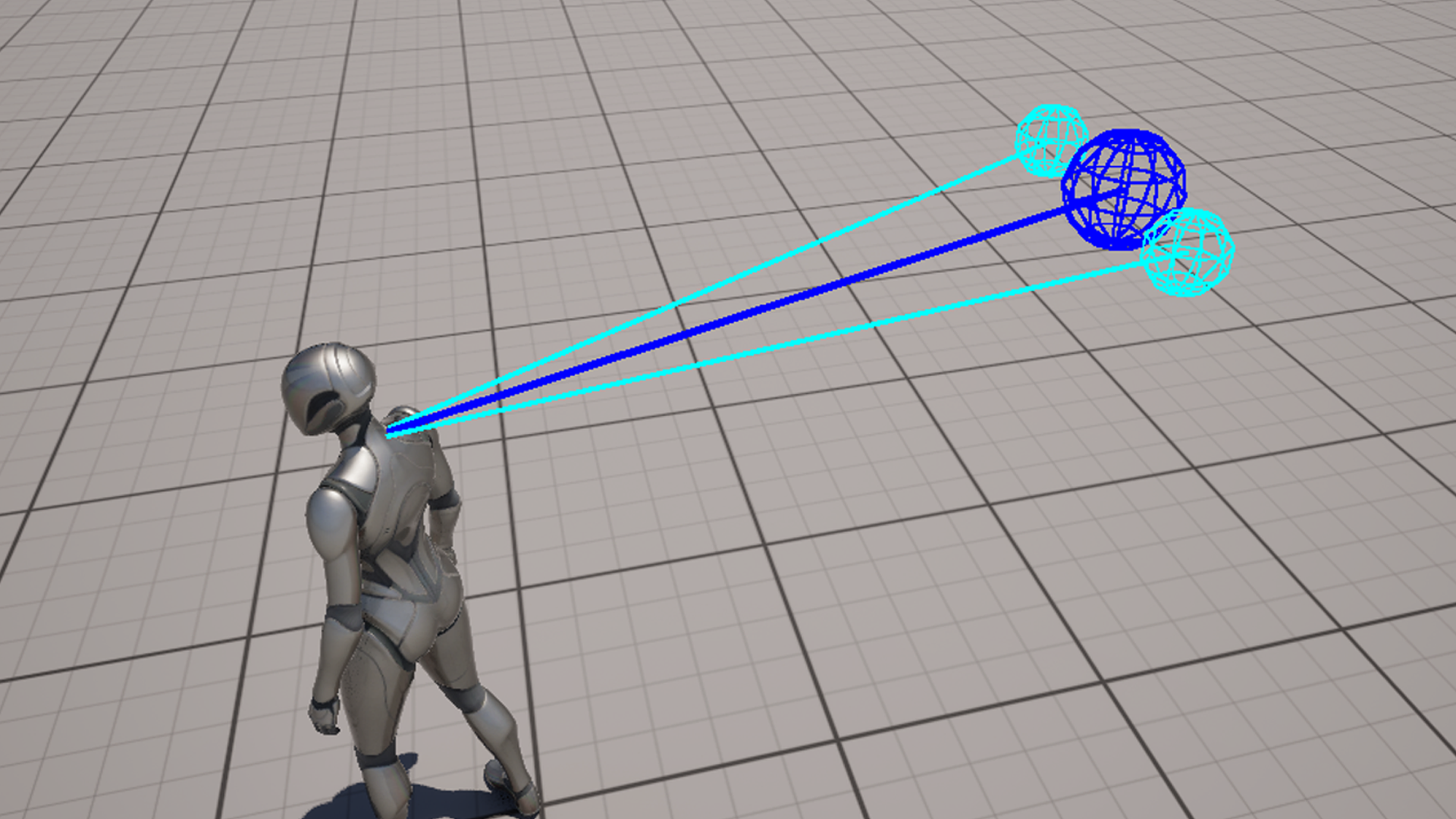
Predictive Avoidance uses additional probes around the camera direction to detect obstacles before they intersect the main camera path.
This reduces sudden clipping during fast movement and rotation.
Settings
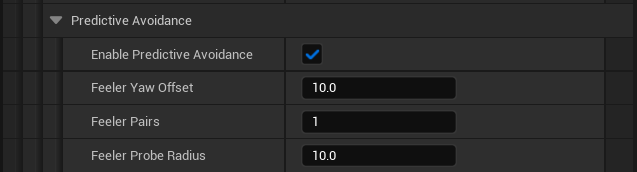
- Enable Predictive Avoidance - enables additional probe checks
- Feeler Yaw Offset - angular offset of side probes
- Feeler Pairs - number of probe pairs around the camera direction
- Feeler Probe Radius - size of each probe
Ignoring Actors
Some actors can be excluded from collision checks to prevent unwanted camera compression.
This is useful for characters or specific environment objects.
Settings

- Ignore Characters - ignores all Character actors
- Ignore Collision Tags - ignores actors with specified tags
Notes
- Collision is applied after framing and can override the desired camera distance
- The final camera position may be closer than the target distance when obstacles are present
- Higher compression speed reduces clipping but can feel less smooth
- Smoothing speed controls visual stability during rapid changes
- Predictive avoidance is most effective during fast camera movement
- Collision behavior depends on both probe size and response speed