App Open
App Open ads are fullscreen advertisements designed for application launch and foreground transitions.
They are best displayed while the application is loading or returning from the background, before the user resumes normal interaction. Avoid showing them unexpectedly after gameplay or other primary content is already active.
The plugin supports two separate approaches:
- Manual Mode — the application loads and shows the ad at a controlled moment.
- Automatic Mode — the plugin manages loading and attempts to show an ad when the application returns to the foreground.
The general initialization and loading workflow is described in Basic Usage. This page focuses on App Open-specific behavior and the difference between manual and automatic handling.
Manual Mode
Manual mode gives the application full control over when the ad is loaded and displayed.
Use Load App Open to prepare the ad, wait for On Loaded, and call Show App Open at an appropriate launch or loading transition.
This approach is useful when:
- the application has its own splash or loading screen;
- the ad should be shown only during selected launches or transitions;
- application state must be prepared before the ad appears;
- custom frequency or eligibility logic is required.
A loaded App Open ad can be shown only once. After it has been displayed, another ad must be loaded before the next manual show request.
Use Is App Open Ready when the application needs to verify that an ad is currently available.
Note
Load the ad early enough that the application does not need to pause its startup flow while waiting for an advertising request.
If no ad is ready, continue loading the application normally.
Automatic Mode
Use Enable Auto Show App Open when the plugin should manage App Open ads during foreground transitions.
When enabled, the plugin:
- stores the provided App Open Ad Unit ID;
- loads an App Open ad when one is not already available;
- monitors the application returning to the foreground;
- shows the loaded ad when the configured minimum interval has passed;
- loads the next ad after a display.
No separate manual Load App Open call is required for the automatic flow.
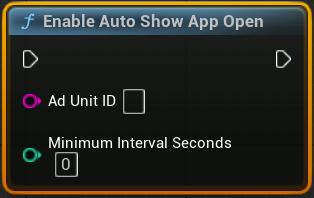
Automatic mode is intended primarily for application resume handling. For a specific first-launch or custom loading-screen placement, use manual mode so the application controls the exact display moment.
Minimum Interval Seconds
Minimum Interval Seconds defines the minimum time between automatic App Open displays.
Use this value to prevent an ad from appearing every time the user briefly switches between applications.
The interval is checked when the application returns to the foreground. If not enough time has passed, the ad is not shown during that transition.
If no ad is ready when the application returns, the plugin requests a new ad for a later foreground transition instead of delaying the user.
Disable Automatic Mode
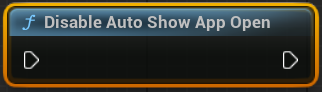
Call Disable Auto Show App Open to stop automatic foreground handling.
After automatic mode is disabled:
- the plugin no longer attempts to show App Open ads when the application returns to the foreground;
- manual App Open functions remain available;
- an ad already loaded by the automatic flow may still be available for a manual show request.
Manual and Automatic Modes
Use one clear ownership model for each App Open placement.
Manual mode is preferable when the application needs exact timing and direct callback handling. Automatic mode is preferable when the same resume behavior should be applied consistently without custom lifecycle logic.
Avoid manually showing an App Open ad at the same time that automatic mode may also attempt to display one. Overlapping manual and automatic requests can produce unexpected timing or failed show attempts.
You can disable automatic mode before switching to fully manual handling.
Display Options
When showing an App Open ad manually, Auto Reload requests another ad with the same Ad Unit ID after the current ad closes. When disabled, load the next ad manually.
Automatic mode already manages reloading internally, so the manual Auto Reload option is relevant only to calls made through Show App Open.
Immersive Mode requests fullscreen presentation with system interface elements hidden where supported. Its exact behavior depends on the platform and device.
Callbacks and Events
Manual App Open display provides several callbacks:
- On Started — the ad began displaying.
- On Completed — the ad was closed or finished displaying.
- On Failure — the ad could not be shown.
- On Event — reports click and impression events through
EFullScreenAdEventType.
Use On Started and On Completed when the application needs to pause and restore loading animations, audio, input, or other systems around the ad.
If On Failure is triggered, continue the application flow normally.
The automatic mode does not accept separate Blueprint or C++ delegates. It manages loading and display internally through the application lifecycle.
Application State
App Open ads should appear as part of a launch or resume transition, not as an interruption after the user has already resumed interaction.
When using manual mode:
- prepare the application state before showing the ad;
- avoid exposing interactive content behind the ad;
- continue to the main application state from both On Completed and On Failure.
When using automatic mode, ensure that the application can safely resume whether an ad is shown or skipped.
Do not make application startup depend on an App Open ad being available.
Recommended Usage
For a reliable App Open implementation:
- Choose either manual or automatic ownership for the intended placement.
- Use manual mode when exact launch or loading-screen timing is required.
- Use automatic mode for consistent foreground-resume handling.
- Configure a reasonable minimum interval for automatic displays.
- Continue the application normally when no ad is ready.
- Avoid showing App Open ads after the user has already resumed active gameplay.
- Test launch and foreground behavior separately on Android and iOS.
Related Reference
For exact function signatures and callback parameters, see AdMob API.
For fullscreen events and error values, see Enumerations.
For official Android and iOS demo Ad Unit IDs, see Testing.