Steam Input Examples
This section provides practical examples of using Steam Input to discover controllers, activate Action Sets, read Digital and Analog Actions, display controller glyphs, and use additional Steam Input functionality.
All examples below use Blueprint nodes. Equivalent functionality is available through the C++ API.
Prerequisites
Before using Steam Input:
- Steam Input actions must be configured for the application
- Action Set and Action names used by the game must match the Steam Input configuration
- Steam must be initialized
- A Steam Input-compatible device should be connected for controller testing
For Steamworks-side configuration, see Steamworks Setup.
Initializing Steam Input
The plugin attempts to initialize Steam Input automatically.
If you need to explicitly verify or initialize the interface, call Initialize Steam Input.
The node returns true when Steam Input is available.
Getting Connected Controllers
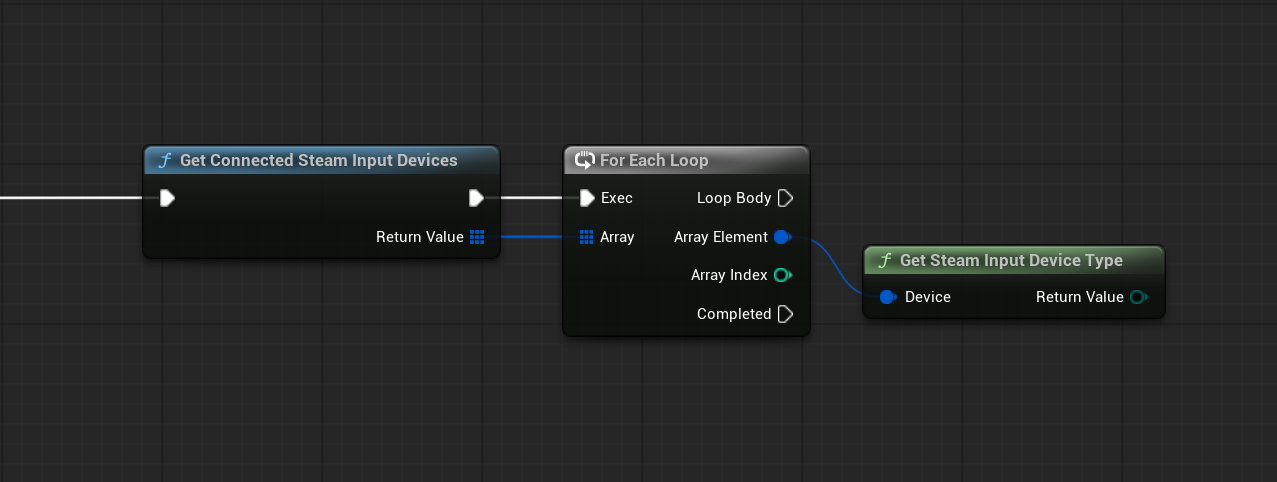
Use Get Connected Steam Input Devices to retrieve all controllers currently managed by Steam Input.
The node returns an array of FSteamInputDevice.
A typical flow is:
- Get the connected device array.
- Iterate through the returned devices.
- Optionally call Get Steam Input Device Type for each device.
- Store the device value you want to use for Action Set, Action, glyph, or haptic calls.
Each array element represents a connected Steam Input device and can be passed directly to other Steam Input functions.
Use Is Steam Input Device Connected when you need to verify that a previously stored device is still available.
Activating an Action Set
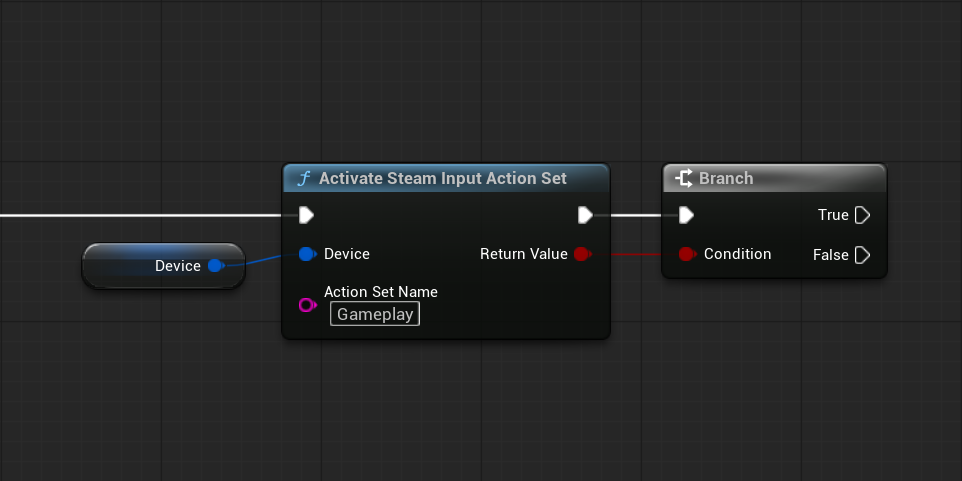
Before reading actions for a gameplay context, activate the corresponding Steam Input Action Set.
For example:
- Get a connected device.
- Call Activate Steam Input Action Set.
- Pass
Gameplayas the Action Set name. - Check the returned boolean.
The name must match the Action Set configured for the application.
Use Get Active Steam Input Action Set when you need to inspect the active set that has been resolved through the plugin.
Reading a Digital Action
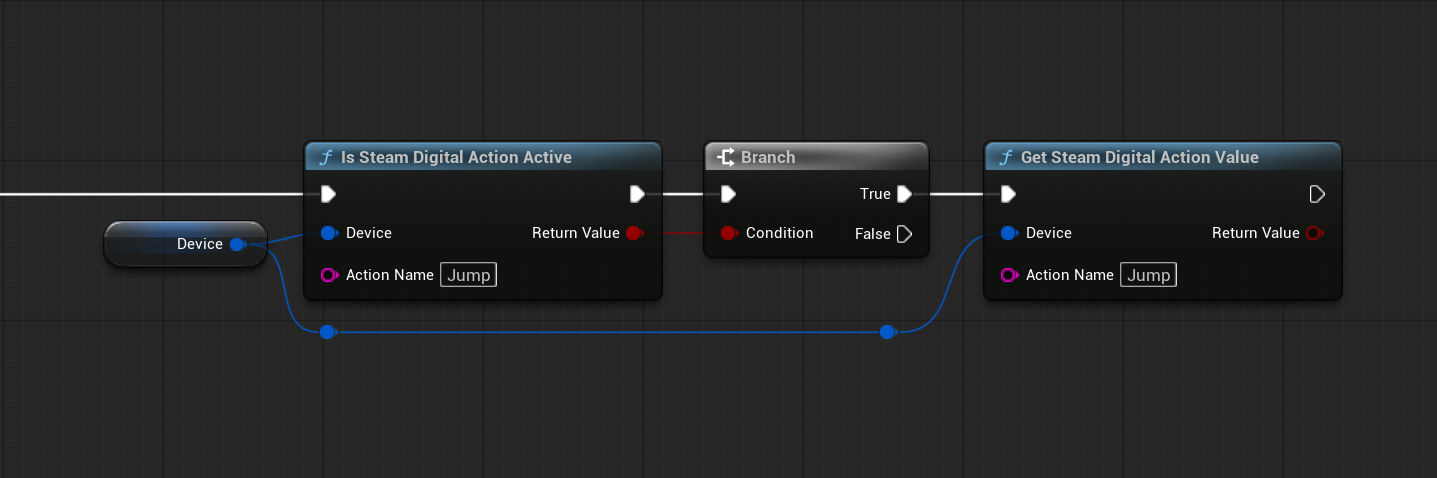
Assume your Steam Input configuration contains a digital action named Jump.
During gameplay:
- Use Is Steam Digital Action Active to verify that
Jumpis available in the current Action Set or layer. - Call Get Steam Digital Action Value with the device and
Jump. - Use the returned boolean as the current pressed state.
This allows gameplay logic to work with the named Steam Input action instead of a specific physical controller button.
Reading an Analog Action
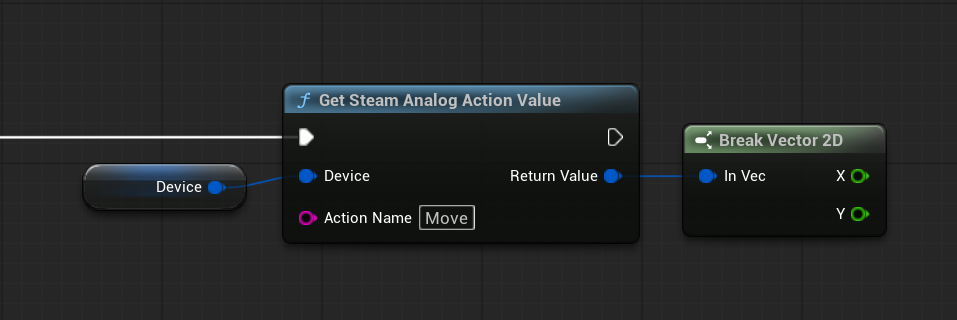
Assume your configuration contains an analog action named Move.
Call Get Steam Analog Action Value with:
- the active
FSteamInputDevice - Action Name:
Move
The node returns an FVector2D.
You can use this value directly for two-axis movement or interpret the relevant axis for your gameplay logic.
Use Get Steam Analog Action Mode when you need to know the source mode Steam currently reports for the action.
Displaying the Correct Controller Glyph
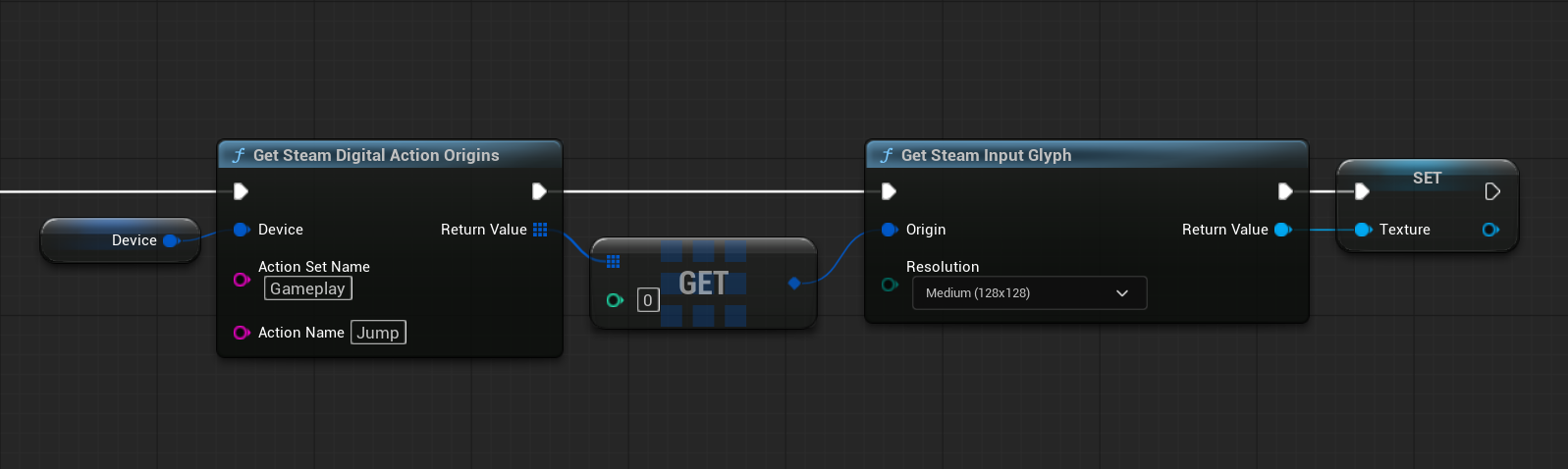
Steam Input can provide the correct button or stick glyph for the player's current binding.
For a digital action:
- Call Get Steam Digital Action Origins with the device, Action Set name, and Action name.
- Select the
FSteamInputOriginyou want to display. - Call Get Steam Input Glyph with the origin and desired
ESteamInputGlyphResolution. - Use the returned
UTexture2Din your UI.
This is useful for prompts such as:
Press [glyph] to Jump
Because the origin is resolved from the current Steam Input binding, the displayed glyph can follow the player's controller configuration.
Getting Localized Action and Input Names
Use:
- Get Steam Input Action Name for Steam's localized user-facing name of a configured Digital or Analog Action
- Get Steam Input Origin Name for the localized name of a physical input origin
These functions are useful for accessibility screens, binding UI, or text-based input prompts.
Opening the Steam Input Binding Panel
Use Show Steam Input Binding Panel with a connected device to open Steam's controller binding configuration UI.
This is useful when your game's controller settings menu should provide direct access to Steam Input configuration.
Controller Vibration
Use Set Steam Input Vibration with left and right normalized intensity values to start controller vibration.
Use Stop Steam Input Vibration to stop it.
For supported devices, the plugin also exposes Steam Input haptic pulse and simple haptic event APIs.
Gamepad Text Input
For controller-focused text entry, use Show Steam Gamepad Text Input.
A typical flow is:
- Subscribe to Steam Gamepad Text Input Dismissed.
- Store the returned
FSteamInputListenerHandle. - Call Show Steam Gamepad Text Input when text input is needed.
- When the dismissed event fires, check whether text was submitted.
- Use the returned text.
- Unsubscribe when the listener is no longer needed.
Steam's floating gamepad keyboard uses the same persistent subscription pattern through Subscribe To Steam Floating Gamepad Text Input Dismissed.
Action Set Layers
Use Activate Steam Input Action Set Layer when temporary actions should be added on top of the active Action Set.
Examples include:
- Radial menus
- Temporary interaction modes
- Vehicle overlays
- Context-specific controls
Deactivate a specific layer with Deactivate Steam Input Action Set Layer, or remove all active layers with Deactivate All Steam Input Action Set Layers.
Important Notes
- Action Set and Action names must match the Steam Input configuration
FSteamInputDeviceandFSteamInputOriginare opaque handles; store and pass them back to the plugin- Glyphs should be resolved from Action Origins rather than hard-coding controller button images
- Text-input dismissed subscriptions are persistent and should be unsubscribed when no longer needed