Steamworks DLC Setup
This section explains how to create and configure downloadable content in Steamworks so it can be detected, installed, and managed through the Steam DLC feature.
Creating a DLC Application
Each DLC item in Steam is represented by its own App ID associated with the base game.
To create a new DLC:
- Open the Steamworks dashboard and select your base application
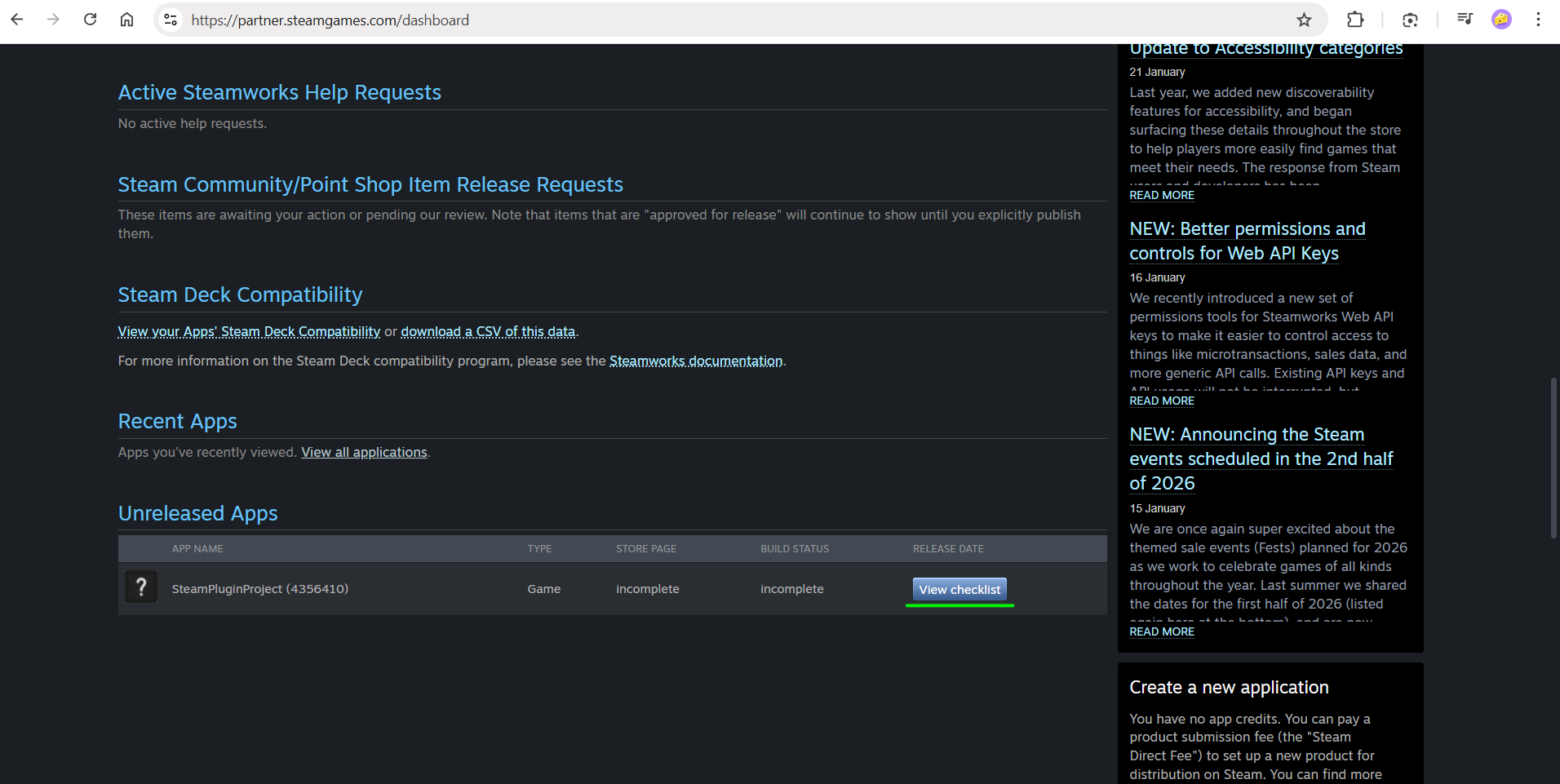
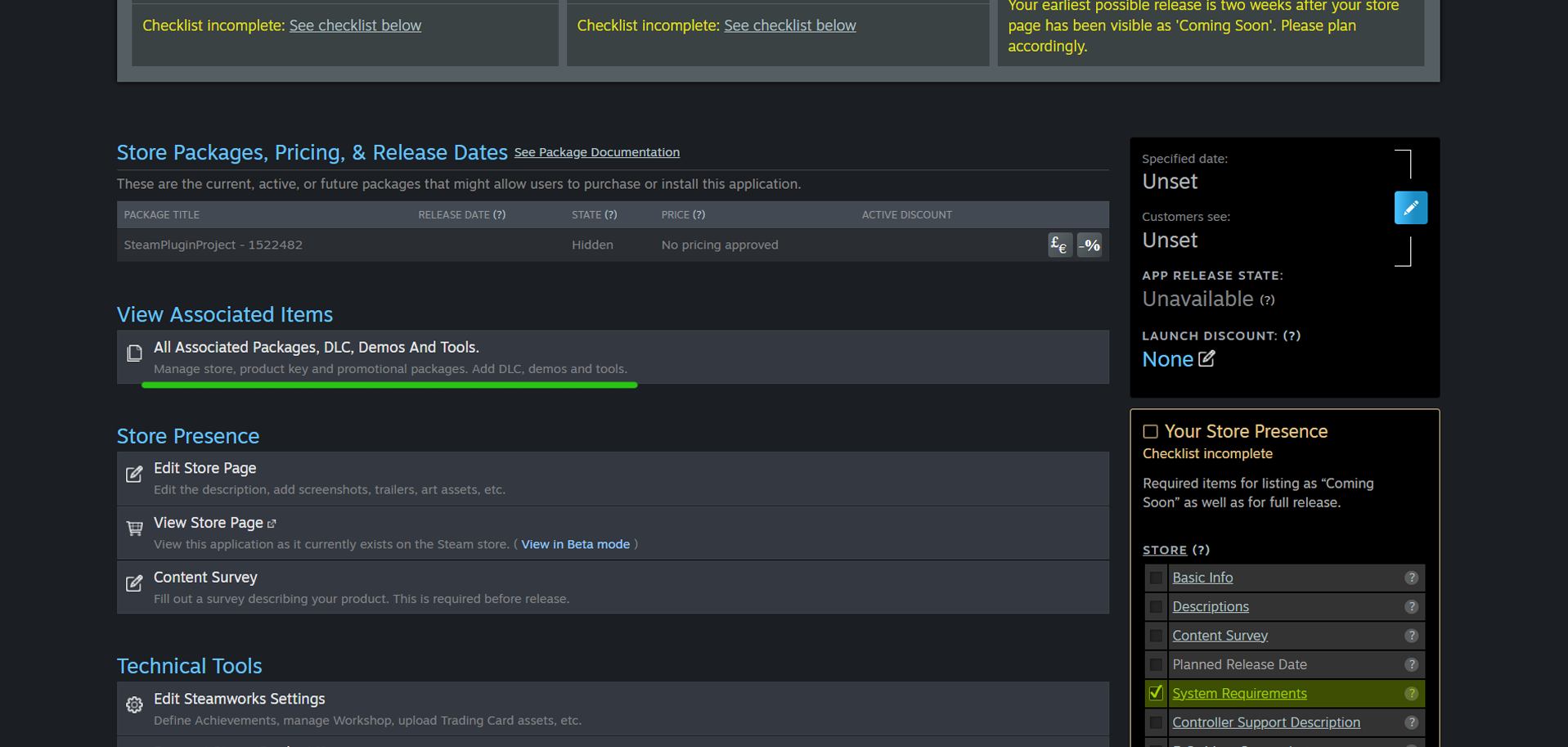
- Open All Associated Packages, DLC, Demos And Tools
- Click Add New DLC
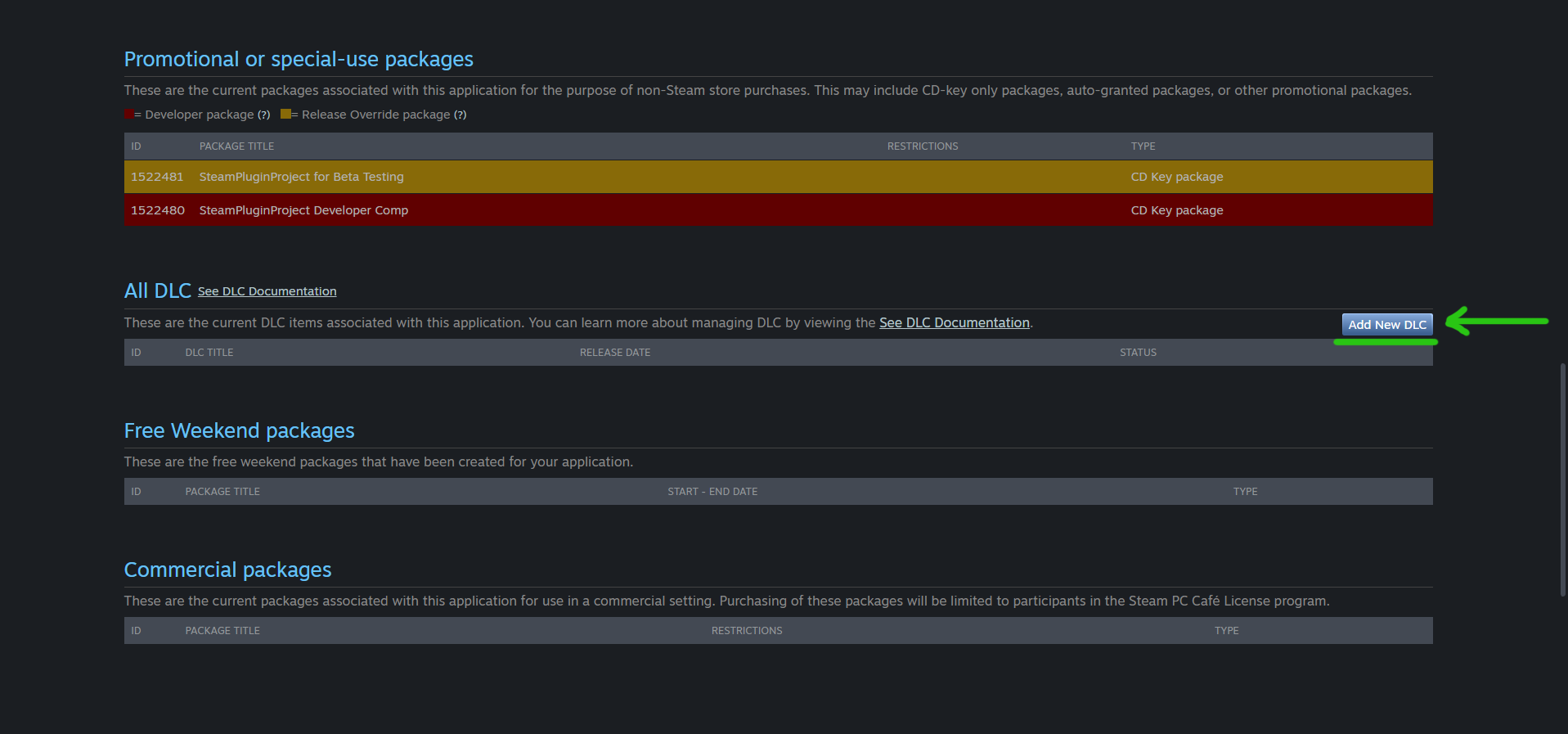
- Enter the required information and create the DLC application
After creation, the DLC receives its own App ID.
This DLC App ID is the identifier used by the plugin when checking installation state, requesting installation or uninstallation, and reading download progress.
DLC Content Configuration
Steam supports two common ways of distributing DLC content.
DLC Content Included in the Base Game
DLC-related content can be included directly in the base game's files and distributed to every player instead of using a separate DLC depot.
This approach can be useful when all players need the same game files but some content is enabled only for users who have access to the DLC.
Examples include:
- Multiplayer characters or skins
- Additional game modes
- Unlockable levels already included with the base game
- Deluxe Edition content
The plugin's DLC runtime API focuses on the DLC entries reported by Steam, their availability state, and local installation state. If your game needs additional entitlement-specific behavior beyond these exposed values, configure and handle that according to your Steamworks application design.
DLC with Separate Files
DLC files can instead be placed in a separate Steam depot that is available only to users who own the DLC.
This is useful when the DLC contains additional files that do not need to be distributed with the base game.
Examples include:
- Expansions
- Additional maps
- Large asset packs
- Artbooks or other downloadable content
DLC depots are configured from the base application's SteamPipe depot settings.
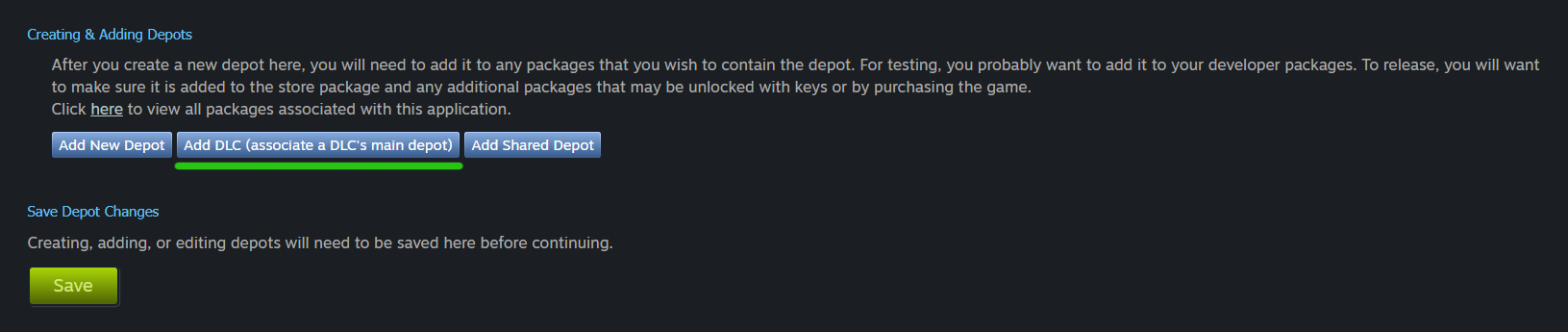
The appropriate DLC must be associated with the depot, and the depot must be included in the required Steam packages.
Automatic and On-Demand Installation
By default, Steam normally downloads and installs owned DLC automatically.
If your game should control when DLC is downloaded, open the DLC application's Steamworks settings and enable:
Disable Steam automatically downloading this DLC
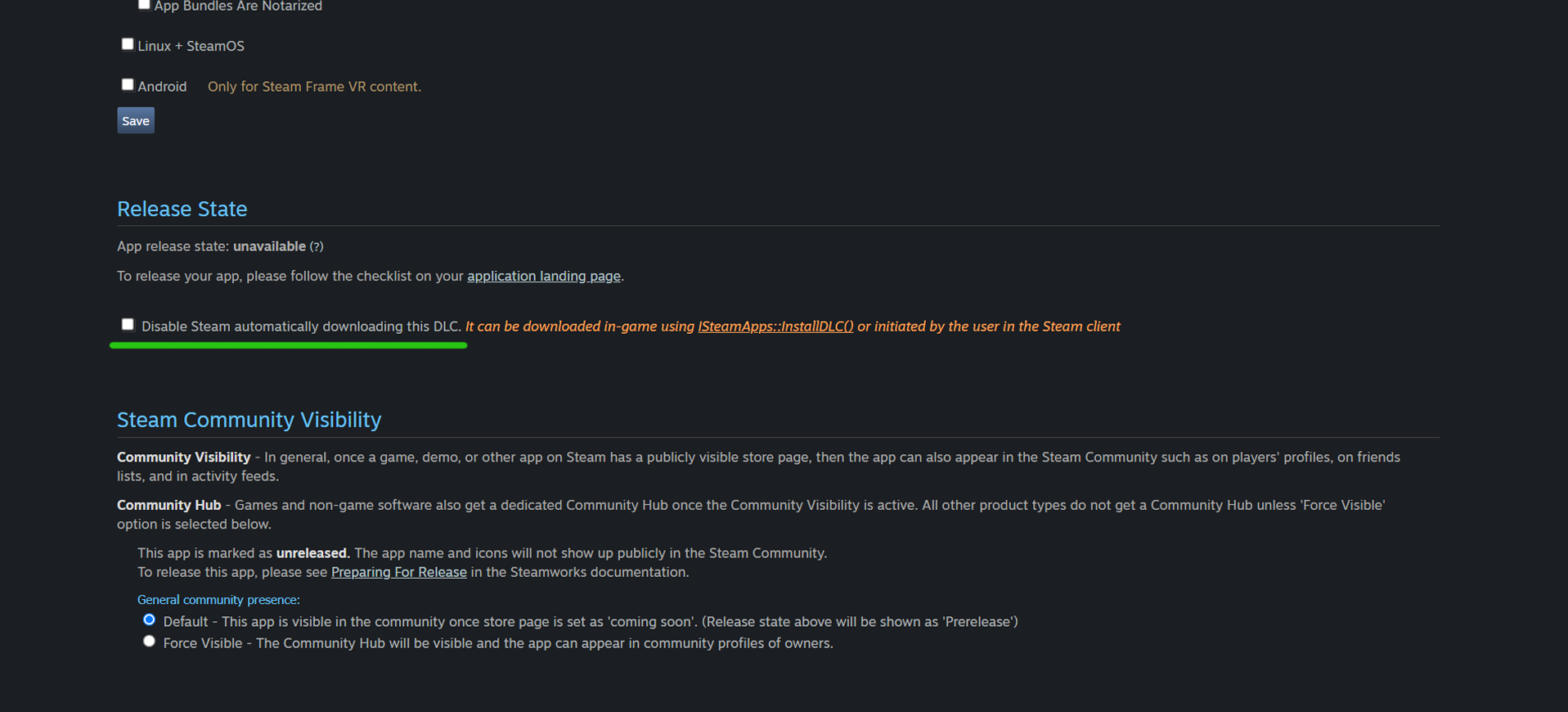
When this option is enabled, the game can control installation through the plugin:
- Install Steam DLC requests the DLC download and installation
- Uninstall Steam DLC removes the locally installed DLC
- Get Steam DLC Download Progress reports the current download progress
- The DLC Installed event is triggered when Steam reports that installation has completed
If automatic downloading remains enabled, Steam normally manages installation without requiring the game to call the installation API.
Packages and Testing Access
The Steam account used for testing must have access to the DLC.
Make sure the DLC is included in the appropriate Steam package used by your test account, such as the application's Developer Comp package.
You can verify DLC access from the Steam client:
- Open the game in your Steam Library
- Open Properties
- Select the DLC tab
- Confirm that the DLC appears in the list
If the DLC does not appear there, the current Steam account does not have access to it and the game will not be able to test it as owned DLC.
Publishing DLC Configuration
Steamworks changes related to the DLC, depots, and package configuration must be saved and published where required before they become available to Steam clients.
When using a separate DLC depot, the DLC files must also be uploaded through SteamPipe and the corresponding build must be made available to the branch used for testing.
After publishing changes, Steam may require some time or a Steam client restart before updated configuration is visible.
Using the DLC App ID
Every DLC item has its own App ID.
Use that value when calling DLC functions in the plugin.
For example, if a DLC has App ID 1234567, pass 1234567 as the DLC App ID when:
- Checking whether the DLC is installed
- Installing or uninstalling the DLC
- Reading download progress
Do not use the base game's App ID in place of the DLC App ID.
Official Steamworks Documentation
For complete information about DLC applications, depots, packages, ownership, and advanced installation workflows, refer to the official Steamworks DLC documentation.
Common Configuration Mistakes
- Using the base game's App ID instead of the DLC App ID
- DLC was created but is not included in the package used by the test account
- The test Steam account does not own or have access to the DLC
- A separate DLC depot was created but not associated with the correct DLC
- DLC depot changes were saved but not published
- Disable Steam automatically downloading this DLC is not enabled when attempting to control installation manually
- Testing is performed with the wrong base game App ID or without Steam running