DLC Examples
This section provides practical examples of using the DLC feature to inspect configured DLC, check installation state, request on-demand installation, monitor download progress, and react when installation completes.
All examples below use Blueprint nodes. Equivalent functionality is available through the C++ API.
Prerequisites
Before testing DLC functionality:
- The DLC must be configured in Steamworks
- The test Steam account must have access to the DLC
- The game must be running with the correct base game App ID
- Steam must be initialized
For Steamworks configuration, see Steamworks Setup.
Listing DLC
Use Get Steam DLC List to retrieve the DLC configured for the current application.
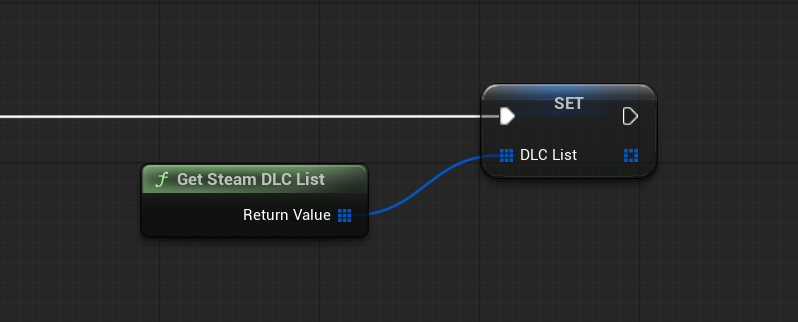
The node returns an array of FSteamDLCInfo.
Each entry contains:
- DLC App ID
- Display name
- Whether Steam reports the DLC as available
- Whether the DLC is currently installed
A common use is to build a DLC management or content-selection UI from the data returned by Steam.
Checking Whether DLC Is Installed
Use Is Steam DLC Installed with the DLC's App ID.
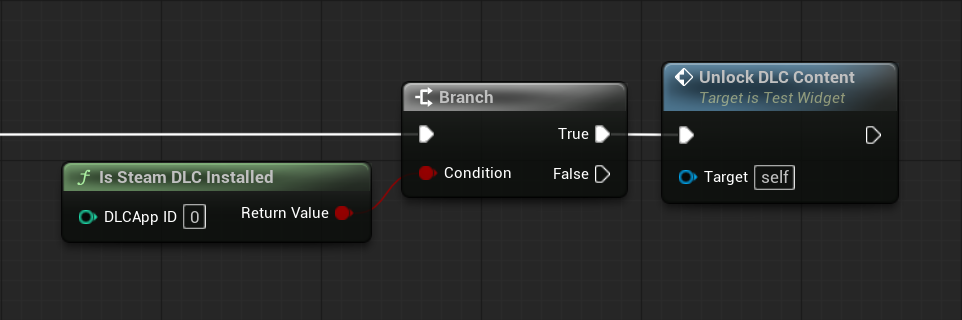
For example:
- Store the DLC App ID used by your project.
- Call Is Steam DLC Installed.
- If
true, enable the content that requires the installed DLC. - If
false, show the appropriate locked or download state.
Use the DLC App ID, not the base game's App ID.
Installing DLC On Demand
If the DLC is configured in Steamworks for on-demand installation, use Install Steam DLC to request the download.
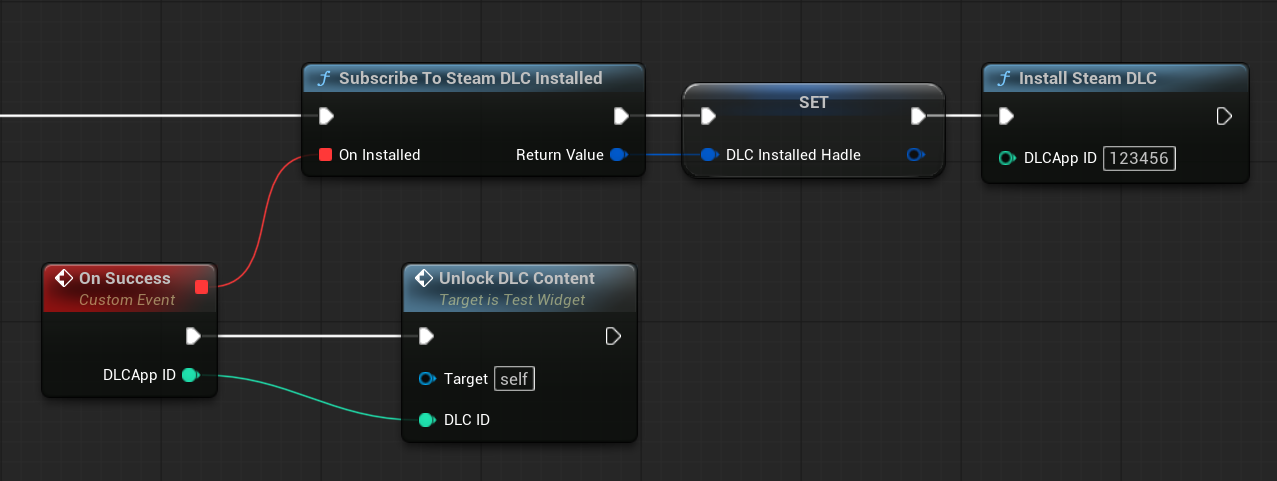
A typical flow is:
- Subscribe to Steam DLC Installed.
- Call Install Steam DLC with the DLC App ID.
- Optionally poll Get Steam DLC Download Progress while the download is active.
- When On Installed fires with the matching DLC App ID, refresh the DLC state.
- Unsubscribe when the listener is no longer needed.
The installed event can occur after the original install request, so treat it as a persistent Steam event rather than an immediate return value.
Displaying Download Progress
Use Get Steam DLC Download Progress with the DLC App ID while an installation is in progress.
The node returns:
- whether Steam currently reports an active download
- downloaded bytes
- total bytes
- normalized progress
This can be used to update a progress bar or DLC download status in your UI.
When there is no active Steam download for that DLC, the returned downloading state is false.
Listening for DLC Installation
Use Subscribe To Steam DLC Installed to receive a callback when Steam reports that a DLC installation has completed.
The subscription returns FSteamDLCListenerHandle.
Store this handle and pass it to Unsubscribe From Steam DLC Installed when the listener is no longer required.
A common place to subscribe is a persistent game instance or DLC-management object that remains alive while the installation is active.
Uninstalling DLC
Use Uninstall Steam DLC to request removal of an installed DLC from the local machine.
After requesting the uninstall, refresh your DLC state with Is Steam DLC Installed or Get Steam DLC List before updating content availability in the UI.
Important Notes
- DLC functions use the DLC application's App ID
- Installation state refers to the local machine
- On-demand installation depends on the DLC configuration in Steamworks
- Installation completion is reported through the persistent DLC Installed event
- Store and later unsubscribe the listener handle