Rich Presence Examples
This section provides practical examples of using Steam Rich Presence to display player activity, update presence values, enable Steam's Join Game action, and read Rich Presence from friends.
All examples below use Blueprint nodes. Equivalent functionality is available through the C++ API.
Prerequisites
Before displaying localized Rich Presence:
- A Rich Presence localization file must be created and published in Steamworks
- Localization tokens and placeholders must be configured correctly
- Steam must be initialized
If the steam_display key is not set, localized Rich Presence text will not be displayed by Steam.
Setting Basic Rich Presence
A common Rich Presence flow is to set placeholder values first, then select the localization layout using steam_display.
For example:
- Call Set Steam Presence with
Statusand a value such asCasting Spells. - Call Set Steam Presence with
SteamDisplay. - Set its value to a localization token such as
#Status_Default.
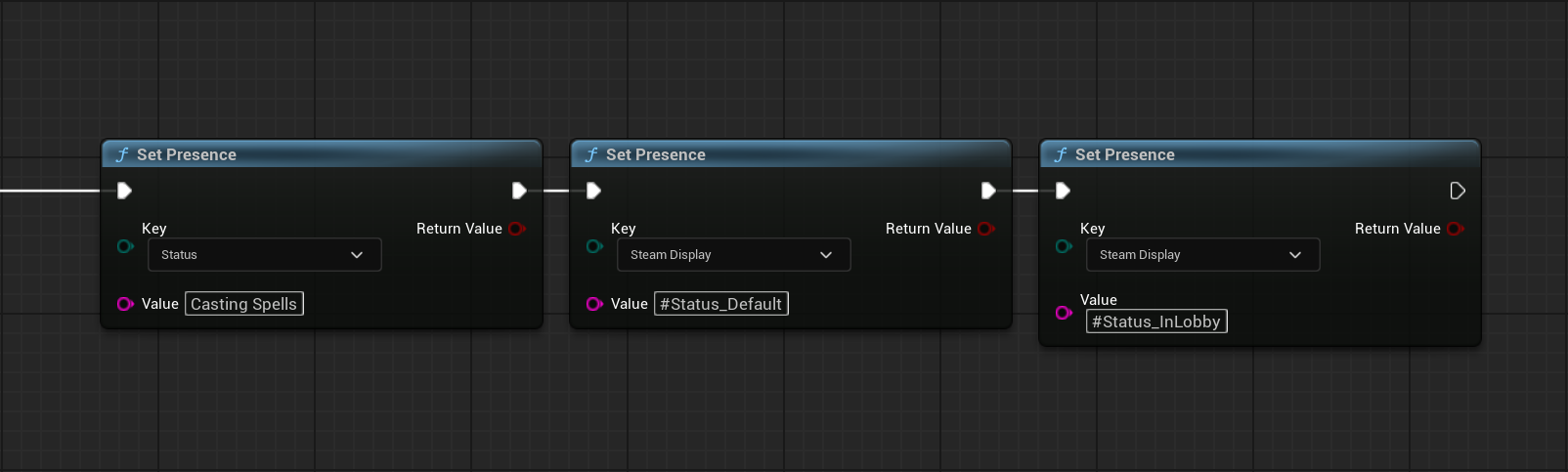
With a localization file such as:
"lang"
{
  "english"
  {
    "tokens"
    {
      "#Status_Default" "%status%"
      "#Status_InGame" "Playing %mode%"
      "#Status_InLobby" "In Lobby"
    }
  }
}
Steam builds the visible Rich Presence text from the active steam_display token and the presence values referenced by that token.
Changing only steam_display allows the game to switch between layouts while keeping other values cached.
Using Custom Presence Keys
Use Set Steam Presence Raw when you need a custom key that is not represented by ESteamPresenceKey.
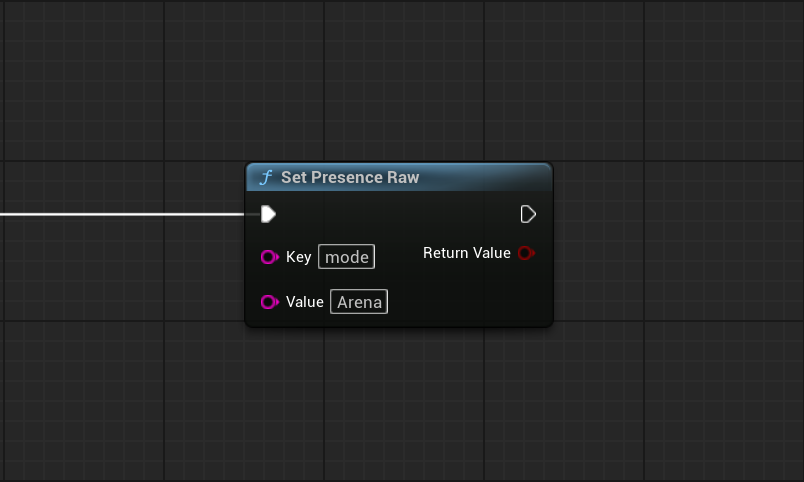
For example, a localization token can reference %mode%, while the game sets:
- Key:
mode - Value:
Survival
Custom keys are useful for values such as:
- Game mode
- Difficulty
- Map name
- Custom activity state
A raw key only affects visible Rich Presence when the active localization template references it.
Removing and Clearing Presence
Use:
- Remove Steam Presence to remove a predefined presence key
- Remove Steam Presence Raw to remove a custom key
- Clear Steam Presence to clear all current Rich Presence values
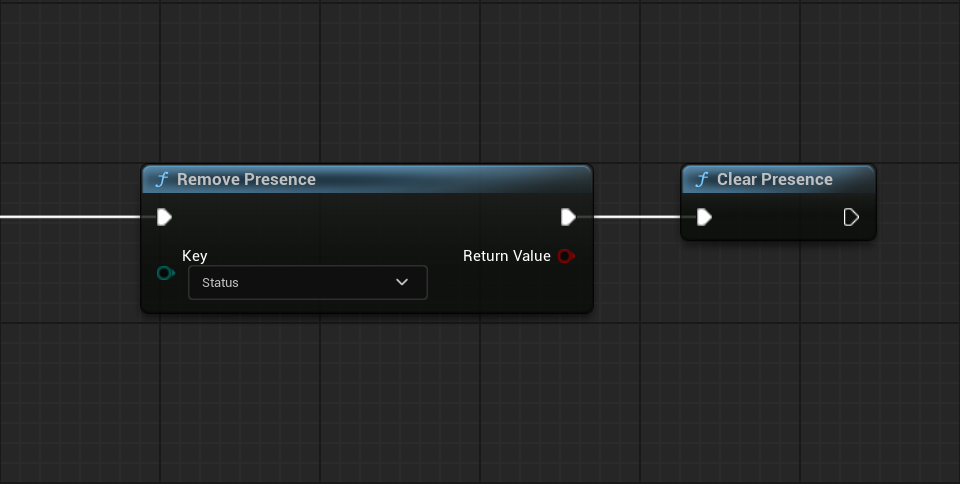
Clearing presence is commonly useful when returning to a state where the previous activity should no longer be advertised.
Enabling Join Game Manually
Use Set Steam Connect String to provide the connection data Steam should expose through Join Game.
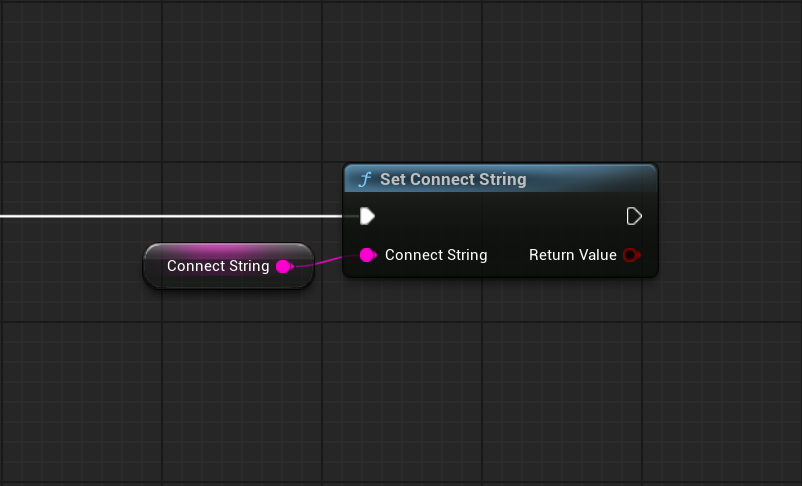
The connect string:
- is not shown as normal Rich Presence text
- enables Steam's Join Game flow
- can be read with Get Steam Connect String
- can be removed with Clear Steam Connect String
When Using the Multiplayer Feature
If you use the plugin's managed Multiplayer feature, its multiplayer connect string is managed automatically.
In that case, you normally do not need to call Set Steam Connect String yourself.
Use the manual connect string API when your project uses its own connection flow or the lower-level Steam features directly.
Reading Cached Local Presence
Use Get Cached Steam Presence to retrieve the plugin's current local Rich Presence snapshot as FSteamPresenceSnapshot.
You can also use:
- Has Cached Steam Presence
- Has Cached Steam Presence Raw
to check whether a specific key is currently present.
These functions are useful for UI, debugging, or avoiding unnecessary updates.
Reading a Friend's Rich Presence
Use Get Steam Friend Presence with a friend's FSteamUserID to retrieve FSteamFriendPresence.
For lower-level access, you can also:
- get the number of presence keys
- retrieve a key by index
- retrieve a specific value by key
This can be used when building custom friend lists, party UI, or activity displays.
Important Notes
- Rich Presence values are not persistent and should be set again each session
- Localized display text is generated by Steam from the published localization templates
- Custom raw keys are only visible when referenced by an active localization token
- The managed Multiplayer feature automatically handles its own connect string
- Rich Presence values represent current activity and are cleared when the game exits