Overlay Examples
This section provides practical examples of using the Steam Overlay feature to interact with Steam’s built-in UI, invite other players, and react to overlay-related events during gameplay.
All examples below are shown using Blueprint nodes, with equivalent functionality available through the C++ API.
Opening the Steam Overlay
This example demonstrates how to open the Steam Overlay to a specific built-in section.
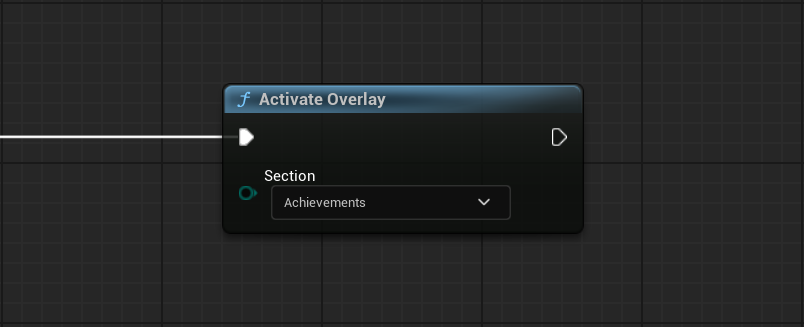
The Activate Steam Overlay node opens the Steam Overlay to the selected section. The available sections are defined by ESteamOverlaySection.
This is typically triggered by user actions like pressing a menu button or selecting a social option inside the game. Steam handles all UI rendering and input while the overlay is active.
Inviting Friends to a Lobby
In this example, the Steam Overlay is used to invite friends to a lobby.
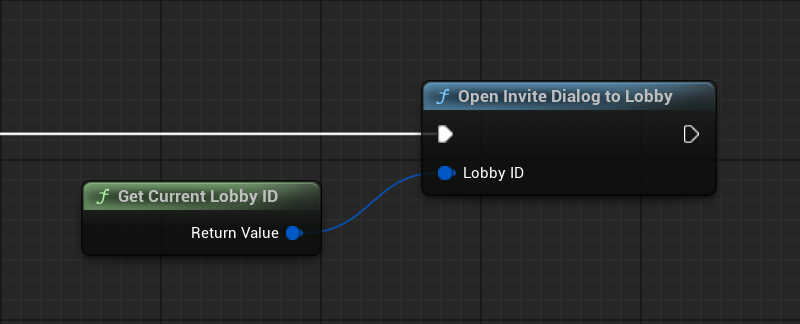
The Open Steam Invite Dialog To Lobby node opens the standard Steam invite dialog for the specified FSteamLobbyID.
Steam handles friend selection and sending the invitation. This node requires a valid Lobby ID and an available Steam Overlay. It only opens the invite UI: it does not join or create a game, and its void return does not confirm that a friend accepted.
For an active managed game, prefer Open Steam Invite Dialog For Current Game; for a pre-game lobby, use this lower-level node. See Steam Invitations and Join Requests.
Reacting to Overlay Events
This example demonstrates how to react to Steam Overlay-related events using explicit subscriptions.
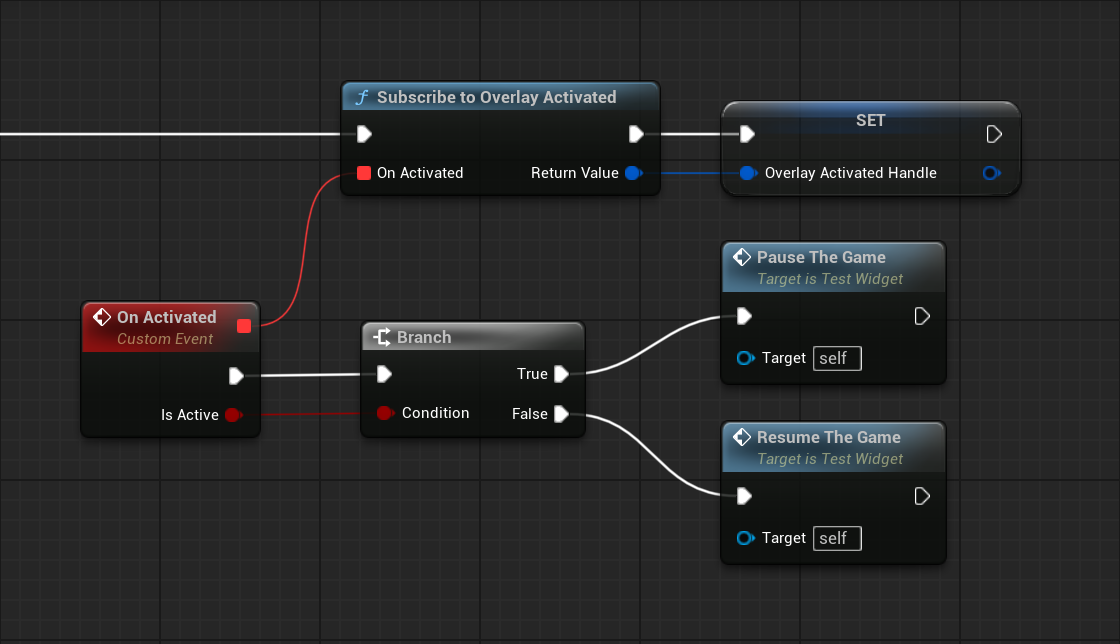
The Subscribe To Steam Overlay Activated node is used to listen for changes in the overlay’s active state. The callback receives a boolean value indicating whether the overlay has been opened or closed.
This is typically used to pause gameplay, mute audio, or adjust input handling while the overlay is visible.
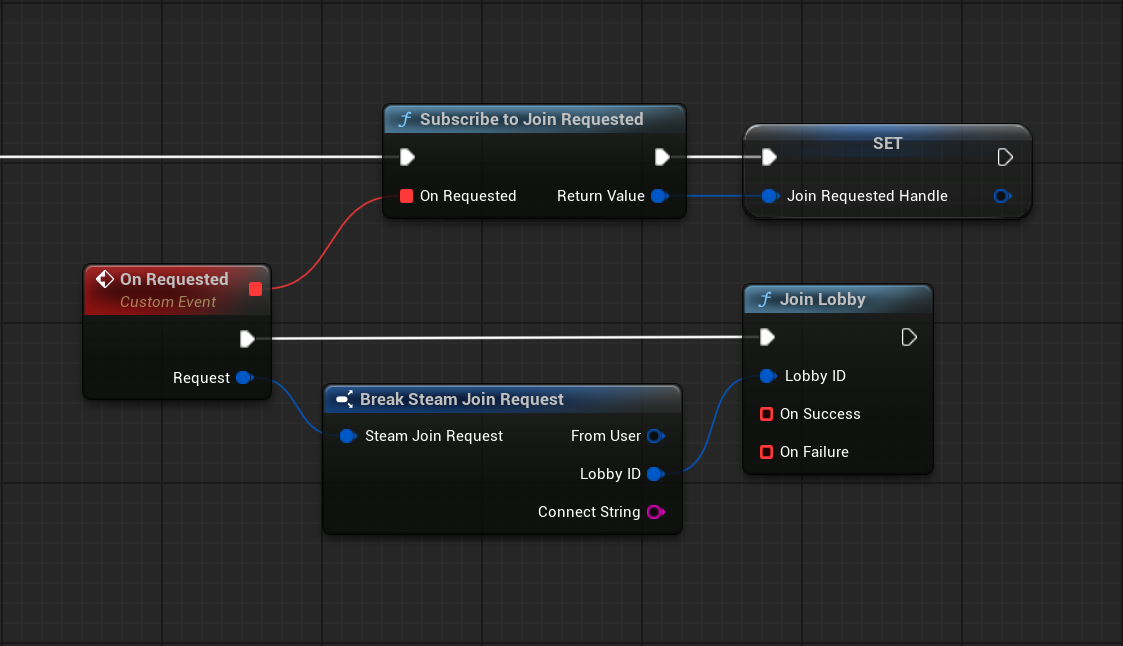
The Subscribe To Steam Join Requested node listens for incoming join requests triggered through Steam, such as accepting a game invite from a friend. The callback provides a join request structure that can be passed to other Steam features, such as Lobbies, to handle the join flow.
The On Requested callback is triggered on the local client when the player accepts a Steam invite or chooses to join a game through the Steam Overlay. This event indicates that the local user intends to join an external lobby, not that another user is joining the current lobby.
The provided FSteamJoinRequest contains FromUser, LobbyID (for a lobby-based request), and ConnectString (for a Rich Presence / custom-string request). Not every request contains a valid Lobby ID.
For a pre-game lobby, pass a valid Request.LobbyID to Join Steam Lobby and handle its success or failure. For a custom connect string, interpret Request.ConnectString using your own connection logic. For a managed match, prefer Steam Game Invitation Accepted → Join Steam Game instead. Avoid joining the same Steam request from both subscriptions.
See Steam Invitations and Join Requests for a comparison of all invitation and join callbacks.
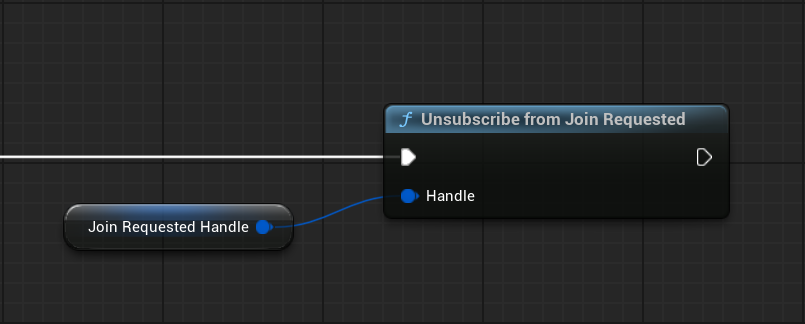
When overlay events are no longer needed, for example when leaving a menu or shutting down multiplayer features, the stored listener handles are passed to the corresponding Unsubscribe nodes.
Explicitly unsubscribing ensures that callbacks are no longer triggered and prevents outdated or unintended event handling.
Important Notes
- Steam Overlay availability depends on user settings and platform support
- Overlay activation and join requests are event-driven and should not be polled
- Event subscriptions should always be unsubscribed when no longer relevant
- Steam manages all overlay UI and input while it is active