Voice Chat Examples
This section provides practical examples of using Voice Chat with the plugin's managed Multiplayer feature.
Examples include basic voice chat, Push To Talk, Voice Activation, muting players, speaking events, and Proximity Voice.
All examples below use Blueprint nodes. Equivalent functionality is available through the C++ API.
Prerequisites
Before starting Voice Chat:
- Steam must be initialized
- The local player must be in a managed Steam multiplayer game
- The participating players must be connected through the plugin's Multiplayer feature
Voice Chat operates on the current managed multiplayer game.
Starting Basic Voice Chat
A typical basic setup is:
- Host or join a game through the Multiplayer feature.
- Call Start Steam Voice Chat.
- Check the returned boolean.
- If the call fails, use the returned Error Message for logging or UI.
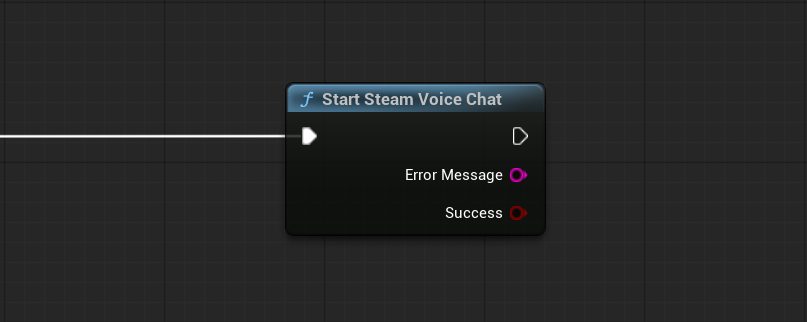
Start Steam Voice Chat initializes Voice Chat for the current multiplayer game and must be called before using any Voice Chat functionality.
Normally, you only need to call it once after hosting or joining a game. Do not call it again when changing input mode, enabling or disabling Voice Chat, muting players, or changing other Voice Chat settings.
When the call succeeds, Voice Chat is enabled automatically. You do not need to call Set Steam Voice Chat Enabled after starting it.
Call Stop Steam Voice Chat when Voice Chat is no longer needed. After Voice Chat has been stopped, Start Steam Voice Chat must be called again before it can be used.
Push To Talk
To implement Push To Talk:
- Set Steam Voice Input Mode to
PushToTalk. This only needs to be done once when configuring the Voice Chat input mode. - When the player's Push To Talk input is pressed, call Set Steam Push To Talk Active with
true. - When the input is released, call it again with
false.
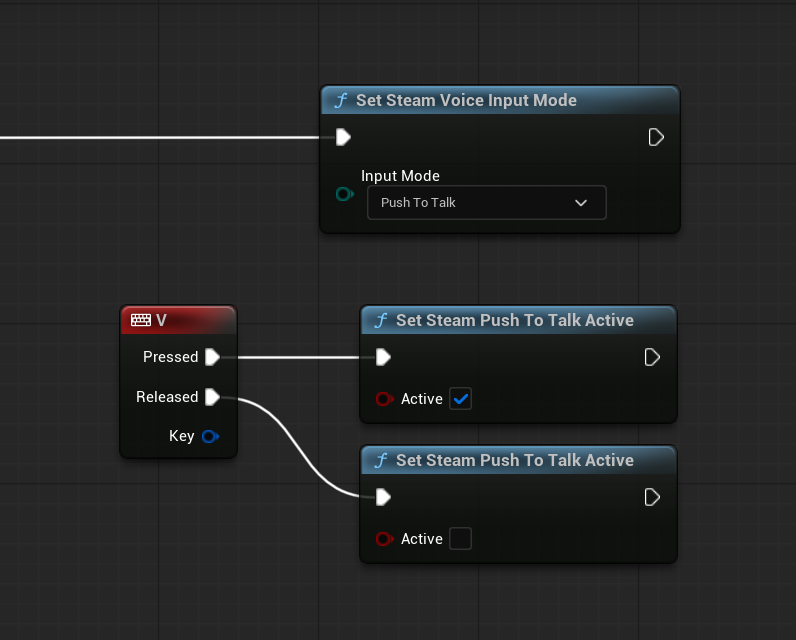
Set Steam Push To Talk Active only affects Voice Chat while the input mode is set to PushToTalk.
Voice Activation
To use microphone-based activation set Steam Voice Input Mode to VoiceActivation.
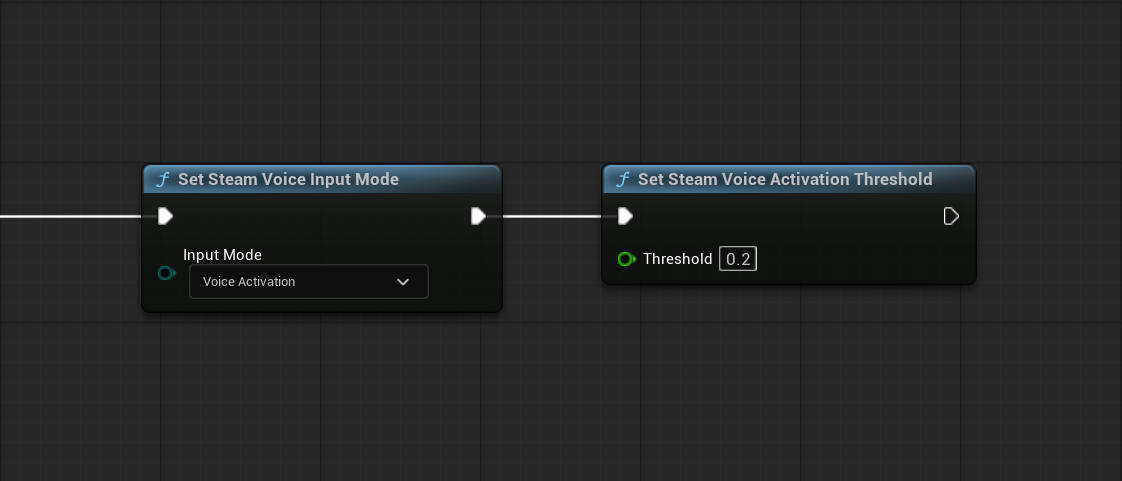
Voice Activation then uses the current activation threshold to determine when the local microphone should begin transmitting.
Optionally, call Set Steam Voice Activation Threshold if you want to customize the sensitivity.
The threshold is a normalized value between 0 and 1 and controls the microphone RMS level required before local voice is transmitted.
Use speaking events or Is Local Steam Player Speaking when your UI needs to display a local speaking indicator.
Always-On Voice
Set Steam Voice Input Mode to AlwaysOn when the microphone should transmit whenever usable voice data is available.
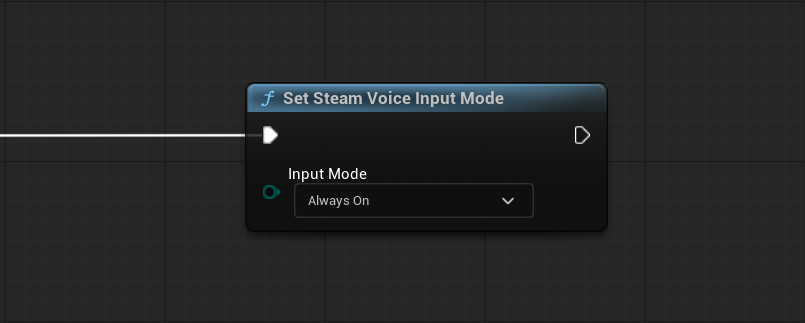
This mode does not require Push To Talk state.
Showing Speaking Indicators
Use:
- Subscribe To Local Steam Player Started Speaking
- Subscribe To Local Steam Player Stopped Speaking
- Subscribe To Remote Steam Player Started Speaking
- Subscribe To Remote Steam Player Stopped Speaking
Remote callbacks provide the speaking player's FSteamUserID.
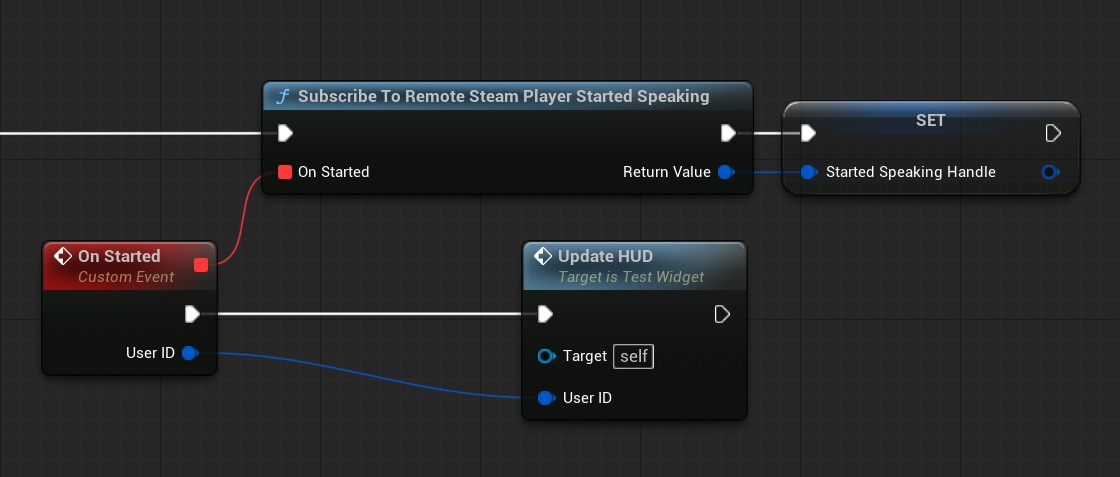
A typical UI flow is:
- Subscribe when the multiplayer HUD becomes active.
- Store each
FSteamVoiceChatListenerHandle. - Show or hide a speaking icon when the corresponding event fires.
- Unsubscribe when the HUD or listener is destroyed.
You can also query current state with Is Local Steam Player Speaking and Is Steam Player Speaking.
Muting a Player
Use Mute Steam Player with the remote player's FSteamUserID.
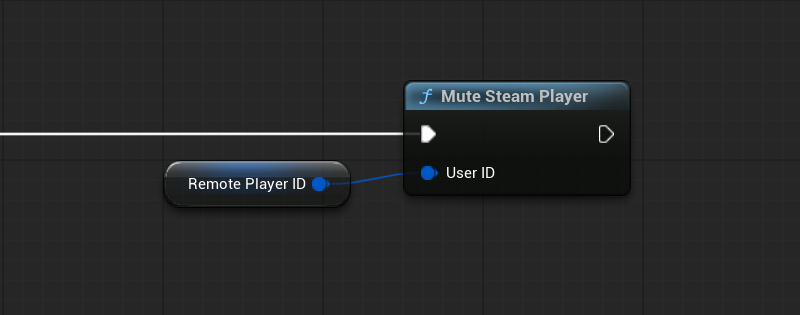
Use Unmute Steam Player to restore playback.
Is Steam Player Muted can be used to update a player-list or voice-settings UI.
Muting is local to the current user.
Changing Player Volume
Use Set Steam Player Volume to control the local playback volume of a specific remote player.
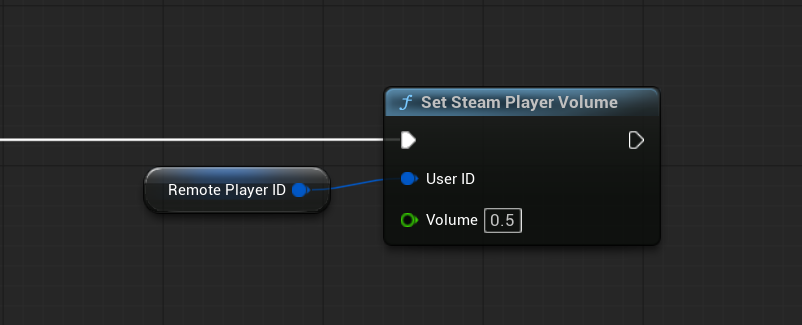
The value is clamped to the normalized 0 to 1 range.
Use Get Steam Player Volume when your UI needs to display the currently configured value.
Enabling Proximity Voice
To enable positional voice, set Steam Voice Chat Mode to Proximity.
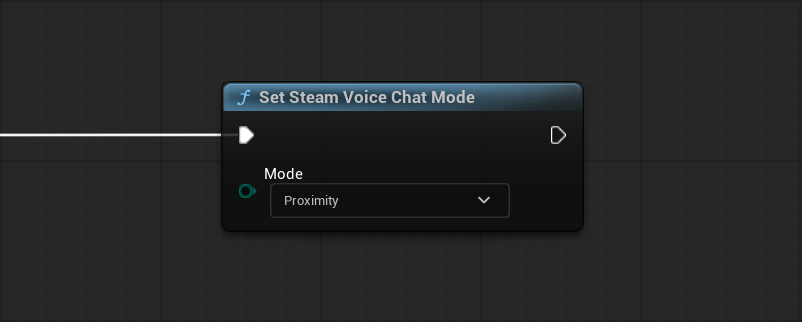
Proximity Voice uses the world position of each remote player's Actor to determine how their voice should be played.
For Proximity Voice to work correctly, you also need to:
- configure the proximity distances with Set Steam Proximity Voice Distances
- associate each remote Steam user with the Actor representing that player using Set Steam Player Voice Actor
These steps are explained below.
Binding Remote Players to Actors
Proximity Voice needs to know which Actor represents each remote Steam user.
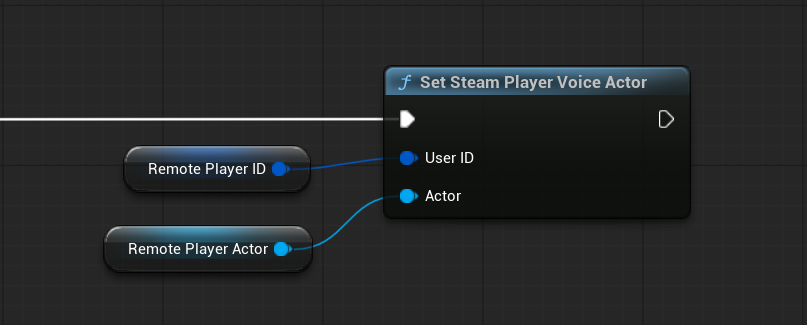
When a remote player becomes available:
- Obtain the player's
FSteamUserID. - Obtain the Actor representing that player in the world.
- Call Set Steam Player Voice Actor.
The bound Actor is then used as the sound source for that player's voice.
Call Clear Steam Player Voice Actor when the association is no longer valid, for example when the player leaves or the Actor is destroyed.
Configuring Proximity Distances
Use Set Steam Proximity Voice Distances to control how remote voice volume changes with distance.
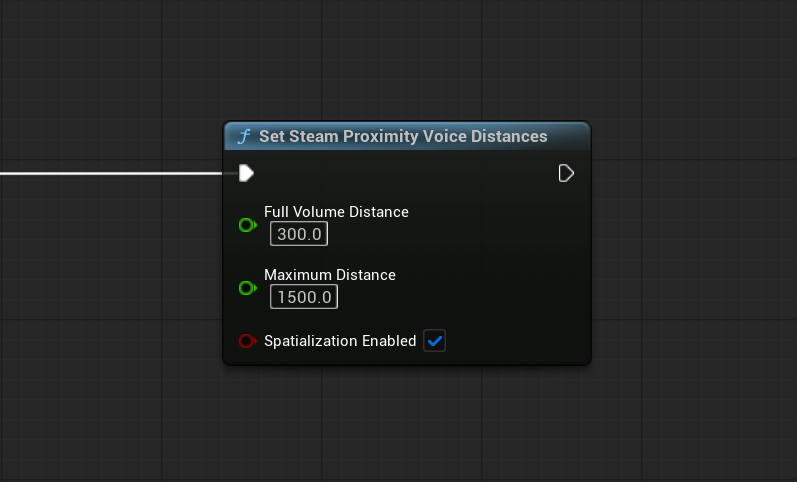
You can configure:
- Full Volume Distance — voice plays at full volume inside this range
- Maximum Distance — voice becomes inaudible at this distance
- Spatialization — enables positional audio for remote voices
Between the full-volume and maximum distances, the remote player's voice fades out based on distance.
All distance values use Unreal units.
Enabling and Disabling Voice
Voice Chat is enabled by default after Start Steam Voice Chat succeeds.
Use Set Steam Voice Chat Enabled only when you want to temporarily disable or re-enable:
- local microphone transmission
- remote voice playback
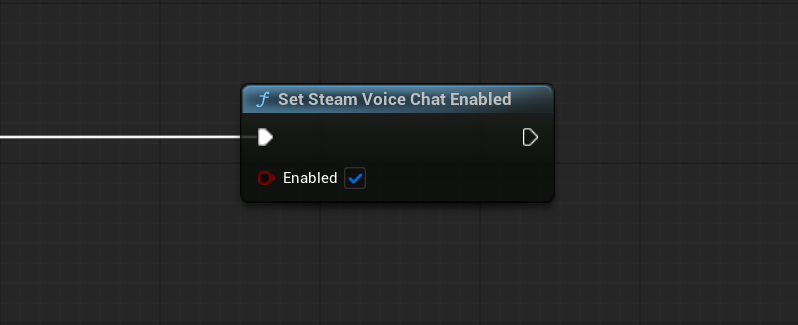
This is useful for a master voice-chat toggle in the game's audio or multiplayer settings.
Calling Set Steam Voice Chat Enabled(false) does not stop the active Voice Chat session and does not leave the multiplayer game.
You can later call Set Steam Voice Chat Enabled(true) to resume voice transmission and playback without starting the Voice Chat session again.
Use Stop Steam Voice Chat only when you want to fully end the Voice Chat session.
Handling Voice Chat Errors
Use Subscribe To Steam Voice Chat Error when your project needs persistent error reporting from the Voice Chat system.
The callback provides an error message.
Store the returned FSteamVoiceChatListenerHandle and unsubscribe when the listener is no longer needed.
Important Notes
- Voice Chat uses the current managed Multiplayer game
- Push To Talk, Voice Activation, and Always On are controlled through
ESteamVoiceInputMode - Proximity Voice requires each remote Steam user to be associated with the correct world Actor
- Mute and volume controls affect local playback of remote players
- Persistent speaking/error event handles should be stored and unsubscribed when no longer needed