Friends Examples
This section provides practical examples of using the Steam Friends feature to retrieve the user’s friends list, display friend information, check online status, inspect current activity, and send game invites.
All examples below are shown using Blueprint nodes, with equivalent functionality available through the C++ API.
Retrieving the Friends List
This example demonstrates how to retrieve the full Steam friends list using the Get Steam Friends List node.
The friends list is collected asynchronously and returned once persona data for each friend becomes available.
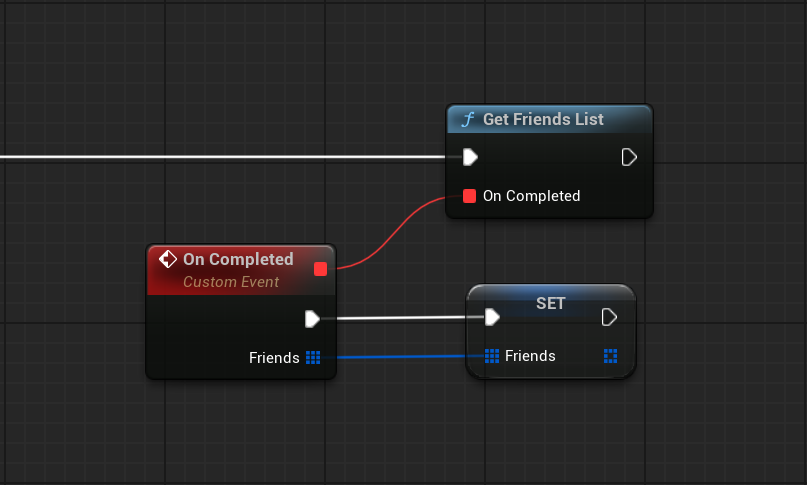
The On Completed callback returns an array of FSteamFriend structures, which can be stored and reused throughout the session.
This approach is typically used when building a friends screen, social menu, or any UI that needs access to friend data.
In most projects, the friends list is requested once and cached, rather than being fetched repeatedly.
Displaying Friend Information
In this example, the retrieved FSteamFriend data is used to display basic information about the friend.
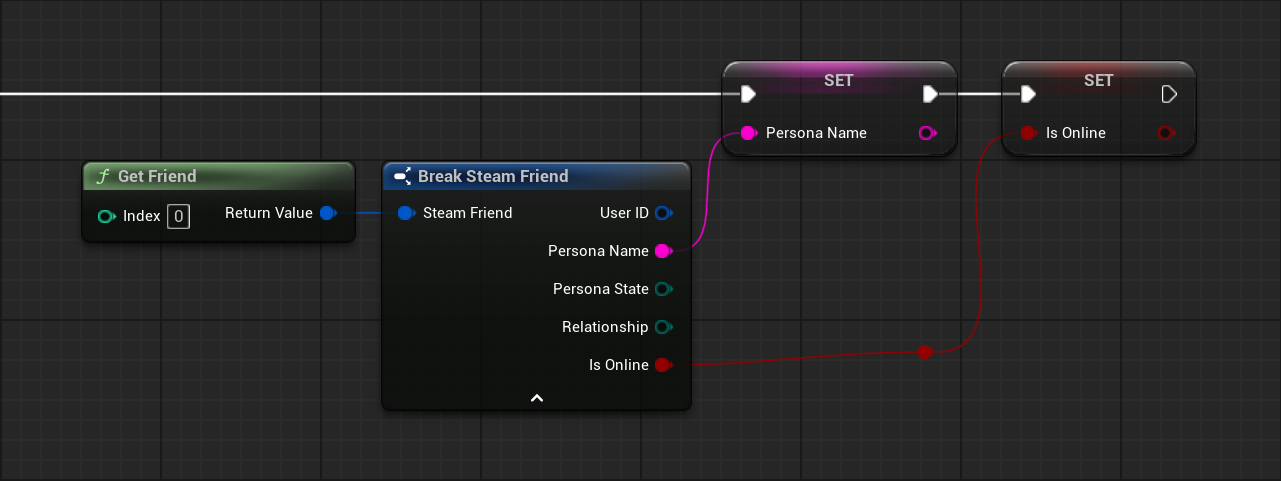
The FSteamFriend structure already contains aggregated persona data such as the friend’s Steam ID, display name, and current persona state.
This allows UI and gameplay logic to rely on a single data structure instead of querying multiple individual functions.
This pattern is recommended for rendering friends lists and social overlays.
Getting Friend Game and Lobby Information
This example demonstrates how to inspect what game a friend is currently playing and whether they are in a Steam lobby.
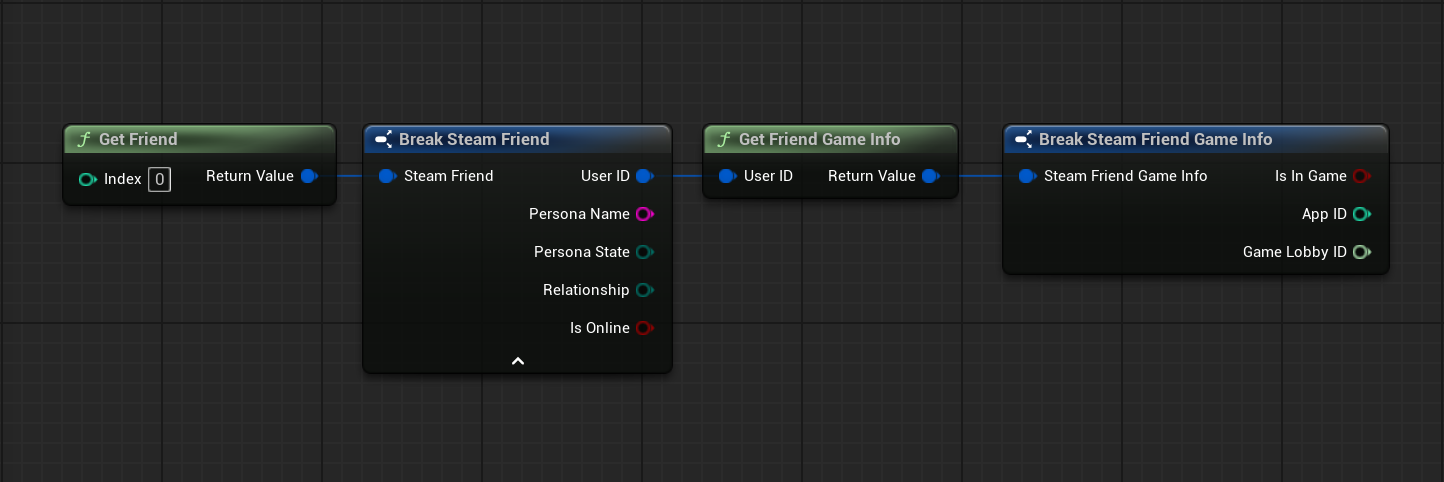
Using the Get Steam Friend Game Info node, the game can determine whether a friend is actively playing and retrieve contextual information for joining or displaying activity status.
This approach is commonly used to implement features such as:
- “Join Friend” buttons
- activity indicators
- social presence displays
Lobby IDs returned by this flow can be passed to other Steam features, such as Lobbies or Overlay, when appropriate.
Inviting a Friend to the Game
In this example, a direct Steam invite is sent to a specific friend using a connect string.
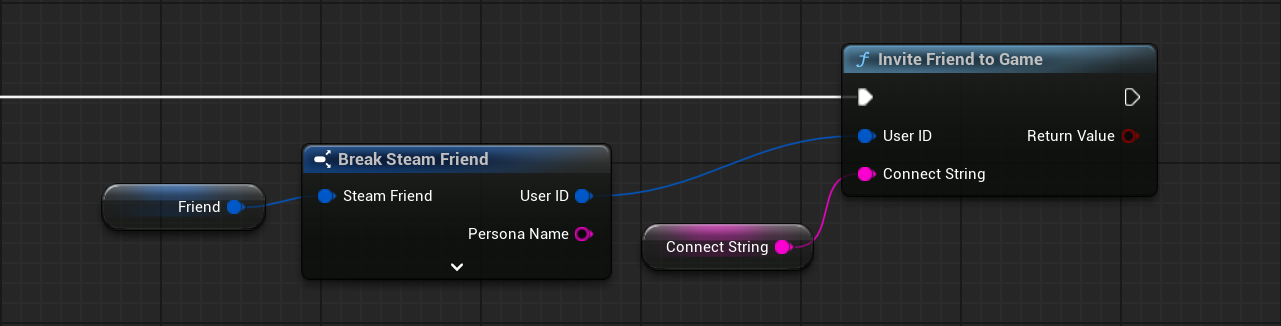
The Invite Steam Friend To Game node sends an invite without opening the Steam overlay UI.
This is typically used when the game manages its own UI and wants to provide a seamless invite flow.
The returned bool indicates whether Steam accepted the send request. It does not confirm that the friend received the invitation, accepted it, or joined a game.
If you use Host Steam Game / Join Steam Game, prefer Invite Player To Steam Game, which uses the current managed Lobby automatically. For a pre-game lobby, prefer Invite Friend To Steam Lobby or Open Steam Invite Dialog To Lobby.
What Is a Connect String
A connect string is a game-defined string that tells the game how an invited player should join a session.
The format and meaning of the connect string are controlled by your game and may represent a lobby ID, session identifier, or another join token. Steam forwards the connection information through its join-request mechanisms; your project must handle the received string and perform the actual join. In a running game, Subscribe To Steam Join Requested can report the ConnectString for a Rich Presence join request.
This lower-level function does not implement launching and joining your custom connection protocol when the game is closed. For the complete comparison, see Steam Invitations and Join Requests.
Updating Friends Status Information
One of the most common questions when working with the Steam Friends feature is how to keep friend online status and activity information up to date.
Steam does not provide guaranteed real-time updates for friend presence, so status data should be refreshed explicitly by the game using predictable and controlled patterns.
The approaches below describe recommended ways to update friend information without relying on continuous polling or low-level callbacks.
Refresh on UI Open
The most common approach is to call Get Steam Friends List when the friends UI is opened.
This refreshes persona data at the moment it becomes relevant to the player and avoids unnecessary background updates.
Periodic Refresh While UI Is Open
If more dynamic updates are required, a timer can be used while the friends UI remains visible.
A refresh interval of 10–30 seconds is recommended. Shorter intervals provide no practical benefit and are not guaranteed to return newer data.
On-Demand Checks
When the player interacts with a specific friend entry, targeted checks such as Is Steam Friend Online or Get Steam Friend Game Info can be performed using the friend’s Steam user ID.
Recommended Pattern
- Refresh the friends list when the UI is opened
- Optionally refresh at a fixed interval while the UI is visible
- Perform targeted checks on user interaction
Important Notes
- Online status and game information may change during runtime and should be refreshed when needed
- Sending invites requires a valid Steam user ID and an appropriate connect string
- Not all friends may expose lobby or game information at all times