Multiplayer Examples
This section provides practical examples of using the managed Multiplayer feature to host games, find and join games, invite players, travel between maps, and react to multiplayer lifecycle events.
All examples below use Blueprint nodes. Equivalent functionality is available through the C++ API. Multiplayer Version is configured once at Edit → Project Settings → Plugins → PloxTools: Steam Integration → Multiplayer → Connection → Multiplayer Version (default: 1) and is automatically used by the managed multiplayer nodes.
Hosting a Game
Use Host Steam Game when you want the plugin to create a Steam lobby and start a managed Unreal listen server.
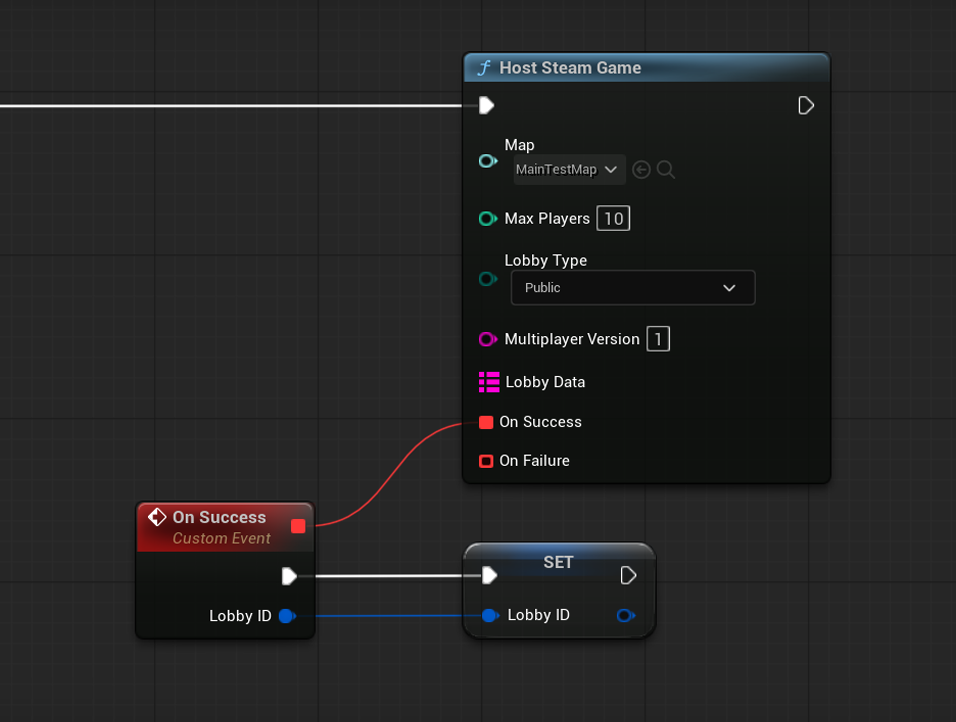
A typical host flow is:
- Call Host Steam Game.
- Select the map that should be hosted.
- Set
Max Players. - Choose the
ESteamLobbyType. - Add optional custom lobby data.
- Handle On Success or On Failure.
On success, the callback returns the FSteamLobbyID created for the managed game.
At this point, the Steam Lobby has been created and the managed Unreal listen server is running.
The host can inspect the resulting state with Get Current Steam Game.
Finding Available Games
Use Find Steam Games to search for compatible managed games.
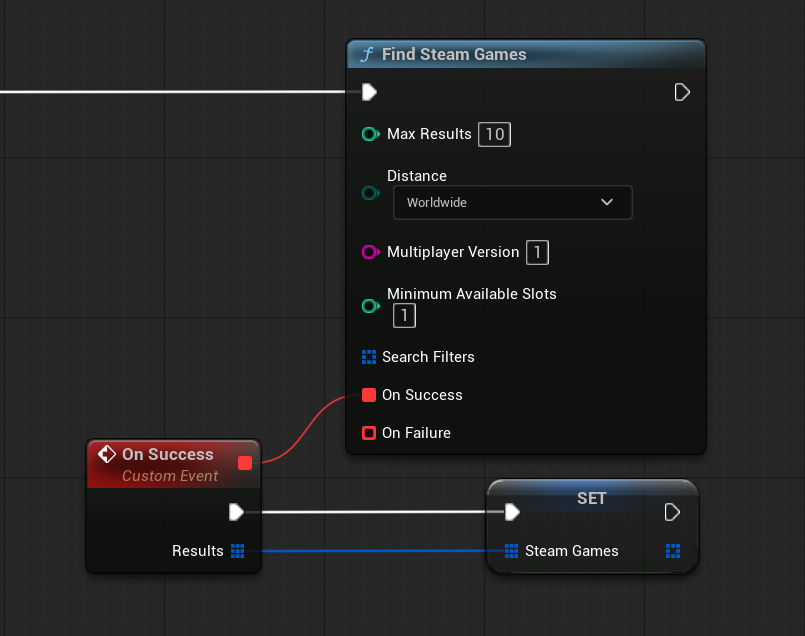
A typical search flow is:
- Set a maximum result count.
- Choose the lobby distance filter.
- Optionally require a minimum number of available slots.
- Optionally provide
FSteamLobbySearchFilterentries. - Handle On Success.
The success callback returns an array of FSteamGameSearchResult.
The plugin automatically filters for the Multiplayer Version configured in Project Settings. Each search result contains the Lobby ID required by Join Steam Game.
Joining a Game
After selecting a search result:
- Call Join Steam Game.
- Pass the result's Lobby ID.
- Handle On Success or On Failure.
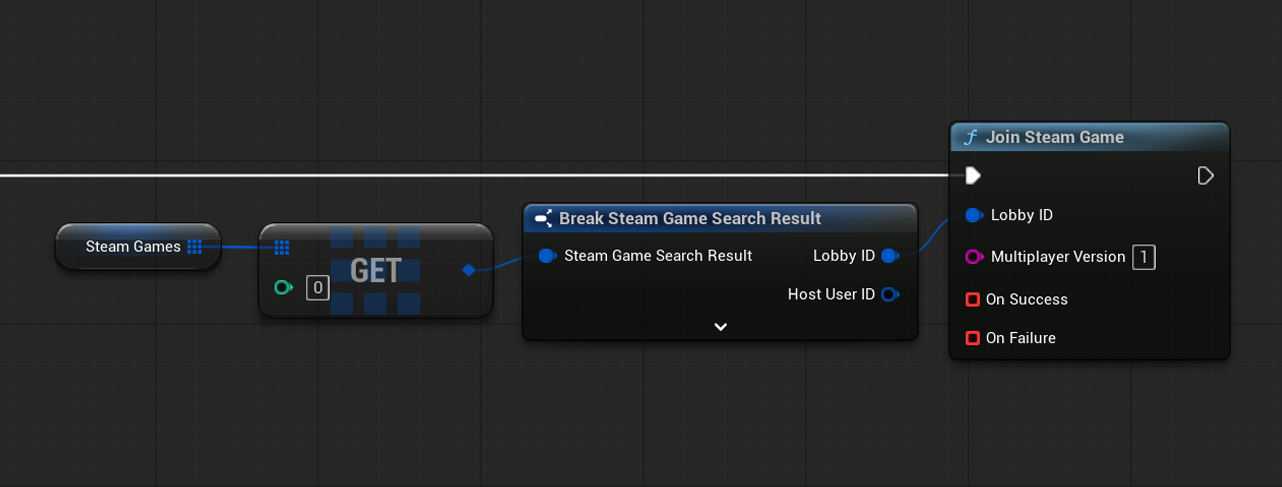
The plugin checks its configured Multiplayer Version, joins the managed Steam lobby, and connects the client to the host through the plugin's Steam networking flow.
Use Is Connected To Steam Game or Get Steam Multiplayer State when you need to inspect the current connection state.
Leaving a Game
Use Leave Steam Game to intentionally leave the current managed game.
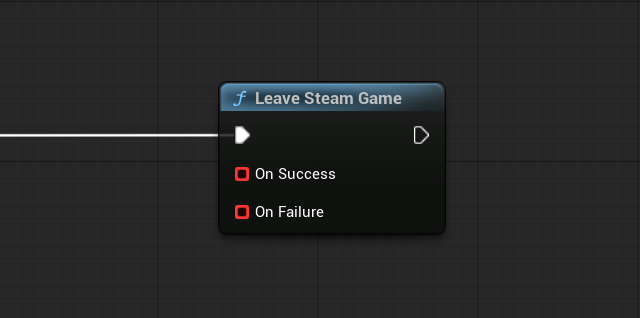
The operation closes the managed network connection and cleans up the current lobby membership.
Handle On Success before transitioning your local UI or gameplay state if your project depends on the cleanup being complete.
Traveling to Another Map
Only the host should use Travel Steam Game.
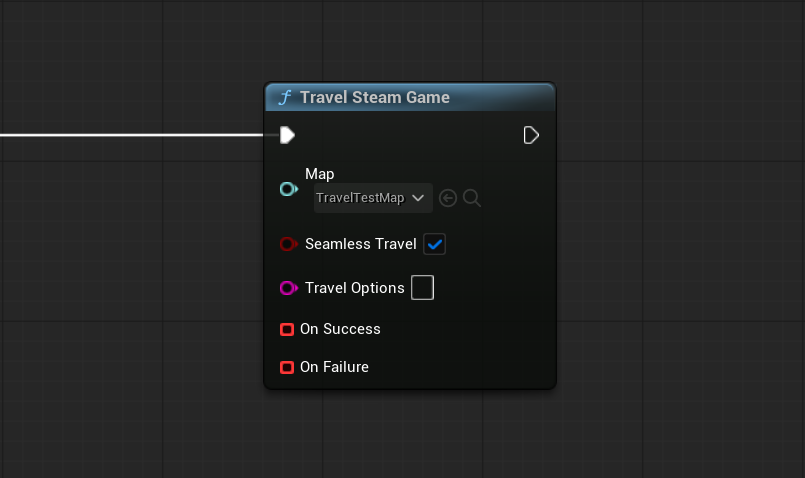
A typical flow is:
- Verify that the local world is hosting with Is Hosting Steam Game.
- Call Travel Steam Game.
- Select the destination map.
- Choose whether to use seamless travel.
- Provide optional travel options.
- Handle On Success or On Failure.
The managed Steam lobby/session is preserved while the host travels to the new map.
Warning
Multiplayer travel is best tested using a packaged build launched through Steam.
Travel may not behave reliably in PIE or Standalone Game, especially when testing multiple local players or editor-managed game instances.
You can subscribe to Steam Game Travel Started and Steam Game Travel Completed when UI or game state needs to react to the travel lifecycle.
Inviting a Friend
If you already know the target FSteamUserID, use Invite Player To Steam Game.
If you want the player to choose a friend through Steam UI, use Open Steam Invite Dialog For Current Game.
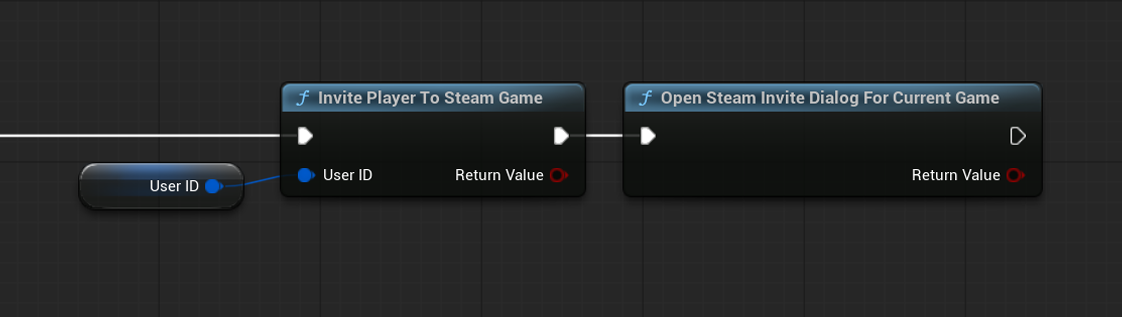
The current managed lobby is resolved automatically. These nodes work while the managed game is Connected and Allow Join In Progress is enabled. Open Steam Invite Dialog For Current Game also requires Steam Overlay to be enabled. The returned bool does not mean a friend has joined.
For a pre-game lobby, use Invite Friend To Steam Lobby or Open Steam Invite Dialog To Lobby instead. See Steam Invitations and Join Requests.
Handling Accepted Invitations
Use Subscribe To Steam Game Invitation Accepted when the game should react after the local user accepts a Steam invitation or selects Join Game through Steam.
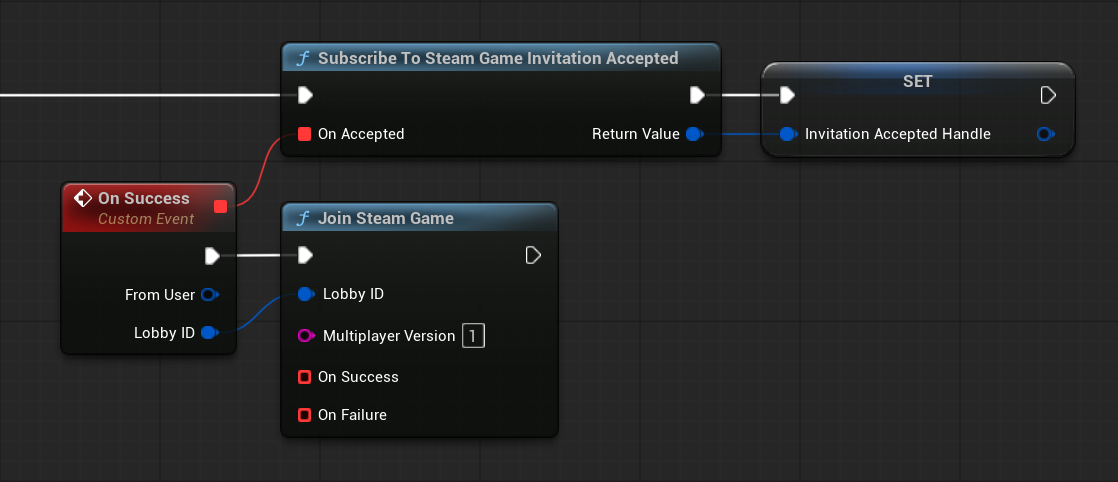
The callback provides:
- the source user when available
- the
FSteamLobbyID
A common flow is:
- Subscribe when your persistent multiplayer UI or game instance becomes active.
- Store the returned
FSteamMultiplayerListenerHandle. - When the event fires, identify the intended destination. If it is an active managed game, call Join Steam Game with the received Lobby ID. The plugin checks Multiplayer Version from Project Settings automatically.
- Handle Join Steam Game → On Success / On Failure. Invitation acceptance is not a completed network connection.
- Unsubscribe when the listener is no longer required.
The same invitation-accepted event can also refer to an ordinary pre-game Steam Lobby. In that case use Join Steam Lobby, not Join Steam Game. Do not also initiate joining from Subscribe To Steam Join Requested for the same invitation.
See Steam Invitations and Join Requests for the complete receiving-side workflow, including requests received when the game launches.
Listening for Players Joining and Leaving
On the host, use:
- Subscribe To Steam Player Joined
- Subscribe To Steam Player Left
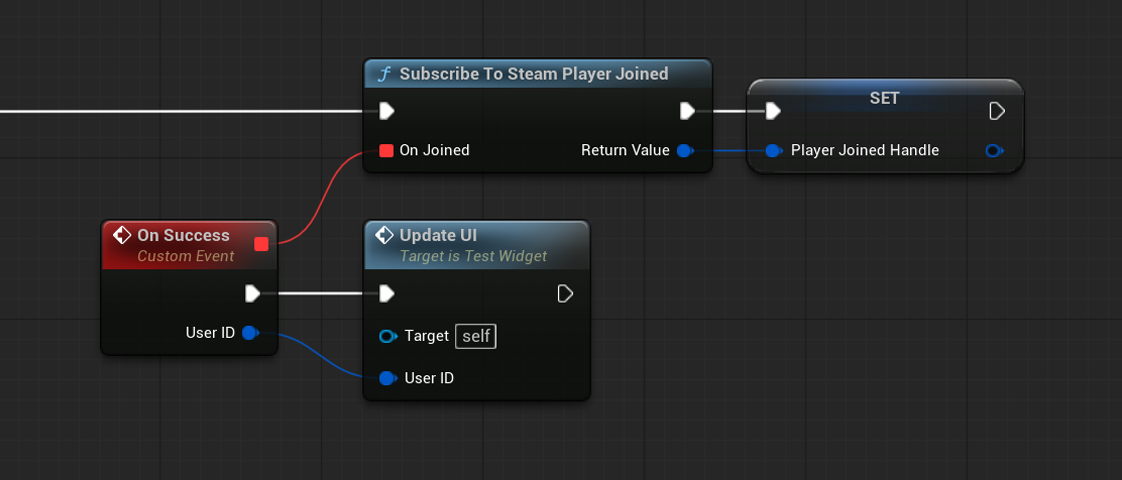
The callbacks provide the remote player's FSteamUserID.
These events are useful for:
- Player lists
- Lobby/game UI
- Host-side bookkeeping
- Voice Chat setup
- Custom gameplay state
Store each returned listener handle and unsubscribe when the listener is destroyed or no longer needed.
Handling Disconnects and Connection Failures
The Multiplayer feature provides persistent events for unexpected failures:
- Subscribe To Steam Connection Failed
- Subscribe To Steam Game Disconnected
- Subscribe To Steam Host Disconnected
Use these events to return players to menus, show an error message, or reset local multiplayer state when a connection ends unexpectedly.
Failure callbacks include either ESteamMultiplayerError, an error message, or both depending on the event.
Starting From an Existing Lobby
If your project already created or joined a Steam Lobby using the lower-level Lobbies feature, the host can start a managed multiplayer game from that lobby without creating a new one.
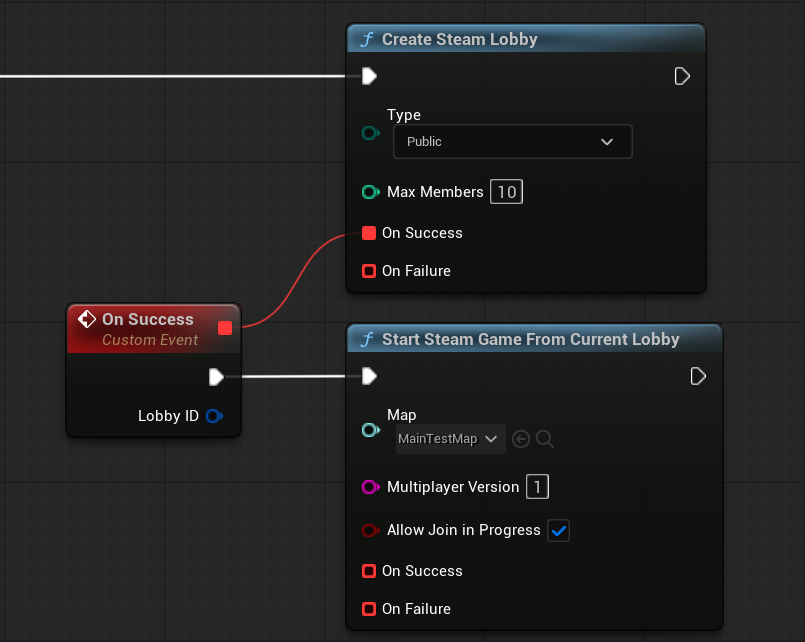
A typical flow is:
- Create or join a Steam Lobby using the Lobbies feature.
- Configure any required lobby or member data.
- When the host is ready to start the game, call Start Steam Game From Current Lobby.
- Select the map to host.
- Choose whether Allow Join In Progress should permit new players to join after the match starts.
- Handle On Success or On Failure.
The plugin then starts the managed Steam networking and Unreal listen-server flow using the current lobby. Players already in that lobby when the host starts the match automatically attempt to join the game, subject to the usual compatibility and connection checks. They do not need to call Join Steam Game themselves. Multiplayer Version is read from Project Settings, not passed into this node.
Allow Join In Progress controls later join attempts, not automatic joining of players already in the lobby. See Steam Invitations and Join Requests for how friends join the pre-game lobby before the host starts the match.
This is useful for projects that want to implement their own pre-game lobby, ready system, character selection, or other custom lobby logic before starting the actual game.
Important Notes
- All clients and the host must use the same Steam App ID
- Compatible players must use matching Multiplayer Version settings in Project Settings (default:
1) - Host Steam Game creates the managed Steam lobby automatically
- Use the lower-level Lobbies feature when you want to manage the lobby/networking flow manually
- Persistent event handles should be stored and unsubscribed when no longer needed
- Final multiplayer behavior should be validated with packaged builds and real Steam accounts