Cloud Saves Examples
This section provides practical examples of using Steam Cloud Saves to store raw files, save USaveGame objects, restore saved data, and manage cloud-stored files.
All examples below use Blueprint nodes. Equivalent functionality is available through the C++ API.
Prerequisites
Before using Cloud Saves:
- Steam Cloud must be enabled for the application in Steamworks
- Steam Cloud must be enabled for the current Steam account
- Steam must be initialized
You can use Is Steam Cloud Enabled to verify that Steam Cloud is currently available.
Saving a SaveGame Object
Use Save Game To Steam Cloud when you want the plugin to serialize and upload a USaveGame object directly.
A typical flow is:
- Create or update your SaveGame object.
- Call Save Game To Steam Cloud.
- Provide a consistent file name such as
SaveSlot_1orAutoSave. - Pass the SaveGame object.
- Handle On Success or On Failure.
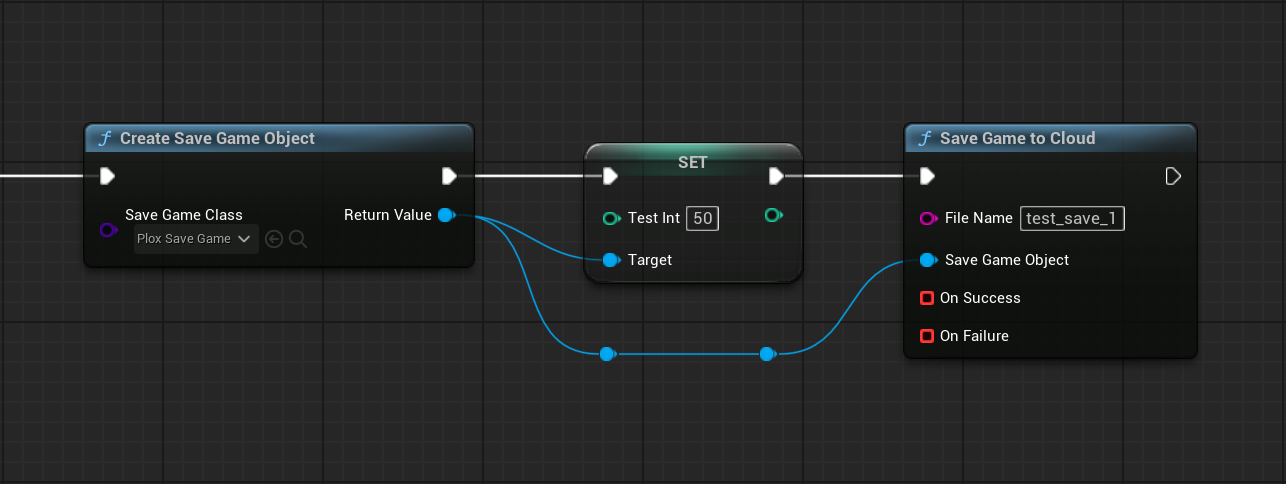
The operation is asynchronous.
On success, the SaveGame object has been serialized and written to the specified Steam Cloud file.
On failure, the callback returns an error message that can be used for logging or fallback handling.
Loading a SaveGame Object
Use Load Game From Steam Cloud to load a file previously written with Save Game To Steam Cloud.
A typical flow is:
- Call Load Game From Steam Cloud with the same file name used when saving.
- Handle On Success.
- Cast the returned
USaveGameobject to your SaveGame class. - Apply the loaded data to the game.
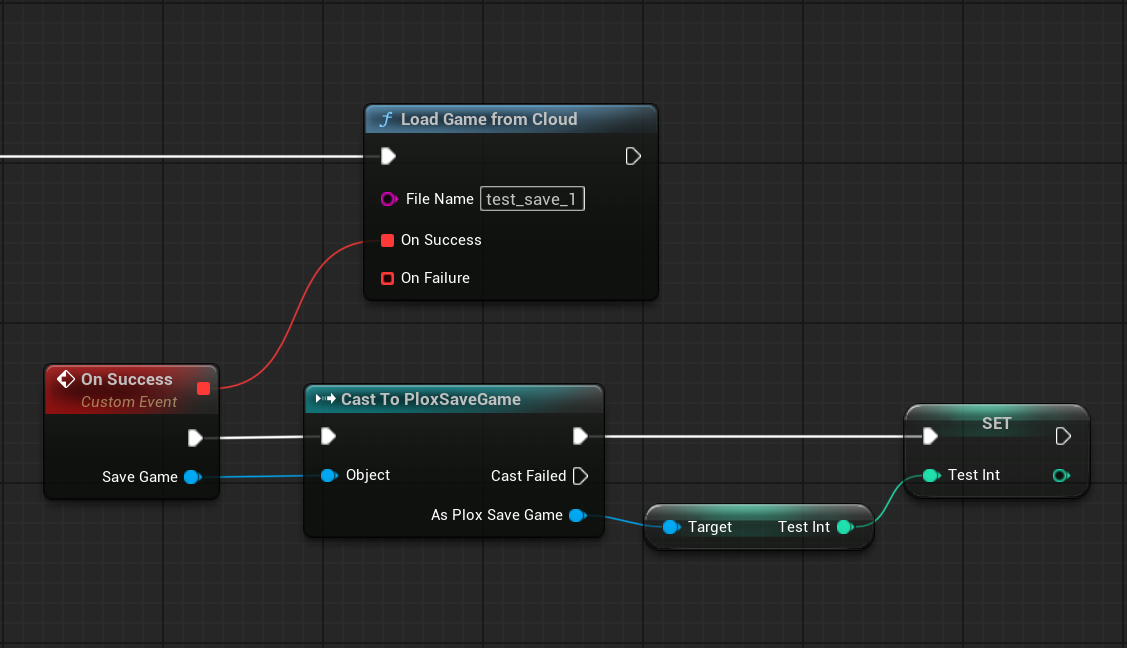
If the file does not exist, cannot be read, or cannot be deserialized as a SaveGame object, On Failure is triggered.
Checking Whether a Cloud File Exists
Use Check Steam Cloud Save before loading when you need to know whether a specific file already exists.
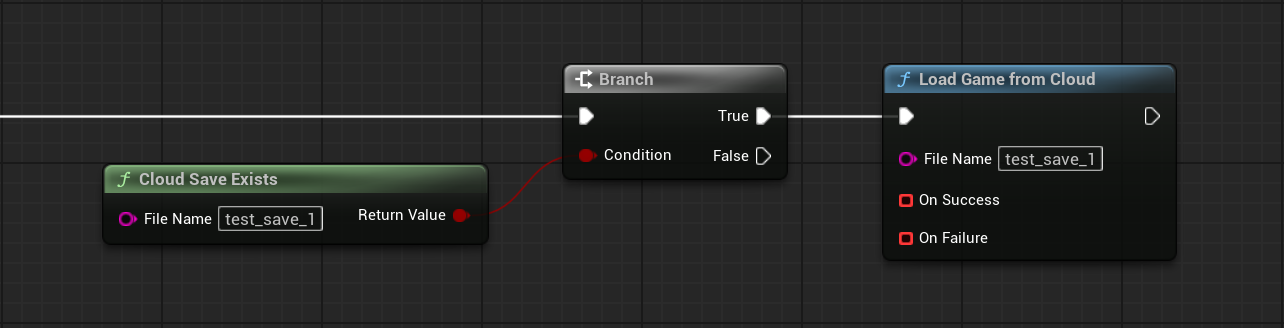
The node returns:
- a boolean result indicating whether the file exists
- Success, indicating whether the existence check itself could be performed
This is useful for first-launch logic, save-slot UI, or deciding whether to create a new save.
Listing Cloud Files
Use Get Steam Cloud Save List to retrieve all Steam Cloud files available for the current application.
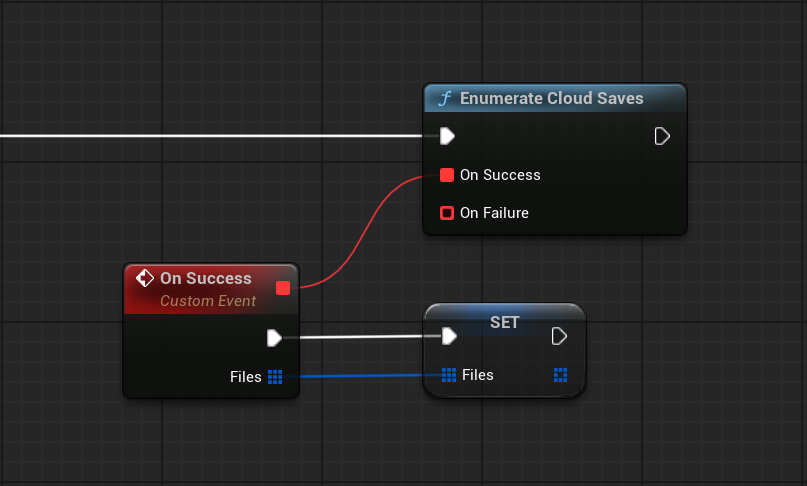
The On Success callback returns an array of FSteamCloudFileInfo.
Each entry contains:
- File name
- Size in bytes
- Last modification timestamp
This is useful for save-slot menus, debugging tools, or cloud file management UI.
Writing Raw Data
Use Write Steam Cloud Save when you want to store arbitrary byte data instead of a USaveGame object.
A typical flow is:
- Prepare an array of bytes.
- Call Write Steam Cloud Save.
- Provide the target file name.
- Handle On Success or On Failure.
If a file with the same name already exists, it is overwritten.
This lower-level API is useful for custom file formats, serialized settings, generated data, or other content that does not use Unreal's SaveGame system.
Reading Raw Data
Use Read Steam Cloud Save to retrieve the byte data stored in a Steam Cloud file.
The On Success callback returns an array of bytes that can be deserialized or processed by your game.
Use the same file name that was provided when writing the file.
Deleting a Cloud File
Use Delete Steam Cloud Save when a cloud file should be permanently removed.
Typical use cases include:
- Deleting a save slot
- Resetting cloud-stored settings
- Removing obsolete files
Handle On Success before removing the corresponding entry from your UI or local state.
Choosing Between SaveGame and Raw Data
Use:
- Save Game To Steam Cloud / Load Game From Steam Cloud for standard Unreal
USaveGameworkflows - Write Steam Cloud Save / Read Steam Cloud Save when you need direct access to raw byte data
Both approaches store files in Steam Cloud. The difference is how the data is serialized and returned to your game.
Important Notes
- File names must be consistent between write and read operations
- Steam Cloud must be enabled for both the application and the current user
- Write, read, delete, list, SaveGame save, and SaveGame load operations are asynchronous
- Steam Cloud synchronization between devices is managed by Steam
- Avoid unnecessarily frequent or very large writes