Product Details
This page explains how to retrieve product information from Google Play and use it to build a store interface.
Instead of entering product names, descriptions, and prices manually, the application can request this information from Google Play and display the returned localized values.
Product Details may also contain multiple purchase options or offers.
For convenience, the plugin exposes the first available option through simplified fields. When several options are available, use the complete offer arrays to select the required option and store its Offer Token for the later purchase request.
Note
Product Details do not need to be queried before every purchase.
Request them when preparing or refreshing the store interface, then reuse the returned information until it needs to be updated.
Display a Single Product
Use Query Single Google Play Product Details when the store displays one specific product.
For example, the application can request remove_ads when preparing its purchase interface.
Provide the Product ID and select the correct Product Type:
- In-App Product for one-time products.
- Subscription for subscriptions.
The selected Product Type must match the product created in Google Play Console.
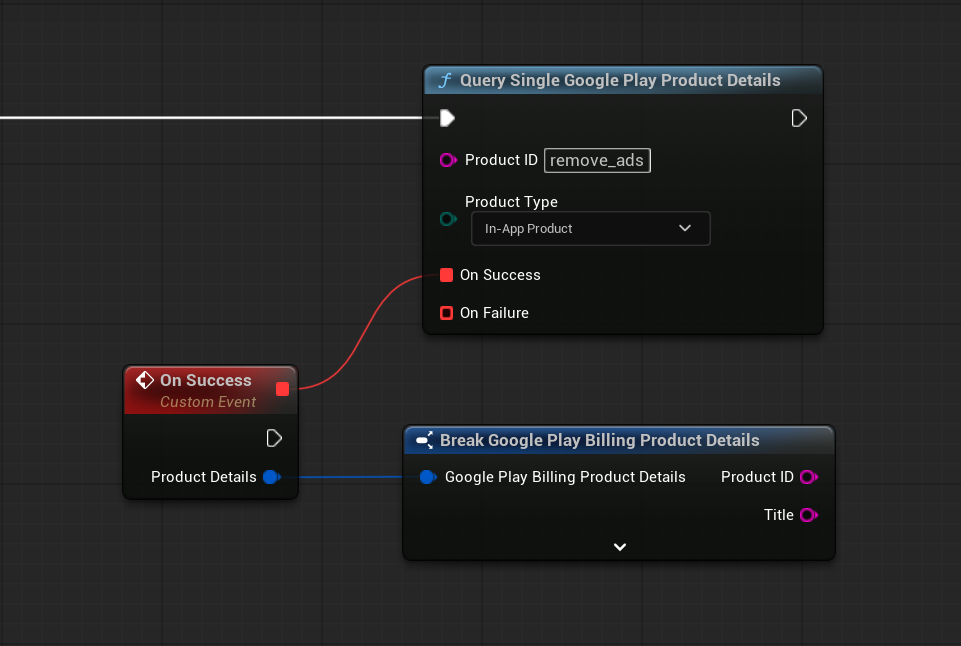
When On Success is called, it returns the product information as an FGooglePlayBillingProductDetails structure.
For a simple store interface, use:
- Name or Title for the visible product name.
- Description for the product description.
- Formatted Price for the purchase button or price label.
Use Formatted Price instead of entering a price manually. Google Play returns the localized value for the current user.
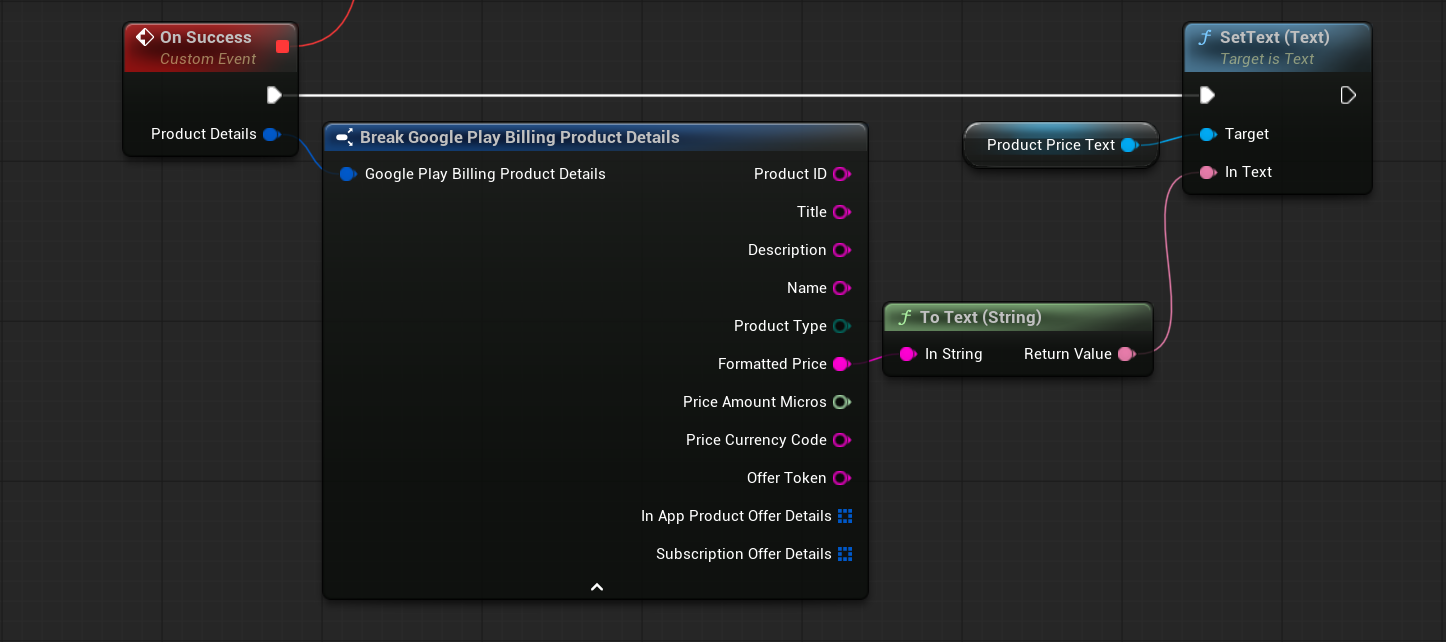
The returned data also contains the Product ID, Product Type, and Offer Token that can be used to identify the purchase option later.
The Offer Token identifies the exact purchase option that should be used:
- For a one-time product, it identifies a specific purchase option or offer.
- For a subscription, it identifies a specific base plan or subscription offer.
If the product contains multiple options, store the Product ID, Product Type, and Offer Token associated with the option selected by the user.
These values will later be passed to Launch Google Play Billing Flow.
Display Multiple Products
Use Query Google Play Product Details when preparing a store that contains several products of the same Product Type.
For example, a store may request:
remove_adscoin_pack_smallcoin_pack_large
Provide the required Product IDs as an array.
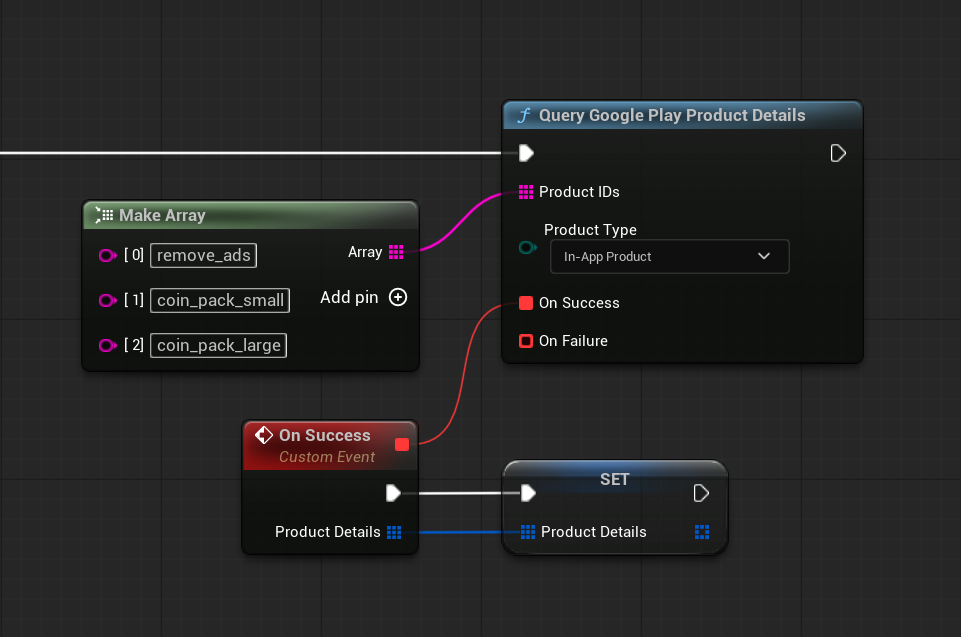
When On Success is called, it returns an array of product details.
You can search the returned array by Product ID to find the details of a specific product.
The selected product details can then be stored in variables for later use or used immediately to update the corresponding store interface.
Note
One-time products and subscriptions must be queried separately because each request uses a single Product Type.
Product Information
The returned product details contain general information and offer-specific data.
The most commonly used fields are:
- Product ID — Product ID configured in Google Play Console.
- Name — product name configured in Google Play Console.
- Title — full localized title returned by Google Play. It may include the application name or Package Name in parentheses.
- Description — localized product description.
- Product Type — identifies whether the product is a one-time product or subscription.
- Formatted Price — localized price prepared for display.
- Offer Token — identifies the purchase option that should be used later.
For the complete field list, see FGooglePlayBillingProductDetails.
Default Purchase Option
For convenience, the returned product details include simplified primary fields:
- Formatted Price
- Price Amount Micros
- Price Currency Code
- Offer Token
These values are filled automatically from the first available purchase option returned by Google Play.
For a one-time product, they are taken from the first entry in In App Product Offer Details.
For a subscription, they are taken from the first pricing phase of the first entry in Subscription Offer Details.
This is sufficient when the product has only one purchase option or when the first available option should be used.
Important
The simplified fields represent only the first available option.
If the product has multiple purchase options, base plans, or offers, inspect the complete offer arrays and select the required entry manually.
Store the Offer Token from the selected entry. If it is not passed to the purchase flow, the plugin will use the first available option instead of the option selected by the user.
One-Time Product Offers
One-time products may contain multiple purchase options or offers.
The In App Product Offer Details array contains FGooglePlayBillingInAppProductOfferDetails entries.
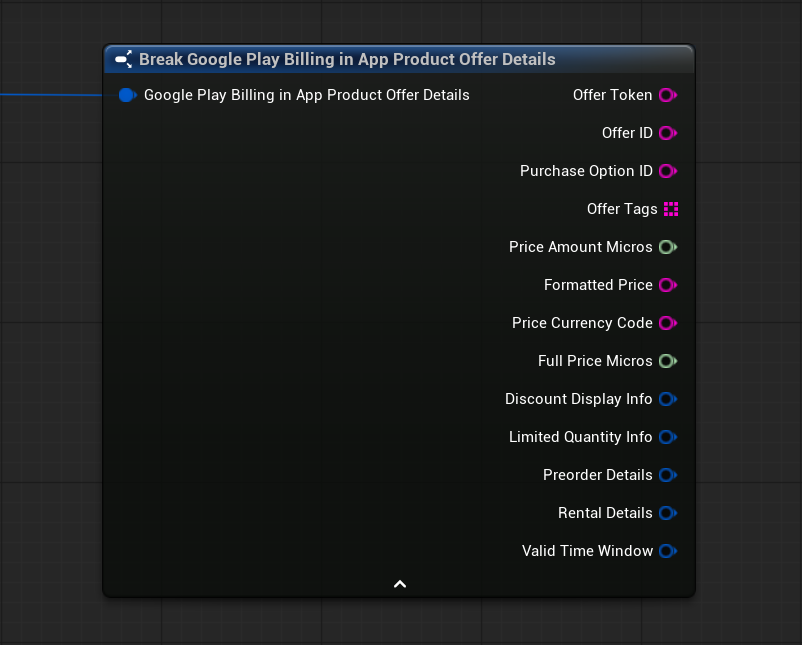
Each entry can include:
- Offer Token
- Offer ID
- Purchase Option ID
- Formatted Price
- Full Price
- Offer Tags
- Discount information
- Limited quantity information
- Preorder information
- Rental information
- Valid availability period
When several options are available, iterate through the array and identify the required entry using its Offer ID, Purchase Option ID, Offer Tags, or price information.
Display the available options in the interface.
When the user selects an option, store its Product ID, Product Type, and Offer Token in variables, then pass these values when launching the purchase.
Subscription Offers
Subscriptions may contain multiple base plans and offers.
The Subscription Offer Details array contains FGooglePlayBillingSubscriptionOfferDetails entries.
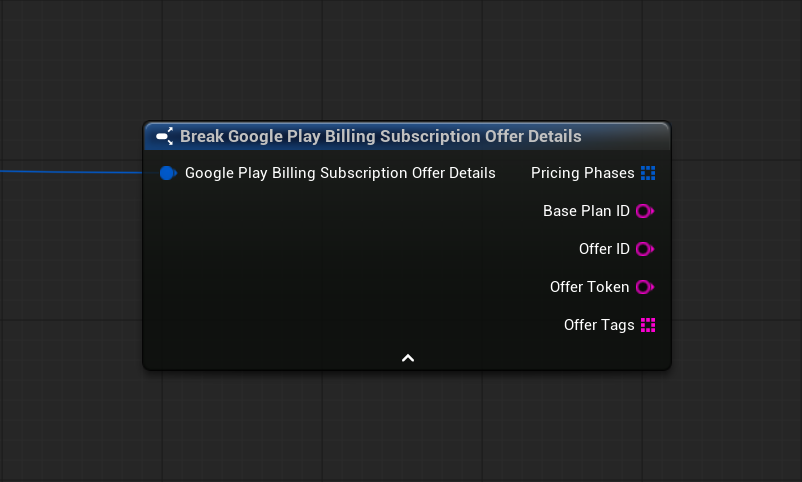
Each entry includes:
- Base Plan ID
- Offer ID
- Offer Token
- Offer Tags
- Pricing Phases
A pricing phase can represent:
- A free trial
- An introductory price
- A limited number of discounted billing periods
- The regular recurring price
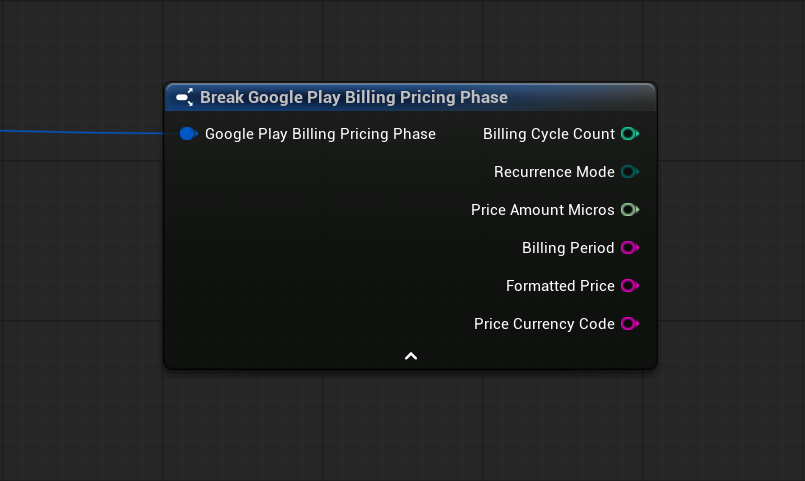
When several base plans or offers are available, iterate through the array and identify the required entry using its Base Plan ID, Offer ID, Offer Tags, or pricing information.
Display the available base plans or offers in the interface.
When the user selects a base plan or offer, store its Product ID, Product Type, and Offer Token in variables, then pass these values when launching the subscription purchase.
For the complete pricing phase fields, see FGooglePlayBillingPricingPhase.
Next Step
The next step is to launch the selected product option and handle the purchase result.
Continue with Purchase Flow.