Banner
Banner ads are rectangular advertisements displayed alongside the application content. Unlike fullscreen formats, they remain visible while the user continues interacting with the application.
Banners are best suited to screens where a persistent ad can remain visible without interrupting gameplay or covering important interface elements, such as menus, results screens, shops, or other low-intensity sections.
The general initialization and loading workflow is described in Basic Usage. This page focuses on banner-specific behavior and configuration.
Banner Sizes
The plugin supports six banner sizes through EBannerAdSize.
| Size | Dimensions | Recommended Use |
|---|---|---|
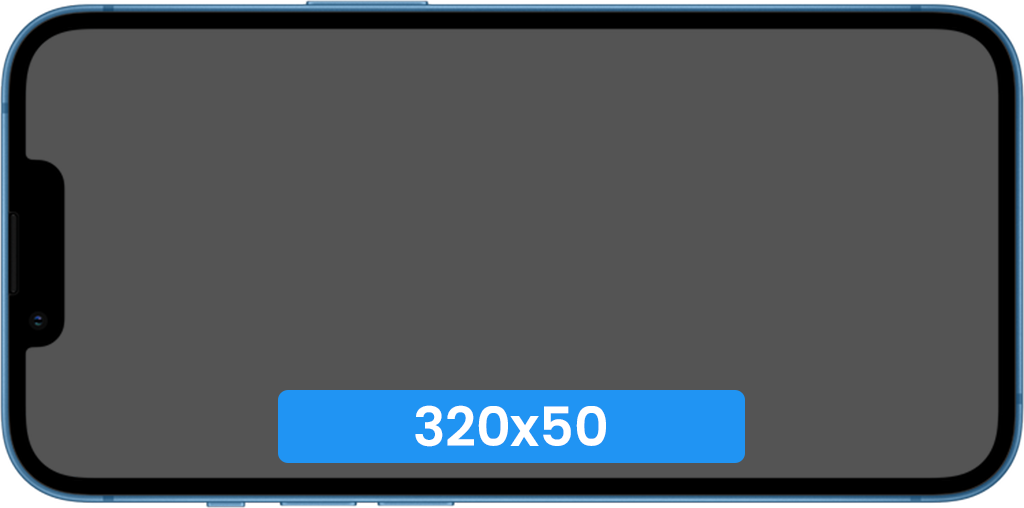
| Banner | 320 × 50 | Standard phone banner. |
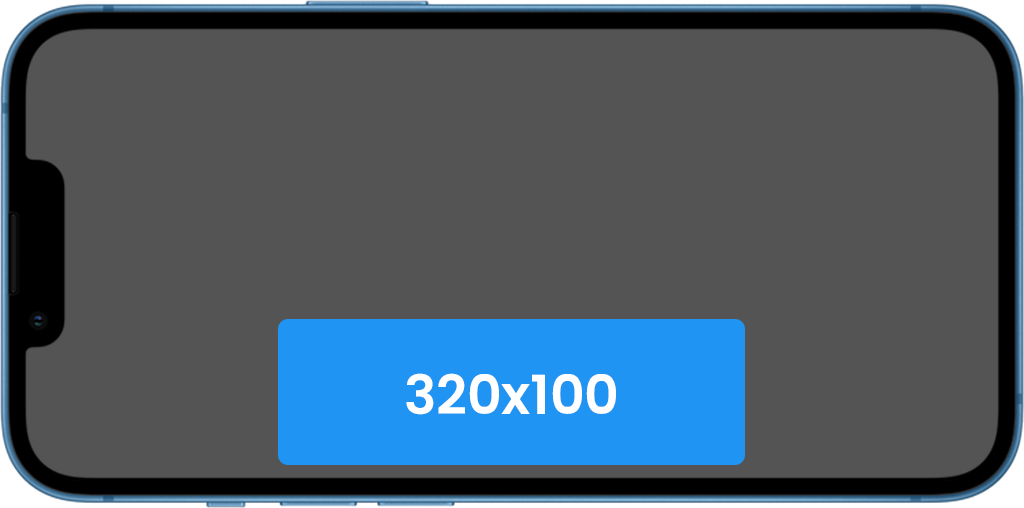
| Large Banner | 320 × 100 | Taller phone banner when additional vertical space is available. |
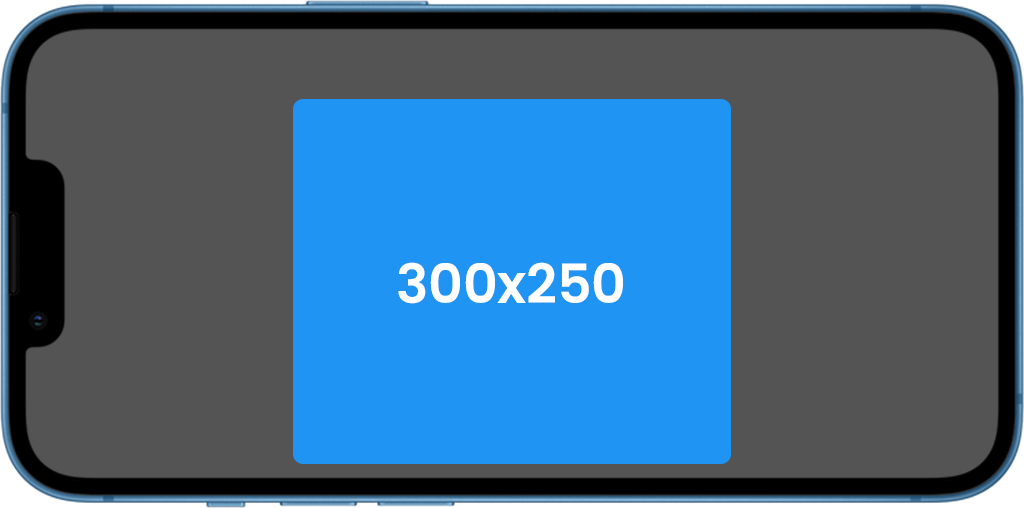
| Medium Rectangle | 300 × 250 | Larger rectangular placement inside menus or static layouts. |
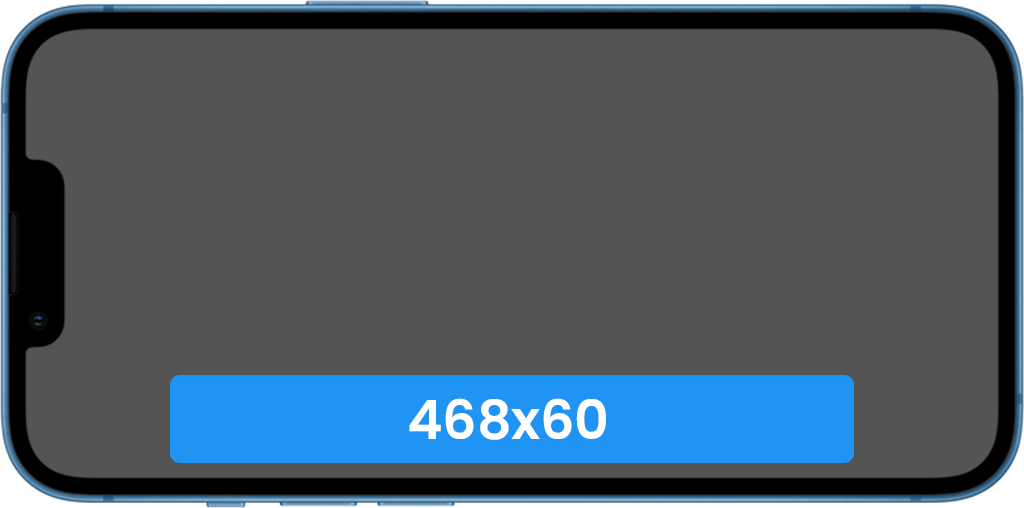
| Full Banner | 468 × 60 | Wider layouts and larger screens. |
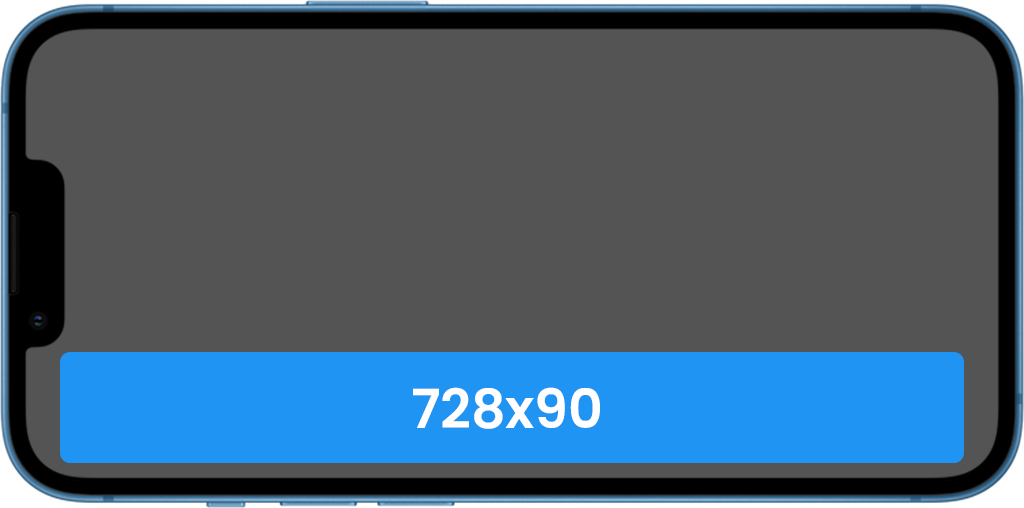
| Leaderboard | 728 × 90 | Tablets and other large-screen layouts. |
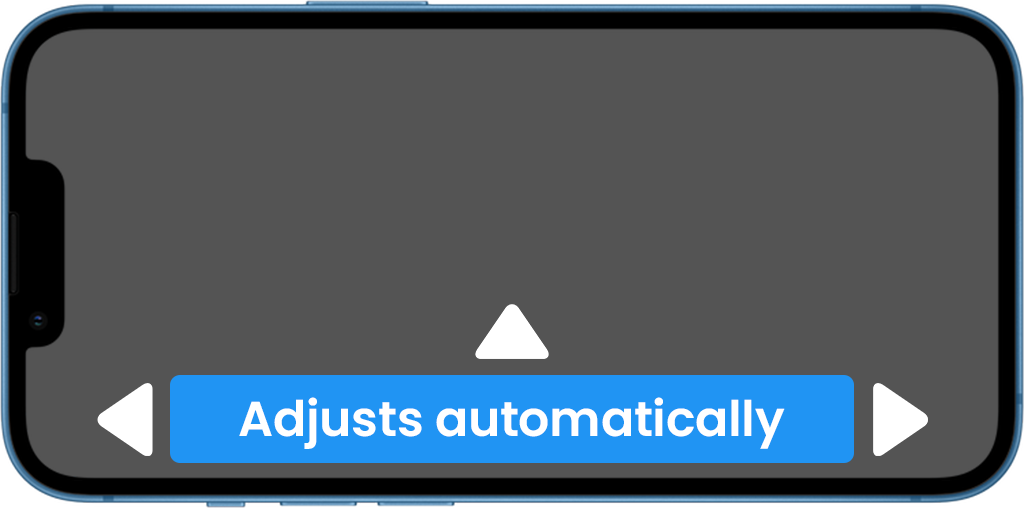
| Anchored Adaptive | Adjusts to screen width | Responsive top or bottom placement across different screen sizes. |
For most phone layouts, Anchored Adaptive is the most flexible option because its width is calculated for the current device while the SDK selects an appropriate height.
Standard fixed sizes are useful when the application layout reserves a specific amount of space for the banner.
Note
Select a size that fits the available screen space. Large fixed banner sizes may not fit correctly on smaller devices or in portrait layouts.
Banner Position
The banner position is selected when calling Show Banner through EBannerGravity.
Available positions include the top, middle, and bottom of the screen, with left, center, and right alignment.
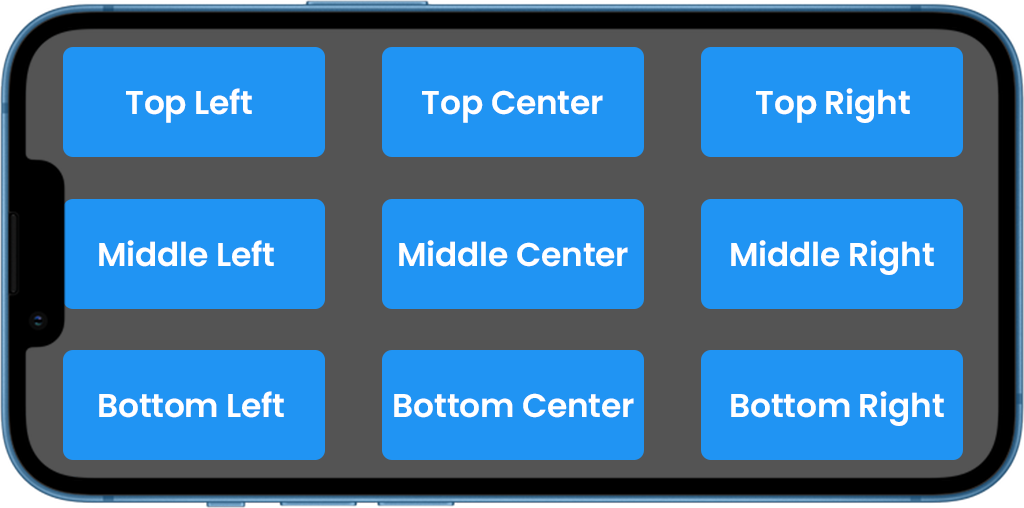
The Offset X and Offset Y parameters move the banner relative to the selected gravity position. This is useful when the banner must be separated from existing UI elements.
The position can be changed by calling Show Banner again with a different gravity or offset. The banner does not need to be reloaded.
Important
Make sure the banner does not overlap navigation controls, gameplay buttons, important information, or other interactive UI.
Test the placement on every supported orientation and screen size.
Banner Lifecycle
A banner follows a different lifecycle from fullscreen ads.
After it has loaded successfully, the same banner can be:
- shown;
- hidden;
- shown again;
- moved to another position;
- destroyed when it is no longer required.
Showing a banner does not consume it. You do not need to load a new banner every time it is hidden and shown again.
Hide Banner
Hide Banner removes the banner from view but keeps the current banner instance loaded.
Use it when the banner should disappear temporarily, such as when entering gameplay, opening a fullscreen menu, or displaying content that must not be covered.
The hidden banner can be displayed again immediately with Show Banner.
Destroy Banner
Destroy Banner removes the current banner instance completely.
Use it when the application no longer needs that banner placement or when you want to load a new banner with a different Ad Unit ID or size.
After destruction, a new banner must be loaded before Show Banner can succeed.
Loading a New Banner
The plugin manages one active banner instance at a time.
Calling Load Banner again replaces the current banner instance with the newly requested banner. This also means that changing the banner size or Ad Unit ID requires a new load request.
Wait for On Loaded before calling Show Banner. Use Is Banner Ready when the application needs to check the current banner state before attempting to display it.
Is Banner Visible reports whether the current banner is actively displayed. It does not replace Is Banner Ready, because a banner can be loaded while hidden.
Banner Events
The On Event callback reports banner lifecycle events through EBannerAdEventType.
Available events are:
- Opened — the banner opened or expanded additional content.
- Clicked — the user clicked the banner.
- Closed — the opened banner content was closed.
- Impression — an impression was recorded.
These events are intended for application state handling, analytics, or diagnostics. They should not be used to reward the user.
Recommended Usage
For a reliable banner implementation:
- Load the banner after AdMob initialization has completed.
- Reserve enough layout space for the selected banner size.
- Wait for On Loaded before displaying it.
- Use Hide Banner when the banner is temporarily inappropriate.
- Use Destroy Banner only when the current banner instance is no longer needed.
- Test the selected position and size on every supported platform, orientation, and screen size.
Avoid placing banners over active gameplay controls or rapidly showing and hiding them in response to frequent UI changes.
Related Reference
For exact function signatures and callback parameters, see AdMob API.
For banner sizes, positions, events, and error values, see Enumerations.
For official Android and iOS demo Ad Unit IDs, see Testing.