Getting Started
Install the Plugin
The plugin can be downloaded and installed through the Epic Games Launcher.
Once installed, the plugin will appear in your project's plugin list.
Enable Steam Integration Plugin
In Unreal Engine, go to Edit → Plugins, search for "PloxTools: Steam Integration", and make sure the plugin is enabled.

Restart Unreal Engine if prompted.
Disable Conflicting Steam Plugins
PloxTools: Steam Integration uses the Steamworks SDK directly and does not rely on Unreal Engine's built-in Steam integration.
To avoid multiple systems attempting to initialize or manage Steamworks at the same time, disable the following Unreal Engine plugins if they are enabled:
- Online Subsystem Steam
- Steam Shared Module
- Steam Controller
- Steam Sockets
You should also disable other third-party plugins that independently initialize Steamworks or provide their own Steam integration.
Running multiple Steam integration solutions in the same project may cause initialization conflicts, callback issues, or crashes during startup.
Steamworks Account and App Setup
Before using Steam functionality with your own game, the project must be set up in Steamworks.
The plugin does not create or configure Steamworks applications or Steam features. This setup is performed through the Steamworks dashboard.
At a minimum, you need:
- A Steamworks developer account
- A registered Steam application
- The Steam App ID assigned to that application
- Access to the application from the Steam account used for testing
The App ID is the unique numeric identifier assigned to your application by Steamworks. The plugin uses this ID when initializing Steam and communicating with Steam services.
Some Steam features require additional configuration in Steamworks before they can be used, including Achievements, Leaderboards, Steam Cloud, DLC, and Steam Input. Any feature-specific setup is explained in the corresponding section of this documentation.
For the most up-to-date information about creating and configuring a Steam application, refer to the official Steamworks documentation.
Configure Steam App ID
Once your application has been created in Steamworks, copy its App ID from the application page.
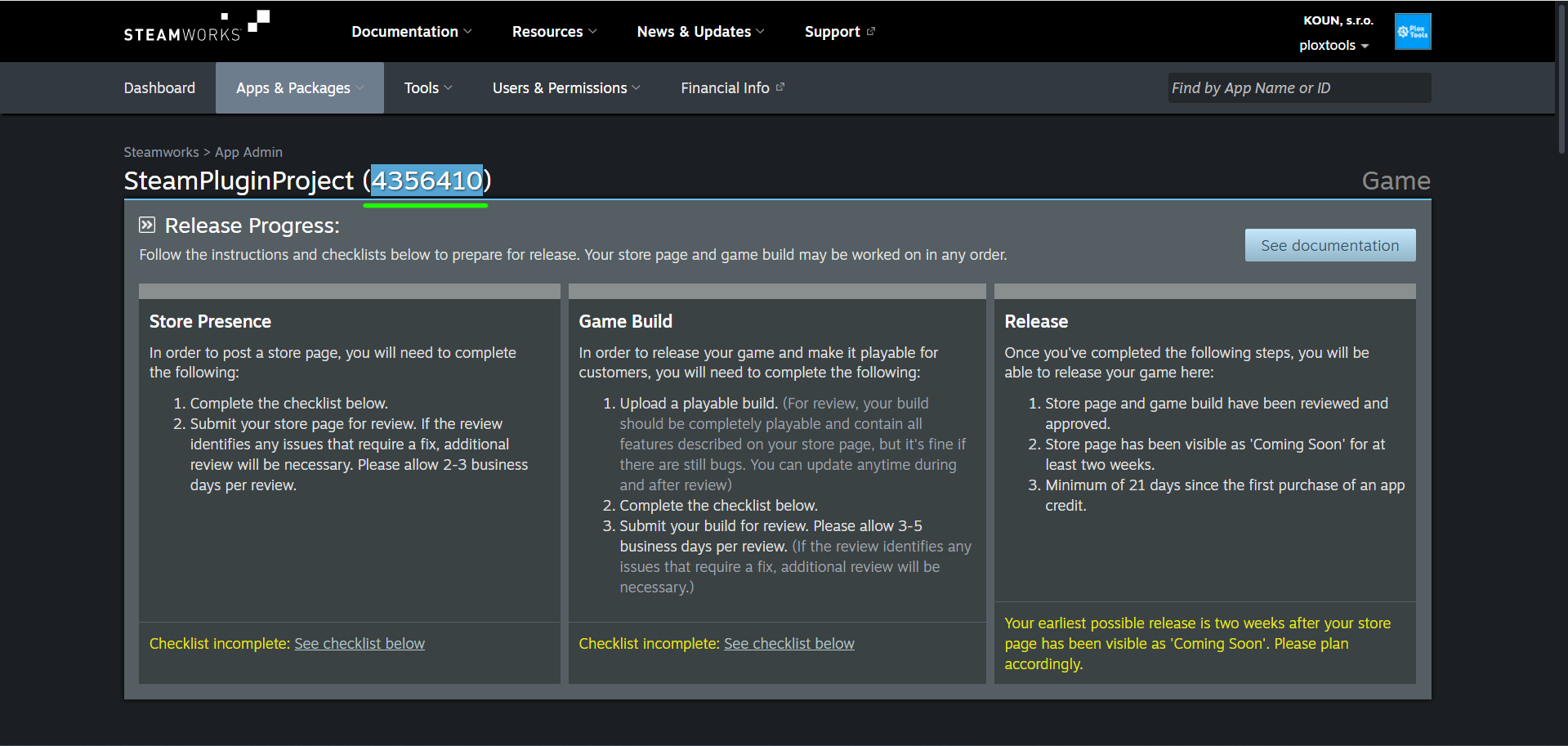
Then open:
Edit → Project Settings → Plugins → PloxTools: Steam Integration → Steam Publishing → Steam App
Enter the App ID into the Steam App ID field.
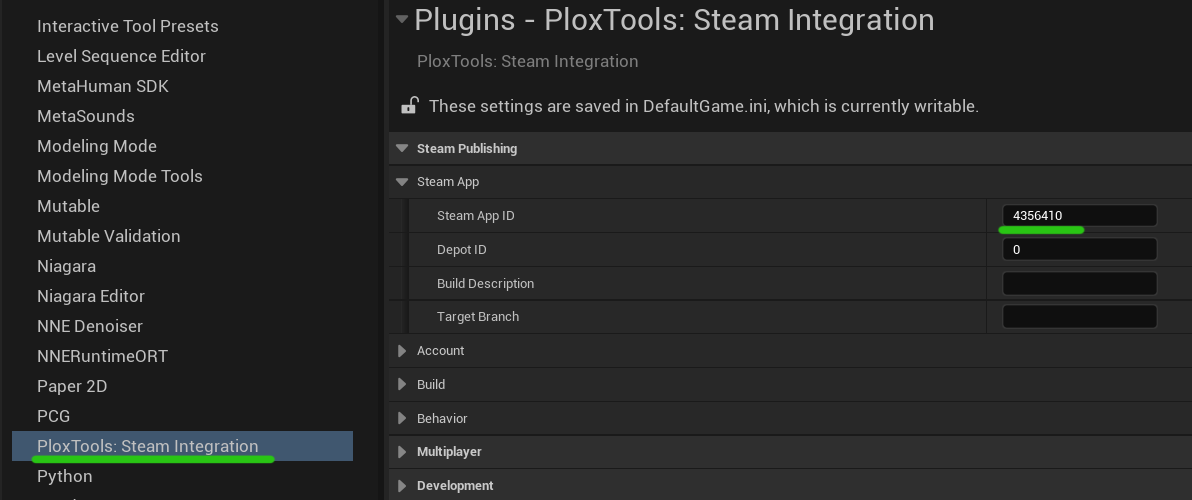
The default value is 480, which is Steam's Spacewar test App ID. When working with your own Steamworks application, replace it with your application's App ID.
The same Steam App ID setting is used by both the runtime Steam integration and the Steam Publishing Tool.
Steam in the Unreal Editor
The plugin can initialize Steam directly while running the project from the Unreal Editor.
Open:
Edit → Project Settings → Plugins → PloxTools: Steam Integration → Development
Enable Enable Steam In Editor if you want to use Steam features in PIE or Standalone without packaging the project.
This option is enabled by default.
If Enable Steam In Editor is disabled, Steam will not initialize while the game is running inside the Unreal Editor. Packaged builds are not affected.
Note
The Steam App ID and Enable Steam In Editor settings are read when the Steam module starts.
Restart Unreal Engine after changing either setting before testing Steam integration.
Using Steam Integration in Blueprints
Once the plugin is enabled and the project is configured, Steam functionality is available directly in Blueprints.
Steam nodes are exposed under the Steam category:
- Right-click anywhere in a Blueprint graph.
- Use the search bar or browse the action list.
- Open the Steam category to access the functions provided by the plugin.
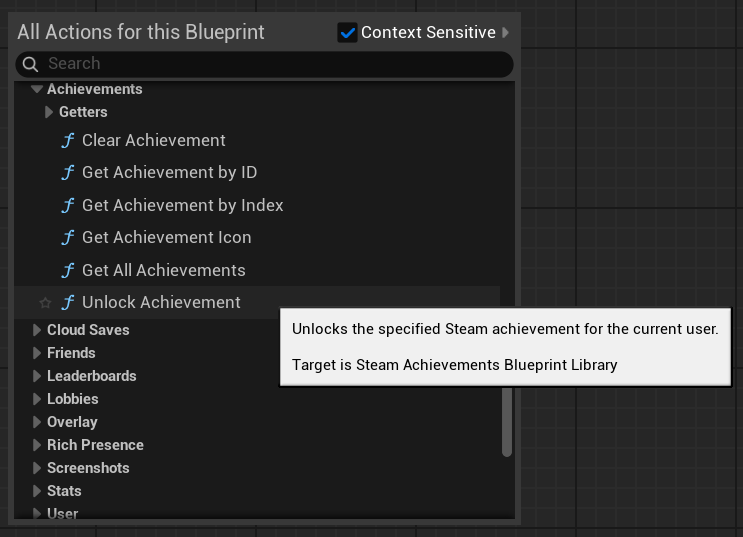
For an explanation of synchronous functions, asynchronous callbacks, and persistent Steam events, see Blueprint Usage.
Verify Steam Integration
Before configuring individual Steam features, verify that the basic integration is working:
- Make sure the Steam client is running and you are logged in.
- Make sure the correct Steam App ID is configured.
- If testing from the Unreal Editor, make sure Enable Steam In Editor is enabled.
- Start the game in PIE or Standalone Game.
- Call Is Steam Initialized from the Steam → Utility → Environment Blueprint category.
If Is Steam Initialized returns true, Steam has been initialized successfully and the plugin is ready to use.
You can also call Get Local Steam Persona Name from Steam → User → Local to confirm that information for the currently logged-in Steam user can be retrieved.
For more information about testing in the Unreal Editor, packaged builds, and different Steam environments, see Testing.
Next Steps
After the basic integration is working:
- See Blueprint Usage for the general Blueprint workflow.
- See C++ Usage for native C++ integration.
- Open the documentation for the Steam feature you want to implement.
- See Testing for detailed testing information.
- Use the Steam Publishing Tool when you are ready to package and upload builds to Steam.