Consent & Privacy
Before initializing AdMob or loading ads, your application may need to collect or update the user's privacy choices.
Privacy requirements can depend on the user's region, age, your application's audience, the advertising features you use, and the privacy messages configured in AdMob.
The consent flow is used to give users the required privacy information and choices before advertising data is processed. These choices can affect personalized advertising, measurement, and other advertising features.
The plugin integrates Google User Messaging Platform (UMP) on Android and iOS. UMP checks the current user's consent requirements, displays the privacy message configured in AdMob when necessary, and stores the user's choices for future sessions.
AdMob can technically be initialized and ads can be requested without running the UMP consent flow. However, doing so may fail to account for privacy requirements or user choices that apply to the current user.
When your application uses UMP, run the consent flow before initializing AdMob or loading ads. After the process finishes, use Can Request Ads to determine whether the current UMP privacy state allows the application to proceed with advertising requests.
Important
Consent and privacy configuration is the responsibility of the application developer.
You must configure and publish the appropriate privacy messages in AdMob, determine whether age-related treatment applies to a user, run the consent flow at the correct time, and verify that your implementation meets the requirements of your application, audience, and supported regions.
Incorrect privacy configuration may prevent ads from loading, limit access to personalized advertising, or cause advertising requests to use inappropriate privacy settings.
How the Consent Process Works
In simple terms, the application asks UMP whether the current user must complete a privacy message.
UMP considers the current privacy message configuration, the user's region, any previously stored choices, and the parameters provided by the application.
The process works as follows:
- The application calls Request Consent.
- UMP updates the current consent information.
- If a privacy message is required, UMP loads and displays it.
- If no message is required, the request finishes without displaying a form.
- The application checks Can Request Ads.
- If ads can be requested, the application initializes AdMob and starts loading ads.
The application should not decide by itself whether a consent form must be shown. UMP handles this decision based on the current user state and the messages published in AdMob.
A consent form may not appear when:
- consent is not required for the current user;
- the user has already completed the current message;
- no applicable message is published for the application;
- the user is marked as being under the age of consent;
- the current AdMob message configuration does not require a form.
The absence of a form does not automatically indicate an error.
Configure Privacy Messages in AdMob
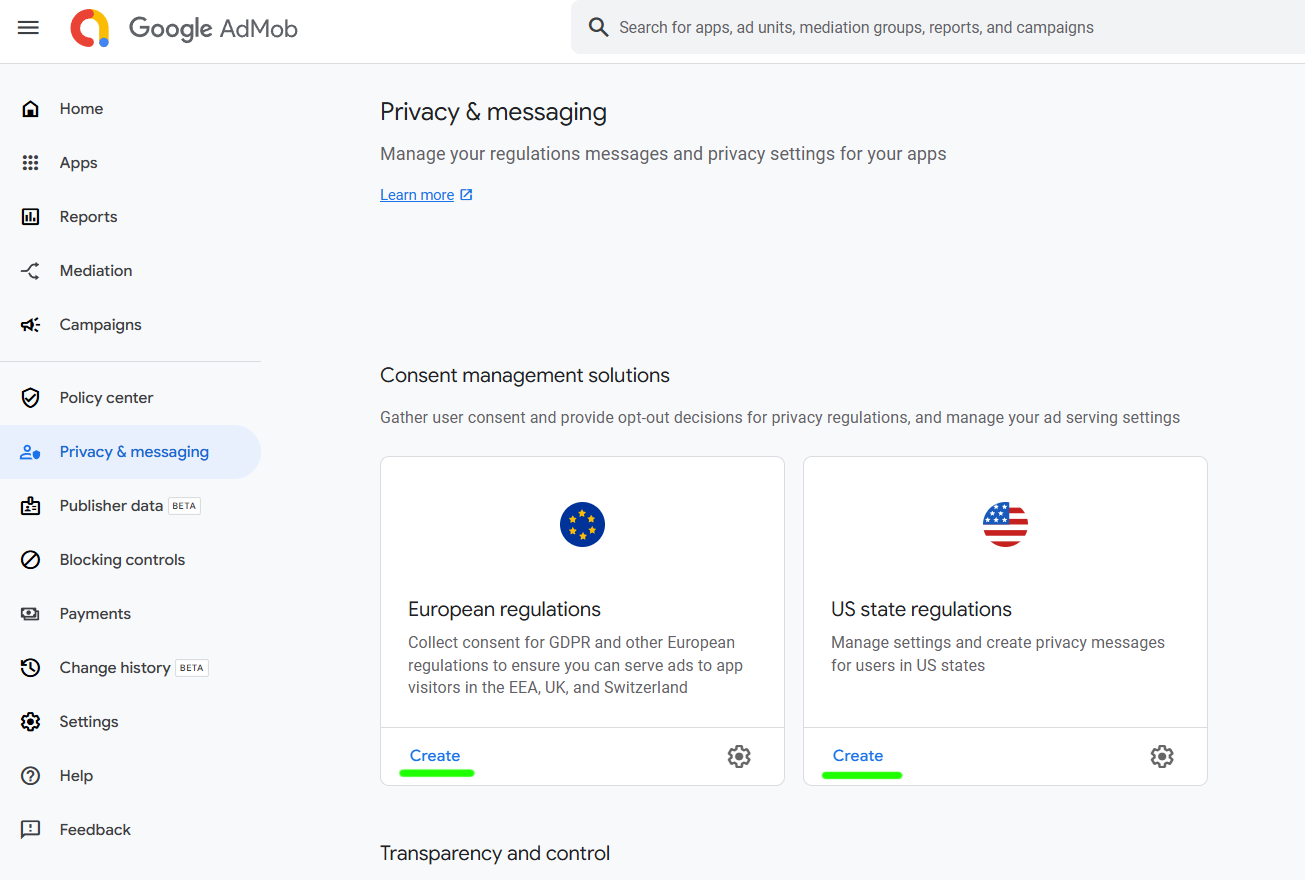
Before requesting consent in your application, configure the required privacy messages in AdMob.
- Open the AdMob website.
- Go to Privacy & messaging.
- Create the messages required for your application, such as:
- European regulations
- US state regulations
- Select the Android and iOS applications that should use each message.
- Configure the message options, consent choices, languages, and targeting.
- Publish the message.
UMP can only display messages that have been configured, assigned to the correct application, and published.
Android and iOS are registered as separate applications in AdMob. Verify that the appropriate privacy message is assigned to each application you support.
Important
Adding the UMP implementation to the application is not enough by itself. The corresponding privacy messages must also be configured and published in AdMob.
Recommended Consent Flow
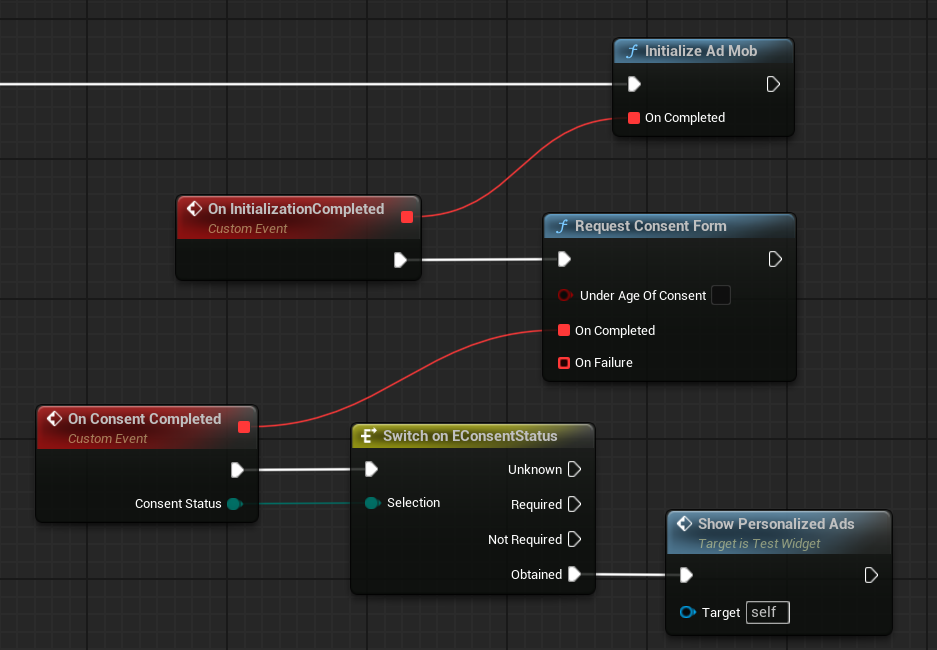
Call Request Consent during every application launch and before initializing AdMob.
The recommended startup flow is:
- Call Request Consent.
- Wait for On Completed or On Failure.
- Check Can Request Ads.
- If it returns
true, initialize AdMob. - Begin loading ads after AdMob initialization completes.
Important
On Completed means that UMP finished updating the consent information and handling any required form. It does not mean that the user accepted personalized advertising.
Use Can Request Ads to determine whether the current UMP privacy state allows the application to proceed with AdMob initialization and ad requests.
Google Mobile Ads automatically uses the available privacy state when processing subsequent ad requests. You normally do not need to manually select personalized or non-personalized ads based on the returned consent status.
For applications with age-related requirements, the plugin also provides:
- Under Age Of Consent on the Request Consent node, which changes how UMP handles the consent request.
- Set Age Restricted Treatment, which changes how Google Mobile Ads processes subsequent ad requests.
The plugin does not determine the user's age automatically. Your application is responsible for obtaining or determining the user's age and deciding whether either setting applies.
Configure these options only when your application has a valid reason to treat the current user as under the age of consent, a child, or a teen. Do not enable them for all users as a precaution, because incorrect age-related settings may change the consent flow and advertising behavior.
Privacy Options
Applications commonly provide a privacy settings option that allows users to review or change their choices after the initial consent flow.
Add a Privacy Options button to an appropriate location, such as the application's settings, account, legal, or privacy menu.
Before displaying this button, use Get Privacy Options Requirement Status.
The function can return:
- Unknown — the requirement has not been determined yet.
- Required — the application should provide a Privacy Options button.
- Not Required — a privacy options entry point is not required for the current user.
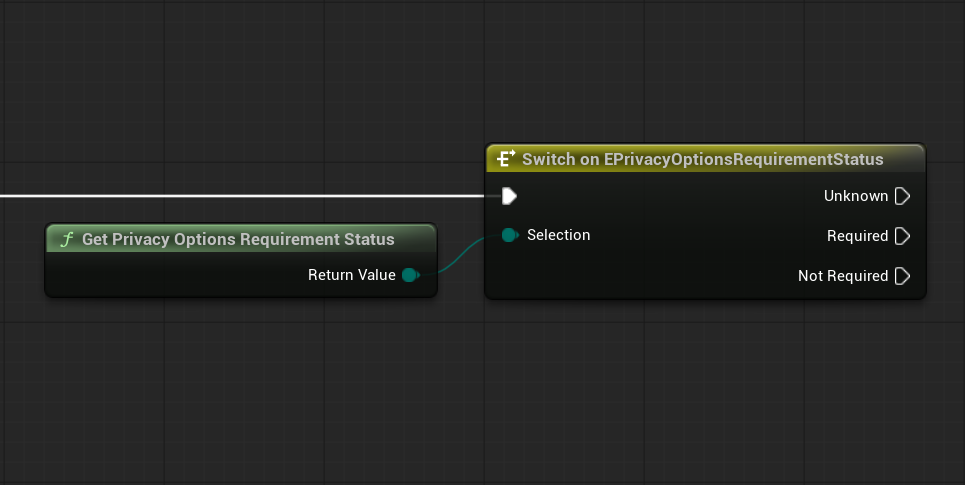
Check this status after Request Consent has completed.
When the status is Required, display the button and call Show Privacy Options Form when the user selects it.
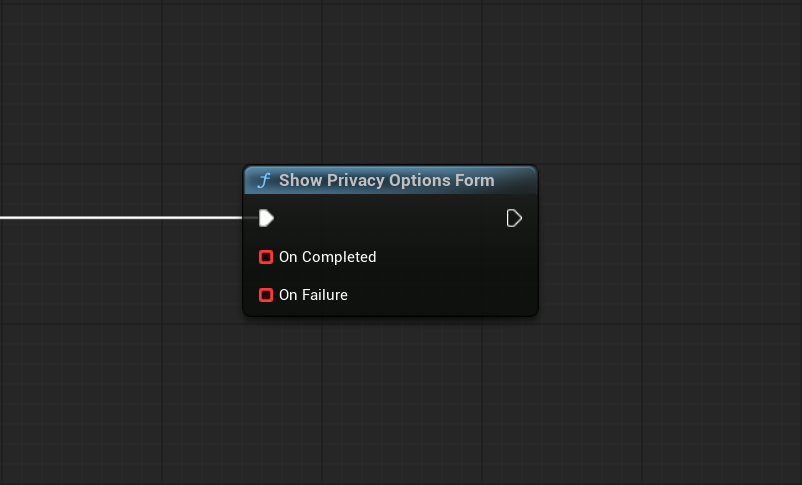
After the form closes, Google Mobile Ads applies the updated privacy choices to future ad requests.
Note
Show Privacy Options Form is not a replacement for the initial consent flow.
Use Request Consent during application startup. Use Show Privacy Options Form only when the user chooses to review or change their privacy settings.
Age-Restricted Treatment for Ad Requests
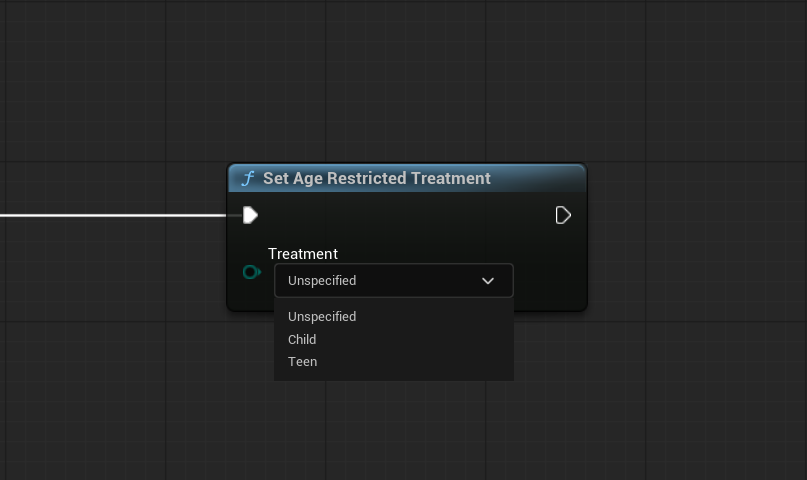
Set Age Restricted Treatment configures the age-related protections applied to subsequent Google Mobile Ads requests.
Call this function before initializing AdMob.
Available values are:
- Unspecified — no specific age treatment is declared. This is the default value.
- Child — use when the user must be treated as a child under the laws and policies applicable to your application, such as COPPA, GDPR age-of-consent requirements, or Google Play Families requirements.
- Teen — use when the user is above the applicable digital age of consent but is still under 18.
Do not assume that the same age threshold applies in every country. Your application is responsible for determining which treatment applies to each user.
Important
Under Age Of Consent and Set Age Restricted Treatment are separate settings.
Under Age Of Consent affects how UMP handles the consent request.
Set Age Restricted Treatment affects how Google Mobile Ads processes subsequent ad requests.
Depending on your application, audience, and applicable regulations, you may need to configure one or both settings.
Checking the Current State
The plugin provides several functions for checking the current UMP state:
- Can Request Ads — returns whether the current UMP privacy state allows the application to proceed with AdMob initialization and ad requests.
- Get Consent Status — returns the current UMP consent status.
- Get Privacy Options Requirement Status — returns whether the application should provide a Privacy Options button.
For applications that use the UMP consent flow, Can Request Ads is the main result used to decide when to proceed with advertising requests.
Do not replace it with a direct check such as Consent Status == Obtained. Ads may also be available when consent is Not Required.
Use Get Consent Status mainly for diagnostics, development logs, or custom application UI.
Testing the Consent Flow
Use Reset Consent State during development when you need to test the first-time consent flow again.
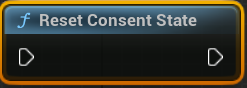
After resetting the state, call Request Consent again.
Warning
Reset Consent State is intended only for development and testing.
Do not use it as a user-facing privacy settings option in a published application.
iOS App Tracking Transparency
App Tracking Transparency (ATT) is an optional iOS permission required to access the device advertising identifier for tracking purposes.
UMP and ATT handle different parts of the privacy flow:
- UMP handles consent requirements such as European and US state regulations.
- ATT handles Apple's system-level permission for advertising tracking on iOS.
The normal UMP consent flow works without ATT. However, without ATT permission, access to the advertising identifier is restricted, which may reduce advertising personalization and measurement capabilities on iOS.
Enable ATT only if your application intends to request Apple's tracking permission.
Configure the Plugin
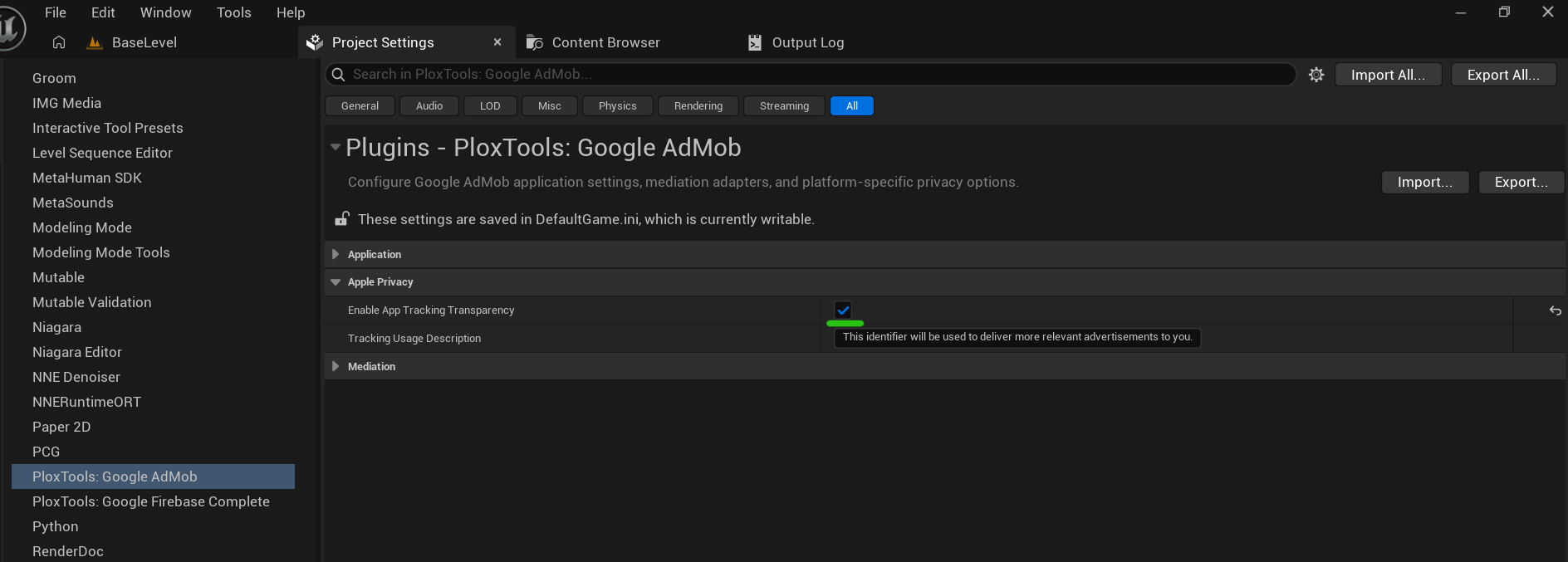
Open Project Settings > Plugins > PloxTools: Google AdMob and enable Enable App Tracking Transparency.
You can customize Tracking Usage Description or keep the default value. This text is included in the iOS application and explains why tracking permission is requested.
Configure AdMob
Open Privacy & messaging in AdMob. Under Transparency and control, create and publish the IDFA explainer for the iOS application.
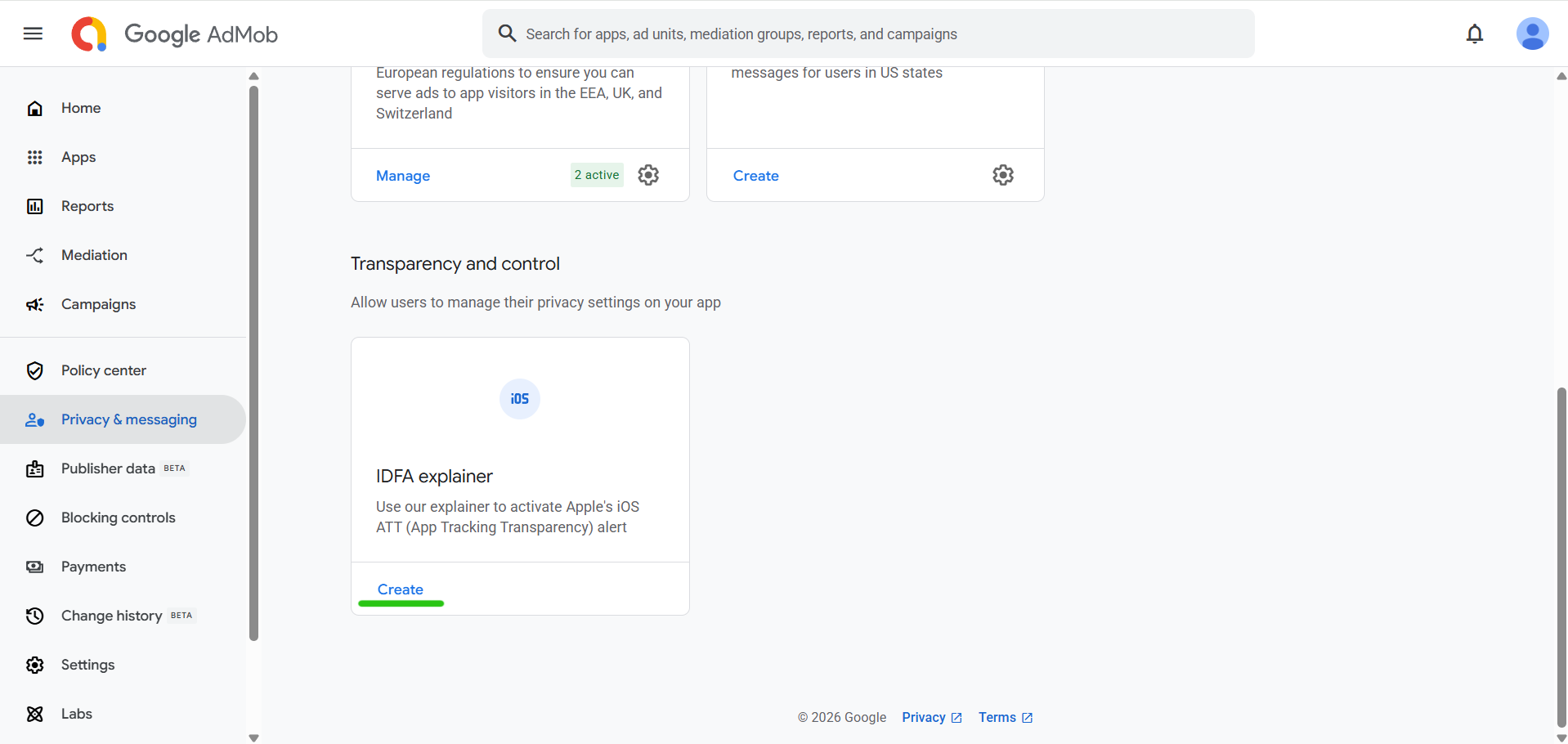
After both settings are configured, use the normal Request Consent flow before initializing AdMob. No separate Blueprint function is required to request ATT.
When applicable, UMP displays the configured IDFA explainer before opening the iOS system tracking permission dialog.
Important
Enabling ATT in the plugin settings does not configure the AdMob message automatically. The IDFA explainer must also be created and published for the correct iOS application in AdMob.
If ATT is disabled, the standard UMP consent flow remains available, but the iOS tracking permission dialog is not requested.
Even when ATT is enabled, the dialog may not appear if the user has already made a tracking choice, the current system state does not allow the request, or no applicable IDFA explainer is published.
Next Steps
When using UMP, continue with the standard advertising workflow described in Basic Usage after the consent flow has completed and Can Request Ads returns true.
Use Testing for official Android and iOS test Ad Unit IDs and additional testing guidance.
For format-specific loading, display behavior, callbacks, and settings, continue with the corresponding ad format documentation.