Getting Started
Purchase the Plugin
Purchase the plugin on the Fab Marketplace.
Install the Plugin
After purchasing, the plugin can be downloaded and installed via the Epic Games Launcher. Installation can also be initiated from the Fab website or through the Fab integration inside Unreal Engine.
Once installed, the plugin will appear in your project’s plugin list and can be enabled from there.
Enable Third Person Camera Plugin
Go to Edit → Plugins, search for "PloxTools: Third Person Camera", enable it and restart the editor.

Add Component to Your Pawn or Character
Open your Pawn or Character Blueprint and add the Third Person Camera Component.
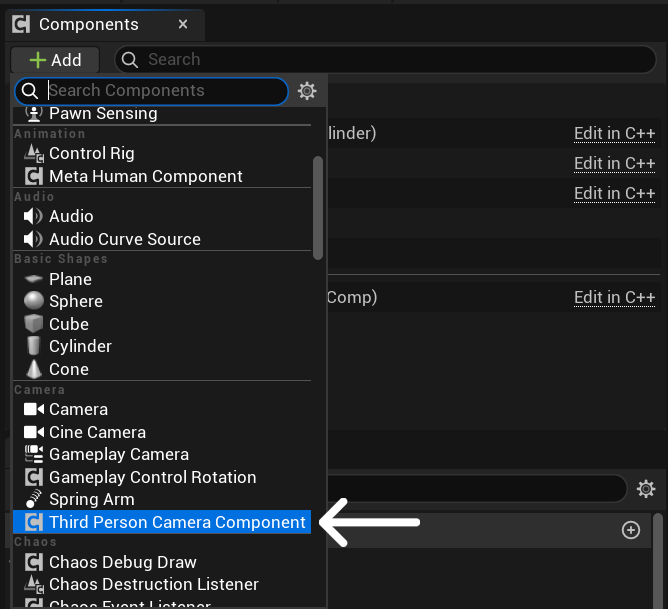
Setup Camera (Important)
This system does not use a SpringArm.
Make sure your camera is attached directly to the owning Pawn or Character, not to a SpringArm:
- Remove any existing SpringArm component
- Attach your
CameraComponentto the actor root
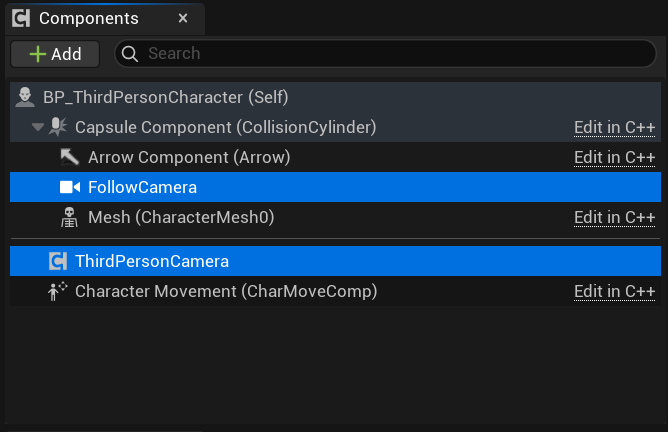
Automatic Camera Detection
The component will automatically find and use the first available CameraComponent on the Actor.
No additional setup is required.
Result
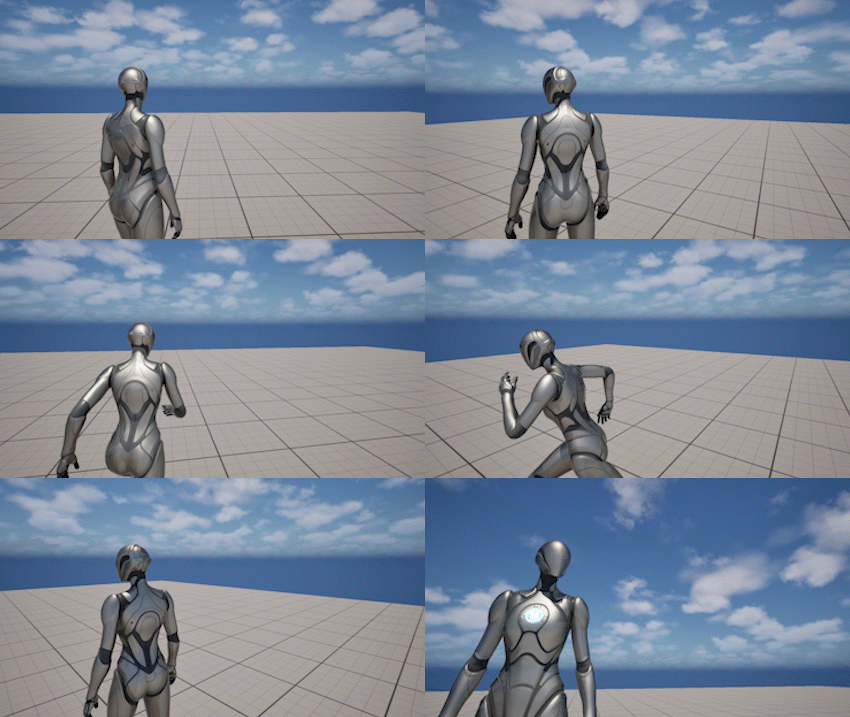
After completing these steps:
- The camera will start updating automatically at runtime
- Rotation, framing, collision, and all behaviors will be handled by the component
- No additional configuration is required for a basic setup
You can now start adjusting settings or using the API for more advanced behavior.
Component Settings
To access all camera settings:
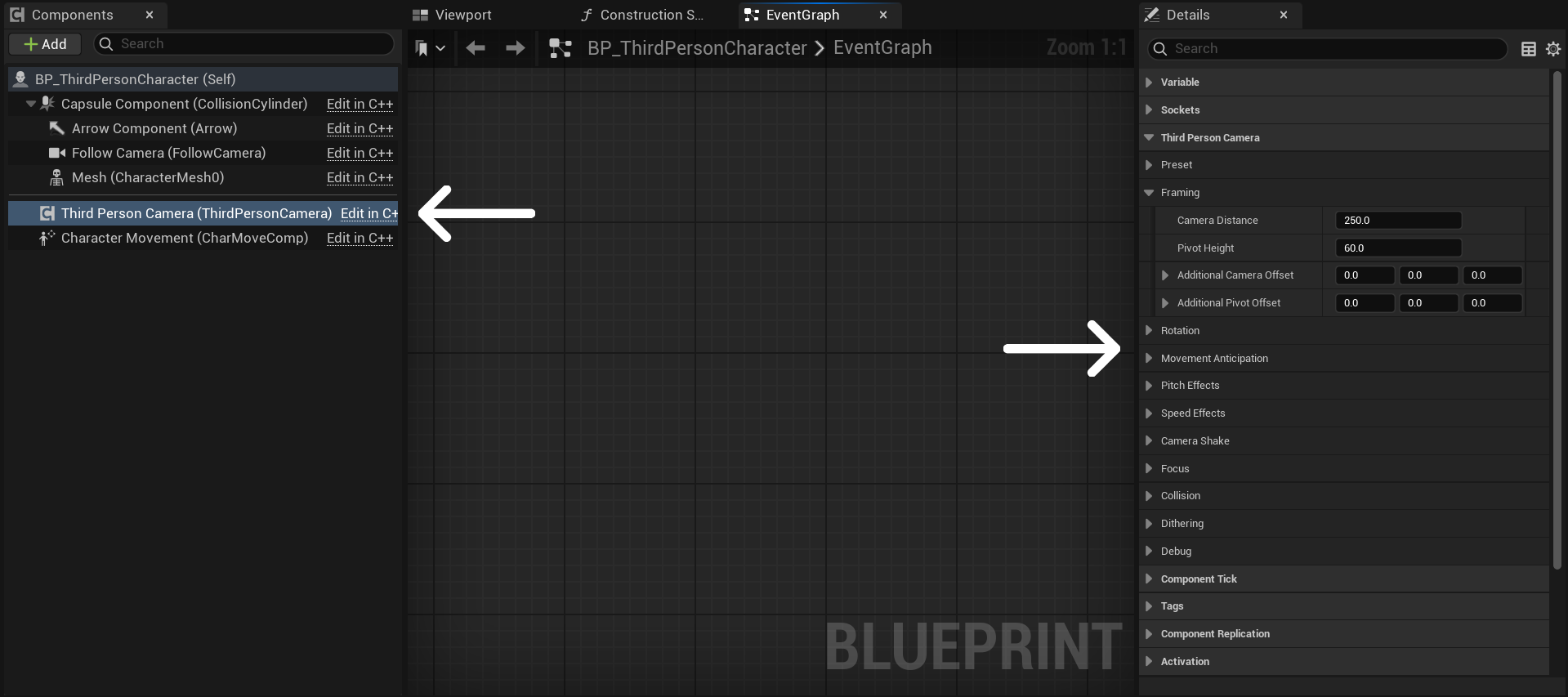
- Select the Third Person Camera Component in your Pawn or Character Blueprint
- Open the Details panel
- Locate the Third Person Camera section
All camera configuration is exposed here, organized into categories such as Framing, Rotation, Collision, Focus, and others.
Using Functions in Blueprints
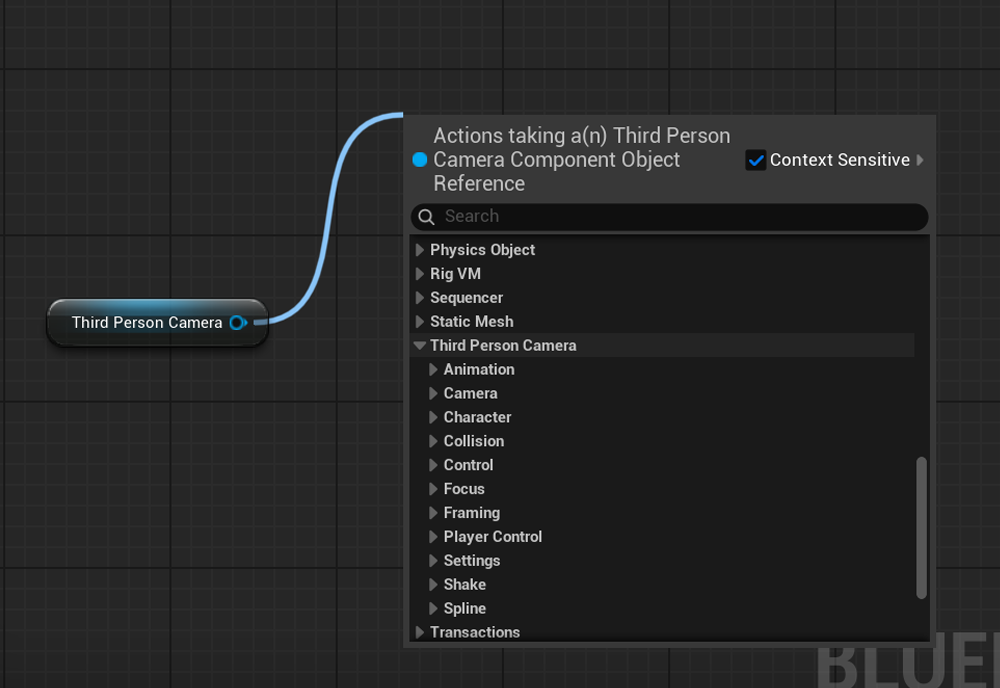
To access camera functions in Blueprints:
- Get a reference to the Third Person Camera Component
- Drag a wire from the component
- Search or navigate to the Third Person Camera category
All available functions are grouped under this category and can be used like any other Blueprint nodes.
Plugin Content
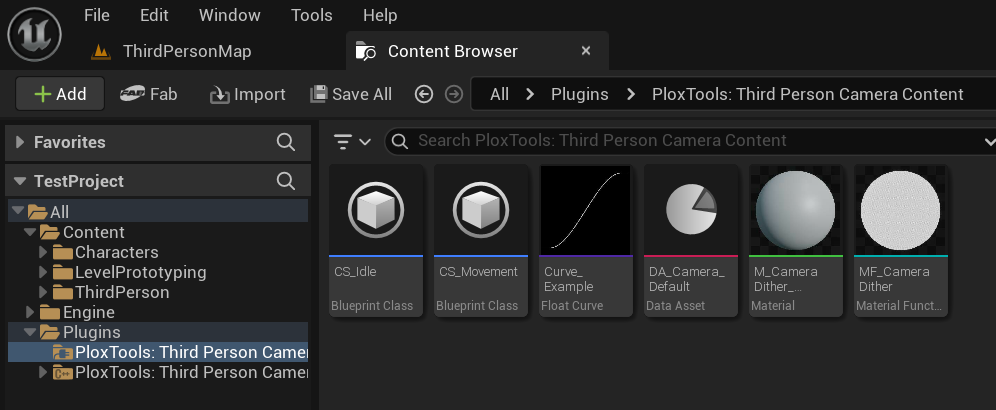
The plugin includes additional content that can be used as examples and starting points.
This content includes useful example assets and required materials:
- MF_CameraDithering - material function used by the Dithering system (required for proper operation)
- example Camera Shake assets
- example curves
- materials and utility assets
By default, plugin content is hidden in the Content Browser.
To enable it:
- Open the Content Browser
- Click the Settings icon
- Enable Show Plugin Content
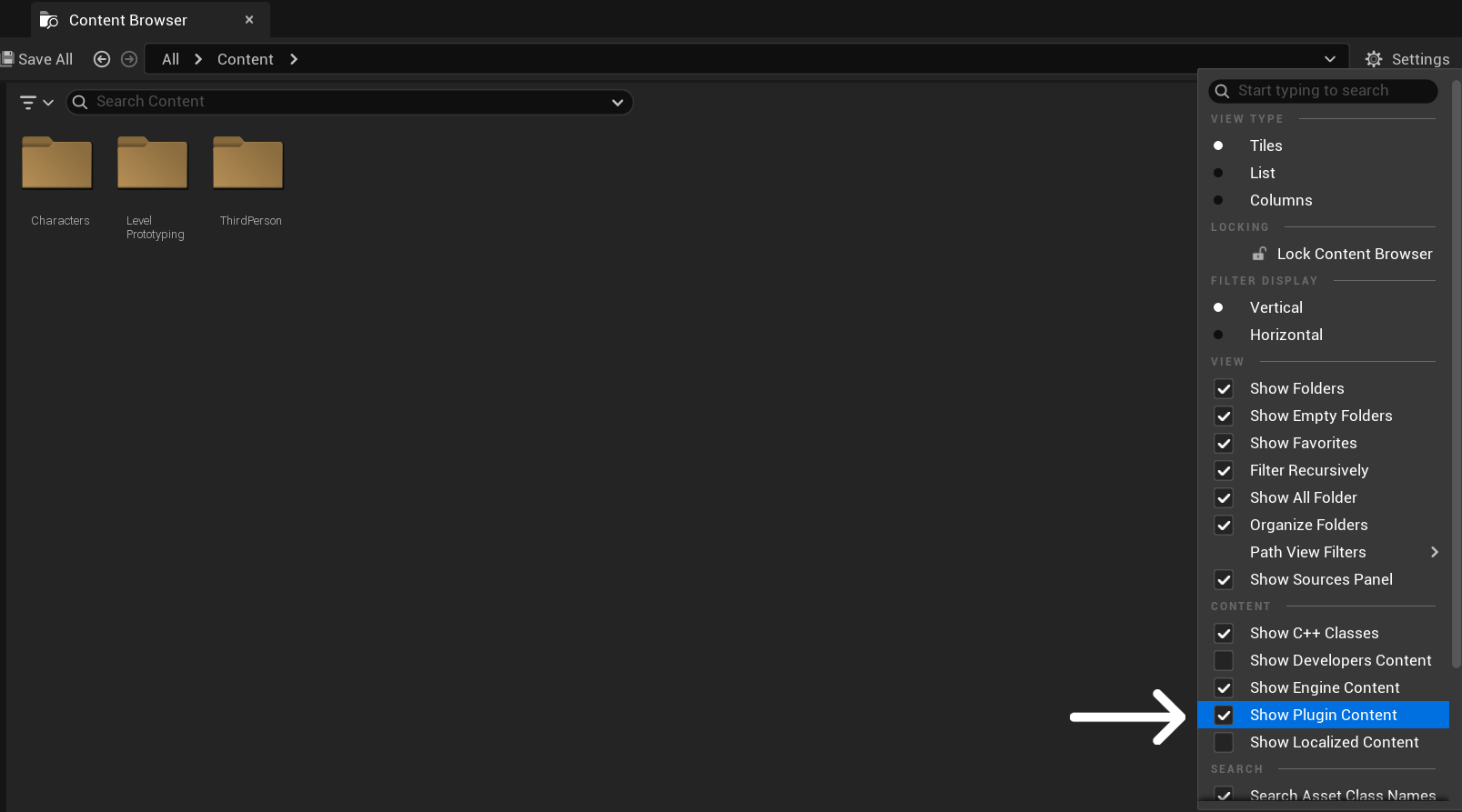
Once enabled, plugin content will appear under the Plugins section in the Content Browser.
Required Engine Plugins
This plugin relies on several built-in Unreal Engine plugins that must be enabled.
Make sure the following plugins are active:
- Template Sequence
- EngineCameras (Unreal Engine 5.5 and newer)
- GameplayCameras (Unreal Engine 5.4 and older)
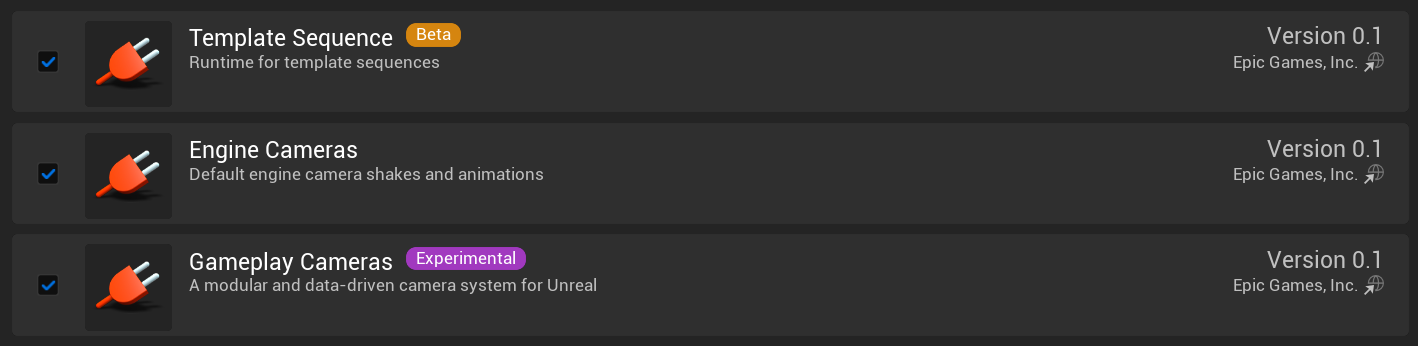
These plugins are used internally by the camera system for animation and camera behavior.
If they are disabled, some features may not work correctly.
In most cases, they are enabled by default, but it is recommended to verify this in Edit → Plugins.