Settings Asset
The Settings Asset system allows you to store and reuse complete camera configurations.
A Settings Asset is a data asset that contains all camera parameters in a single place.
It can be used both:
- at runtime to switch camera behavior dynamically
- in the editor for fast setup, iteration, and preset selection
This makes it easy to:
- switch between different gameplay states (combat, exploration, sprinting)
- define character-specific camera setups
- quickly tweak and iterate on camera settings
- reuse presets across multiple levels or projects
Creating a Settings Asset
Settings Assets are created in the Content Browser.
To create a new Settings Asset:
- Right-click in the Content Browser
- Select Miscellaneous → Data Asset
- Choose ThirdPersonCameraSettingsAsset
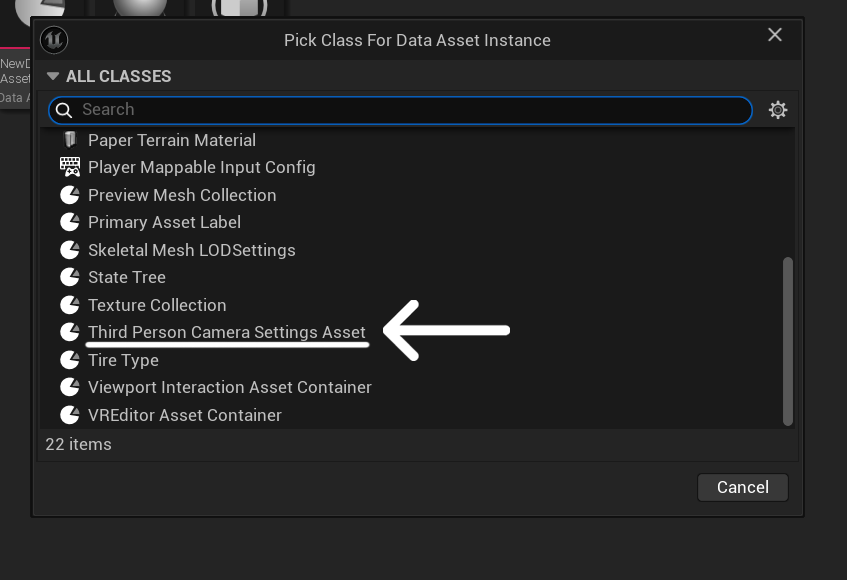
Once created, open the asset to configure all camera settings.
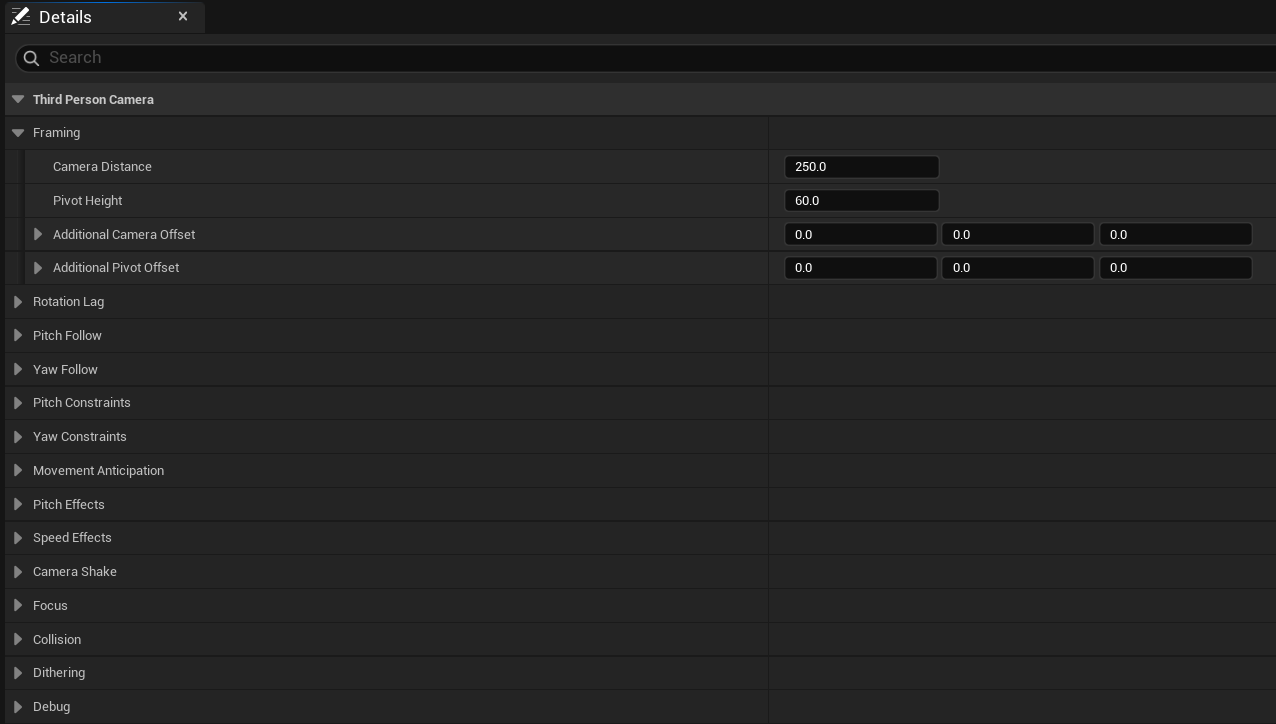
The asset contains the same settings as the ThirdPersonCameraComponent, organized into categories.
Applying Settings in Editor
Settings Assets can also be applied directly in the editor for fast setup and iteration.
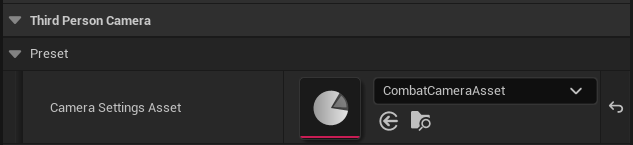
Applying a Settings Asset in the editor:
- copies all values from the asset to the component
- immediately updates the camera configuration
- allows you to quickly switch between presets
This is useful for:
- testing different camera setups
- quickly blocking out camera behavior
- selecting a starting preset before fine-tuning
Important Behavior
Settings Assets are not a persistent reference.
This means:
- the asset is applied once
- the component stores its own copy of the settings
- further changes are made directly on the component
After applying an asset, you can freely modify any values without affecting the original asset.
Applying Settings
Settings Assets are applied at runtime using:
- Apply Camera Settings Asset
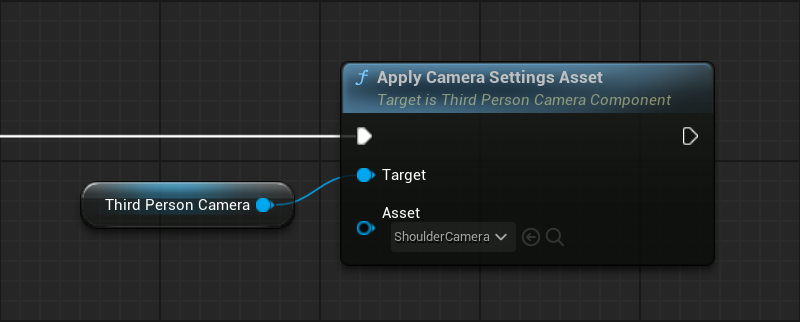
This function:
- copies all settings from the asset to the component
- replaces the current configuration
- resets all runtime framing offsets
The result is an immediate switch to the new camera setup.
Smooth Application
You can also apply settings with smooth blending:
- Apply Camera Settings Asset Smooth
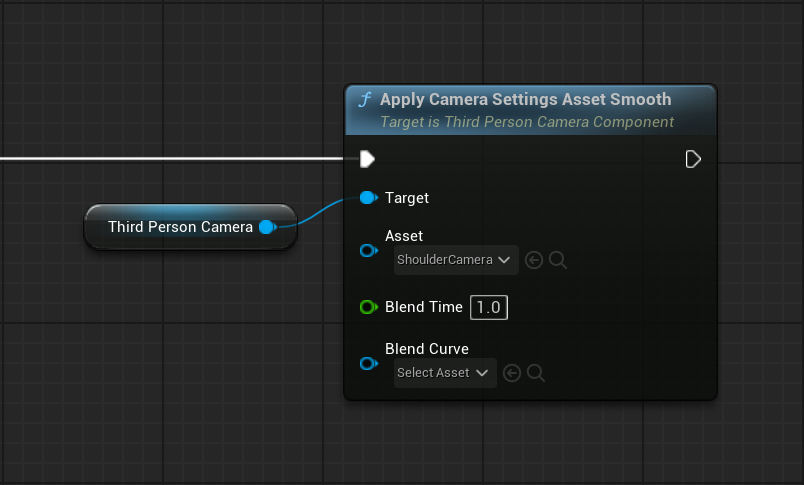
This function:
- blends framing parameters over time
- applies all other settings instantly
Framing parameters include:
- camera distance
- pivot height
- camera offset
- pivot offset
This allows smooth transitions without visible camera snapping.
You can control the transition using:
- Blend Time
- optional Blend Curve
Partial Settings Control
While Settings Assets apply a complete configuration, you can also modify individual settings at runtime.
The component provides a set of setter and getter functions that allow fine control over specific parts of the camera system.
This is useful when you want to:
- adjust only a subset of parameters
- react to gameplay events
- combine presets with runtime adjustments
For a complete list of available functions, refer to the API Reference.
Behavior
Settings Assets fully replace the current camera configuration.
This means:
- all settings are overwritten
- runtime offsets are reset
- the component behaves exactly as defined in the asset after application
Settings Assets always apply a complete configuration and are intended for preset-based workflows.
Runtime Control
The Settings Asset system is controlled through runtime functions.
For a complete list of functions and parameters, refer to the API Reference.
Main Functions
- Apply Camera Settings Asset - applies all settings from the asset instantly and resets runtime framing offsets
- Apply Camera Settings Asset Smooth - blends framing parameters over time while applying all other settings instantly
Notes
- Settings Assets are reusable presets for camera behavior
- Smooth application only affects framing parameters
- Other settings are applied instantly
- Useful for switching camera states during gameplay
- Can be combined with runtime adjustments for additional control