Basic Usage
This page shows the basic workflow for purchasing a one-time product using the automatic purchase flow.
The example uses a hypothetical product with the Product ID:
remove_ads
This type of product is commonly used in mobile games to permanently disable advertisements.
Because the purchase should remain available on the user’s Google Play account and should not be purchased repeatedly, it must be treated as a non-consumable product.
A non-consumable product is purchased once and remains owned by the user. Common examples include removing advertisements, unlocking the full version of a game, or purchasing permanent features.
A consumable product can be purchased multiple times because it is consumed after each successful purchase. Common examples include virtual currency, energy, boosts, or repeatable item packs.
This example uses a non-consumable product because it requires one additional configuration step and demonstrates the complete automatic purchase workflow.
The complete workflow in this example is:
- Initialize Google Play Billing.
- Mark the product as non-consumable.
- Optionally query the product details to display its current information.
- Launch the purchase flow.
- Handle the purchase result.
Initialize Google Play Billing
Call Initialize Google Play Billing once when the application starts.
Wait for On Success before calling other Google Play Billing functions.
A suitable place is startup logic that runs once, such as the Begin Play event of a persistent object that remains active throughout the application session.
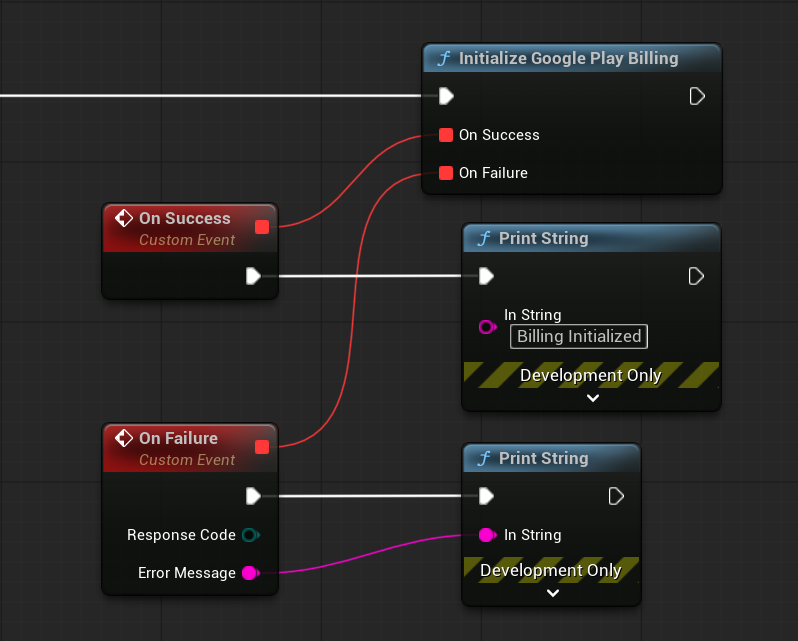
Use Is Google Play Billing Ready when you need to check whether the Billing Client is currently connected and ready.
Note
Do not initialize Google Play Billing before every purchase. Initialize it once per application session.
Configure Non-Consumable Products
The hypothetical remove_ads product should remain owned after purchase, so it must be configured as non-consumable.
If the application uses only consumable one-time products, this step can be skipped.
After Google Play Billing is initialized, call Set Google Play Non Consumable Products and add the Product IDs of all permanent one-time purchases.
For this example, add remove_ads to the list:
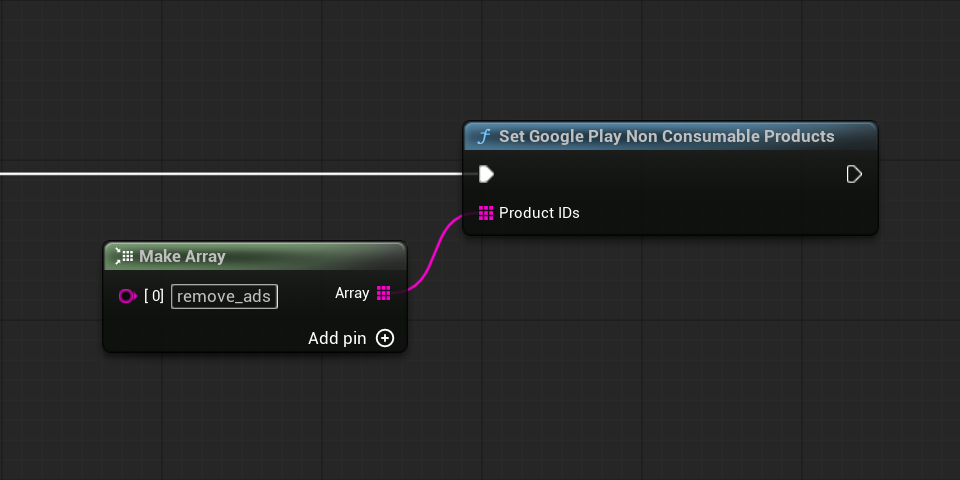
Products included in this list remain owned after purchase.
One-time products not included in the list are treated as consumable and can be purchased repeatedly.
Warning
Configure the non-consumable product list before launching purchases.
If remove_ads is not included, the plugin will treat it as consumable and allow it to be purchased again after consumption.
For a detailed explanation of consumable and non-consumable processing, see Purchase Flow.
Query Product Details
When preparing the store interface, you can use Query Single Google Play Product Details to retrieve the current product information from Google Play.
This step is optional for a basic one-time purchase, but it is recommended because it allows the game to display the product name, description, and localized price configured in Google Play Console.
In the example below, Query Single Google Play Product Details is used to request the hypothetical remove_ads product as an In-App Product.
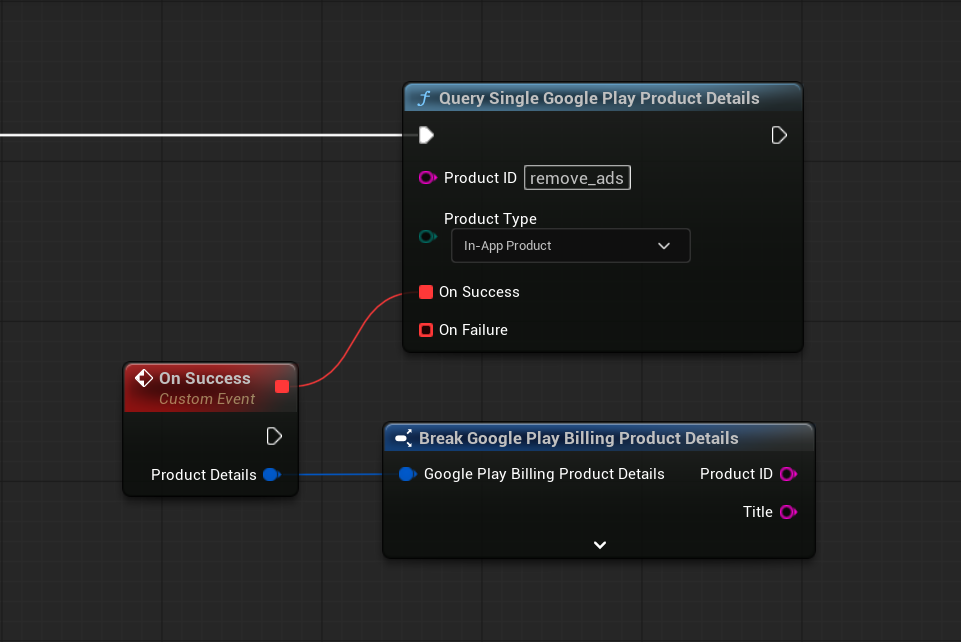
When the request succeeds, On Success returns a product details structure containing the information received from Google Play.
For example, use Formatted Price to display the localized price in your interface instead of entering a price manually.
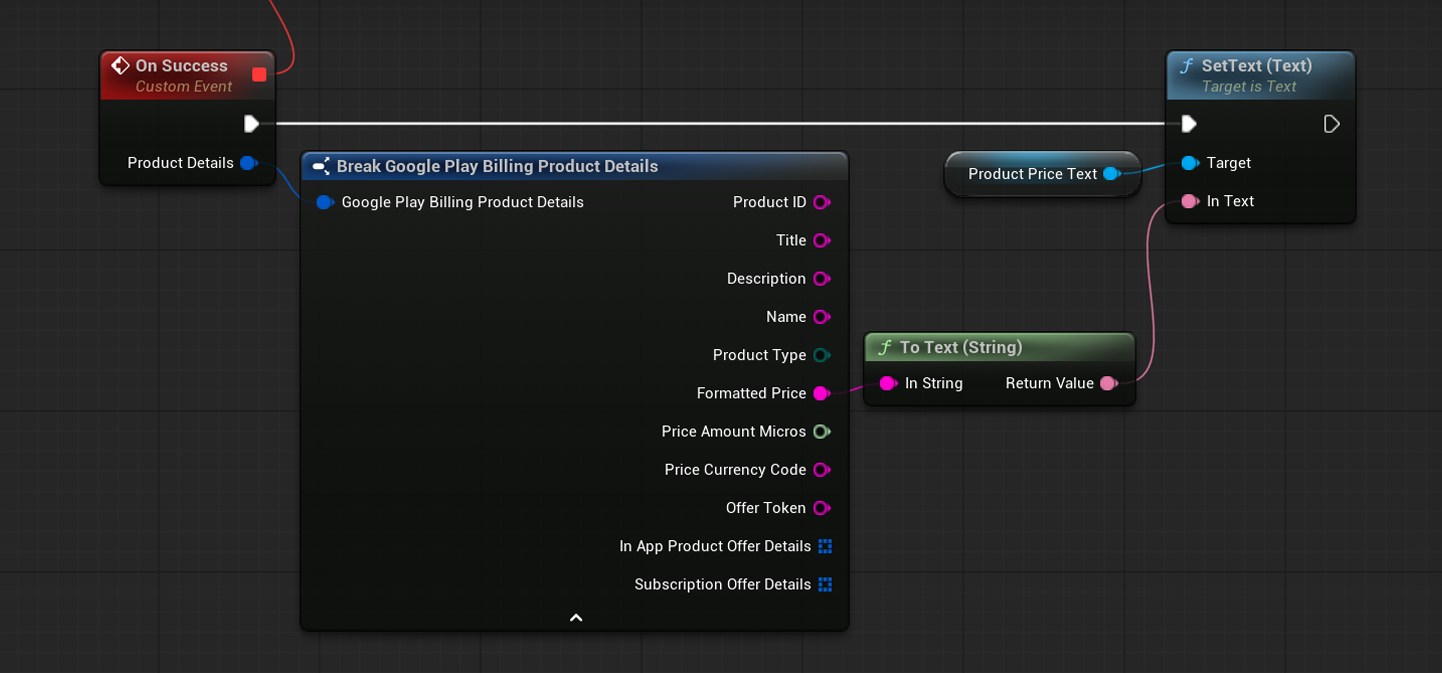
The displayed price may vary depending on the user’s country, currency, taxes, and the configuration of the product in Google Play Console.
If the request fails, use On Failure to handle the returned response code and error message.
Note
Product details do not need to be queried before every purchase.
Query them when preparing or refreshing the store interface, then use the returned data to display the product information.
A basic one-time purchase can still be launched when the Product ID and Product Type are already known.
For detailed information about the returned structure, subscriptions, and available offers, see Product Details.
Launch the Purchase Flow
Call Launch Google Play Billing Flow when the user is ready to purchase a product.
This is the function that starts the actual purchase process and opens the Google Play purchase interface on the device.
For example, it can be called after the user presses a purchase button in the store interface.
In the example below, the hypothetical remove_ads product is purchased as an In-App Product:
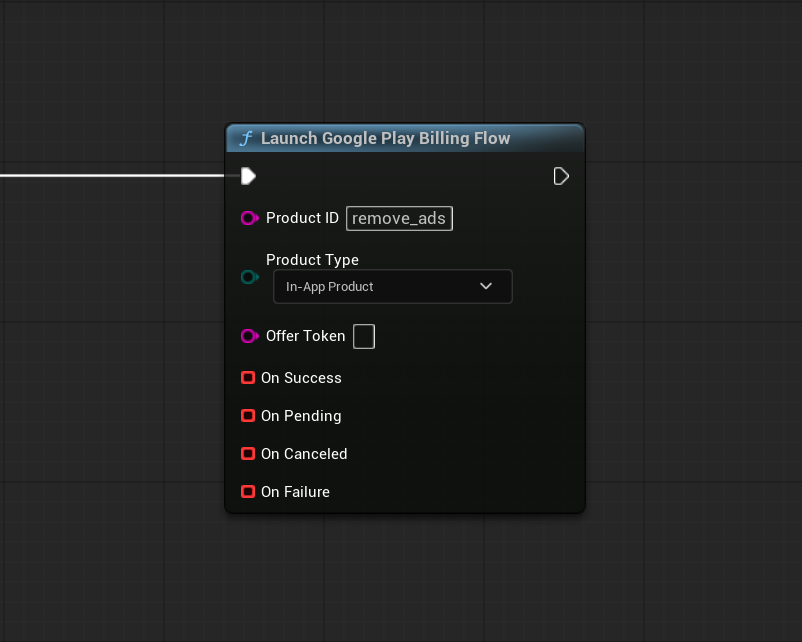
Leave Offer Token empty to use the default available purchase option.
Provide an Offer Token when you need to purchase the product through a specific one-time product offer, subscription base plan, or subscription offer returned by a Product Details query.
Handle the Purchase Result
Launch Google Play Billing Flow provides four result callbacks:
- On Success — the purchase was completed successfully.
- On Pending — the purchase is waiting for payment completion.
- On Canceled — the user closed or canceled the purchase interface.
- On Failure — the purchase could not be started or completed.
Grant the purchased content only after On Success is called.
In the remove_ads example, disable advertisements after the purchase succeeds:
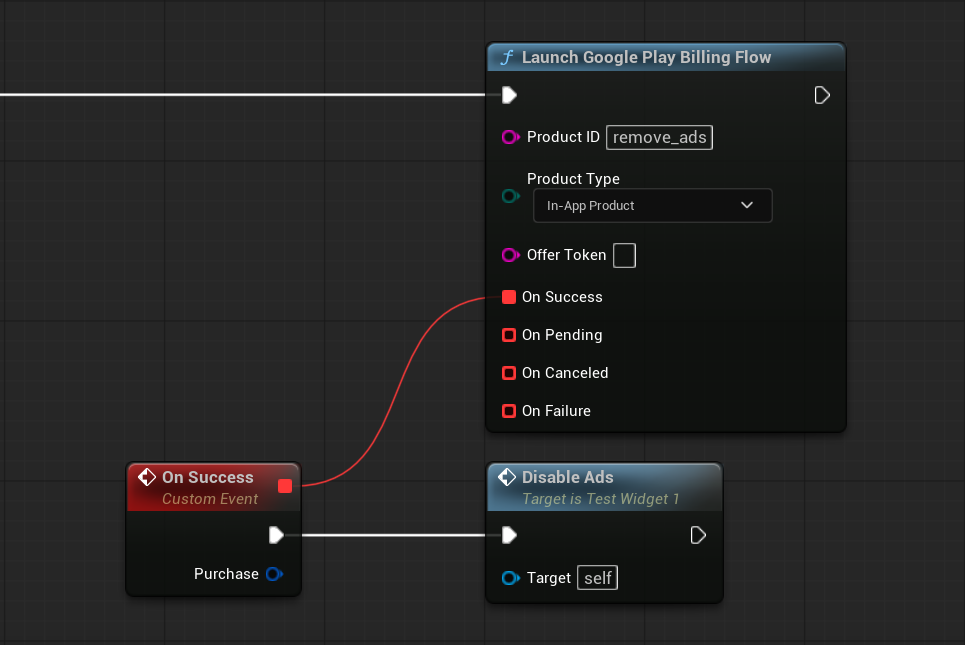
Do not grant the content after On Pending, On Canceled, or On Failure.
A pending purchase may complete later and call On Success when the application is still running. If it completes after the application has been closed, it must be processed after the next launch.
For a detailed explanation of all purchase results, see Purchase Flow.
Complete Example
The complete basic purchase flow follows these steps:
- Call Initialize Google Play Billing once when the application starts.
- After initialization succeeds, call Set Google Play Non Consumable Products and provide the Product IDs of all permanent one-time purchases.
- Optionally call Query Single Google Play Product Details to retrieve the current product information and display it in the interface.
- Call Launch Google Play Billing Flow when the user chooses to purchase the product.
- Grant the purchased content after On Success.
- Do not grant the purchased content while the purchase is pending.
- Do not grant any content after On Canceled or On Failure.
This example shows the shortest working flow for a non-consumable one-time product using automatic purchase processing.
In a real project, these operations are usually handled in separate parts of the application. Google Play Billing can be initialized during application startup, product details can be requested when the store interface is prepared, and the purchase flow can be launched later when the user chooses a product.
Next Steps
Before testing purchases on a device, continue with Testing.
This page explains how to configure products in Google Play Console, upload the application to a testing track, add test accounts, and install the application through Google Play.
For more detailed information about retrieving product names, localized prices, subscriptions, and available offers, see Product Details.
For the complete automatic purchase workflow, including consumable and non-consumable processing, see Purchase Flow.
The following pages explain additional purchase scenarios: