Purchase Flow
This page explains how to launch purchases through Google Play and how the automatic purchase flow processes one-time products and subscriptions.
The automatic purchase flow:
- Queries the current product information.
- Opens the Google Play purchase interface.
- Receives the purchase result.
- Acknowledges completed purchases.
- Automatically consumes consumable one-time products.
- Returns the result through the purchase callbacks.
Use Launch Google Play Billing Flow for the standard purchase workflow.
The same workflow is demonstrated with a simple non-consumable product on the Basic Usage page. This page describes each stage in more detail and explains how different product types and purchase results are processed.
Note
Use the automatic purchase flow for most projects.
Use Manual Purchase Flow only when acknowledgement or consumption must be controlled manually.
Before Launching Purchases
Before launching one-time purchases, configure which products should be treated as non-consumable with Set Google Play Non Consumable Products.
If the application uses only consumable one-time products, this step can be skipped because products not included in the list are treated as consumable automatically.
A consumable product can be purchased repeatedly.
After a consumable purchase succeeds, the plugin consumes it automatically. This removes the current ownership from the user’s Google Play account and allows the same product to be purchased again.
Typical consumable products include:
- Virtual currency
- Energy
- Boosts
- Repeatable item packs
A non-consumable product is purchased once and remains owned by the user’s Google Play account.
The plugin acknowledges the purchase but does not consume it. Because the product remains owned, the same account cannot purchase it again.
Typical non-consumable products include:
- Removing advertisements
- Unlocking the full version
- Permanent features
- Permanent content packs
Add the Product IDs of all non-consumable one-time products to Set Google Play Non Consumable Products.
One-time products not included in this list are treated as consumable.
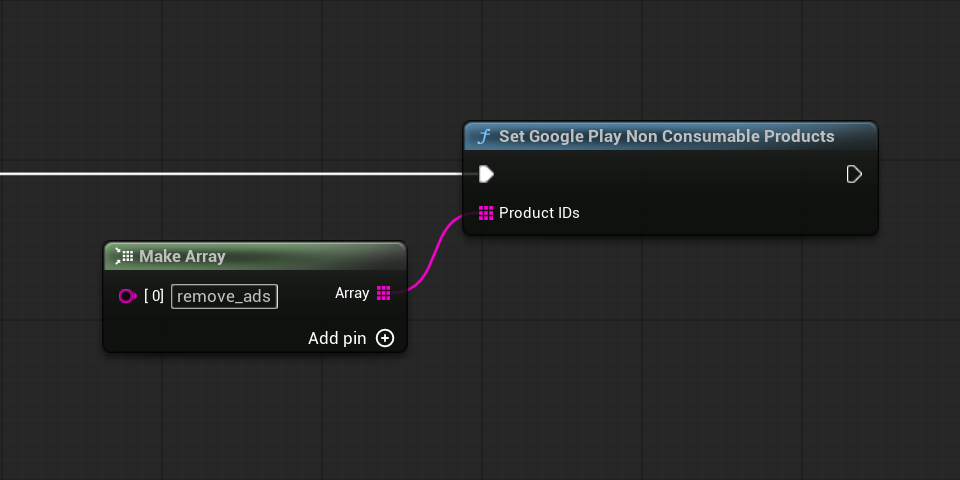
Subscriptions do not need to be added to this list. They are acknowledged but are never consumed.
Warning
Configure the list before launching purchases.
If a permanent one-time product is not included, the plugin will consume it after a successful purchase and Google Play will allow the user to purchase it again.
Launch a Purchase
Call Launch Google Play Billing Flow when the user confirms that they want to purchase a product.
This function starts the actual purchase process and opens the Google Play purchase interface on the device.
Provide:
- The Product ID.
- The Product Type.
- Optionally, the Offer Token of the purchase option that should be used.
Select the Product Type that matches the product configured in Google Play Console:
- In-App Product for one-time products.
- Subscription for subscriptions.
Purchase a One-Time Product
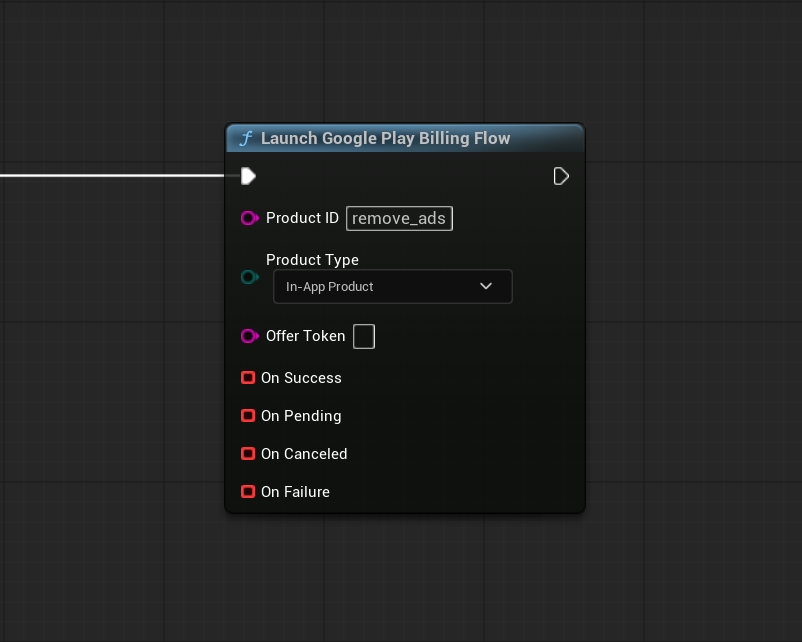
To purchase a one-time product, provide its Product ID and select In-App Product.
For example, the following call opens the Google Play purchase interface for the remove_ads product:
Purchase a Subscription
Subscriptions use the same Launch Google Play Billing Flow function.
Provide the subscription Product ID and select Subscription as the Product Type.
The following example opens the Google Play purchase interface for a subscription:
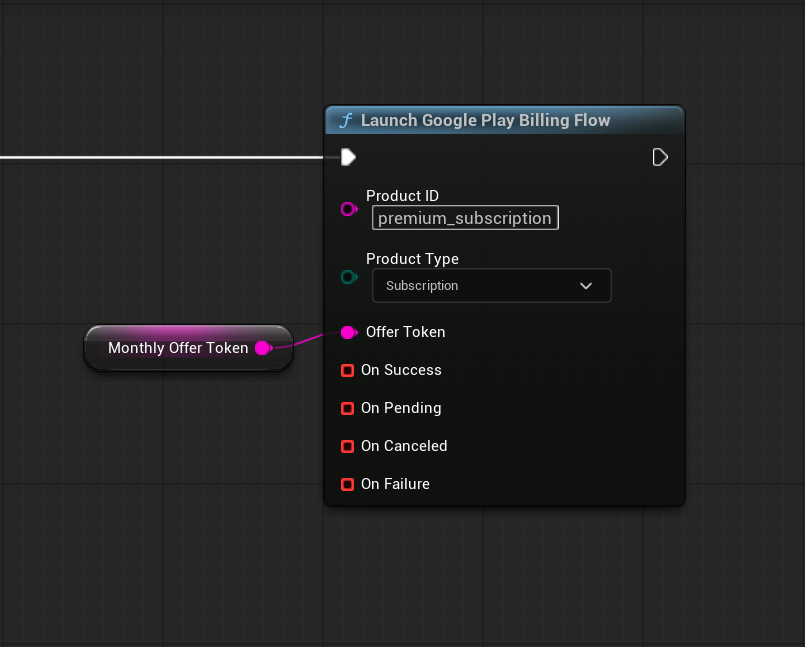
Both one-time products and subscriptions may contain multiple purchase options. Use Offer Token when a specific option should be purchased.
Offer Token
The Offer Token identifies the specific purchase option that should be used.
It applies to both product types:
- For a one-time product, it identifies a specific purchase option or offer.
- For a subscription, it identifies a specific base plan or subscription offer.
If the product has only one available option, leave Offer Token empty. This also applies to subscriptions that contain only one base plan or offer.
The plugin will query the product and automatically use the first available option returned by Google Play.
You can also leave Offer Token empty when the product has multiple options but the first available option should be purchased.
If the user selects a specific option, pass the Product ID, Product Type, and Offer Token that were stored when the Product Details were processed.
For information about retrieving and storing the Offer Token of a selected option, see Product Details.
Automatic Purchase Processing
After Launch Google Play Billing Flow is called, the plugin queries the current Product Details and opens the Google Play purchase interface.
When Google Play reports a completed purchase, the plugin acknowledges it before calling On Success.
Acknowledgement confirms that the application has received and processed the purchase.
After acknowledgement:
- Consumable one-time products are consumed automatically.
- Non-consumable one-time products remain owned.
- Subscriptions remain owned.
The exact processing depends on whether the one-time product was added to the non-consumable product list.
Consumable Processing
One-time products not included in the non-consumable product list are processed as consumable.
After the purchase is acknowledged, On Success is called and the plugin starts consuming the purchase automatically.
After consumption succeeds, Google Play allows the same account to purchase the product again.
Grant the purchased content only once from On Success.
Note
The application does not need to call Consume Google Play Purchase when using the automatic purchase flow.
Non-Consumable and Subscription Processing
One-time products included in the non-consumable product list are acknowledged but not consumed.
They remain owned by the user’s Google Play account, so the same account cannot purchase them again.
Subscriptions are also acknowledged but not consumed. They remain available through the user’s current subscription ownership.
For information about checking these purchases in future sessions, see Ownership.
Purchase Results
Launch Google Play Billing Flow returns the purchase result through four callbacks:
- On Success
- On Pending
- On Canceled
- On Failure
On Success
On Success is called after Google Play reports the purchase as completed and the plugin successfully acknowledges it.
Grant the purchased content from this callback.
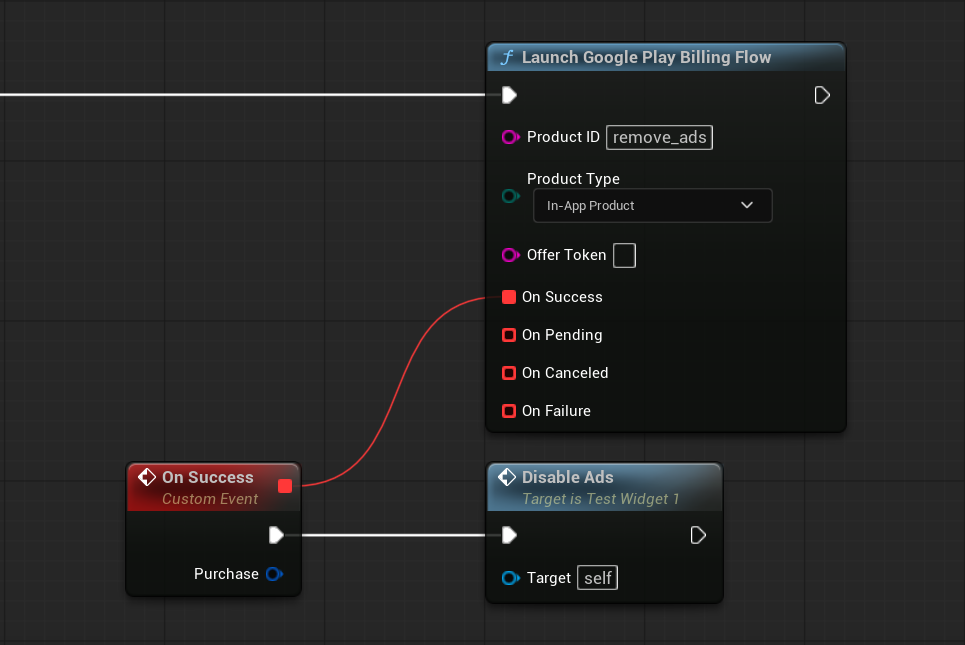
The callback returns an FGooglePlayBillingPurchase structure containing the Product ID, Purchase Token, purchase state, order information, and other transaction data.
Important
Grant the purchased content only after On Success.
Do not grant it when the purchase is pending, canceled, or failed.
On Pending
On Pending is called when Google Play creates the purchase, but the payment has not yet been completed.
This can happen when the selected payment method requires additional time or user action.
Do not grant the purchased content while the purchase remains pending.
If the payment completes while the application is still running, On Success may be called later for the same purchase.
If the application has already been closed, the completed purchase must be processed after the next launch. See Pending Purchases.
On Canceled
On Canceled is called when the user closes or cancels the Google Play purchase interface before completing the purchase.
This is a normal user action and does not indicate a technical error.
Do not grant any content from this callback.
On Failure
On Failure is called when the purchase cannot be started or processed.
For example, this may happen when:
- Google Play Billing is not ready.
- The product cannot be found.
- The Product Type is incorrect.
- No valid subscription offer is available.
- Another purchase flow is already active.
The callback returns a response code and error message that can be used for logging or user feedback.
Do not grant any content from this callback.
Purchase Data
The purchase structure contains information about the transaction.
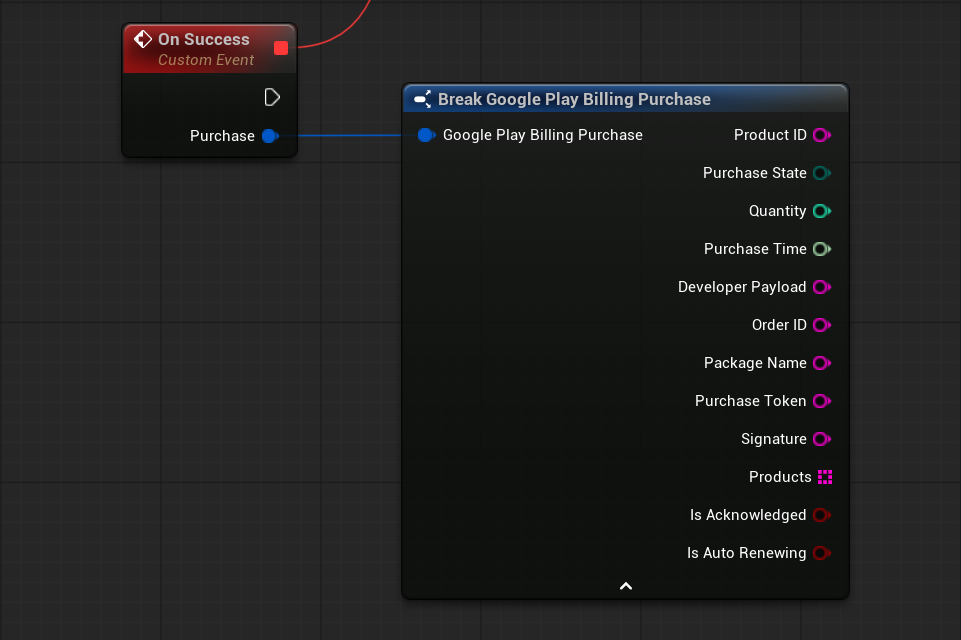
Commonly used fields include:
- Product ID — identifies the purchased product.
- Purchase Token — uniquely identifies the purchase and can be used for manual processing or server-side validation.
- Purchase State — indicates whether the purchase is completed or pending.
- Order ID — Google Play order identifier.
- Purchase Time — time when the purchase was created.
- Is Acknowledged — indicates whether the purchase has been acknowledged.
- Is Auto Renewing — indicates whether a subscription is configured to renew automatically.
For the complete field list, see FGooglePlayBillingPurchase.
Prevent Multiple Purchase Requests
Only one purchase flow can be active at a time.
Do not call Launch Google Play Billing Flow again while the Google Play purchase interface is open or while the current purchase request is still being processed.
If another purchase request is started before the current flow finishes, it returns through On Failure.
A common approach is to disable the purchase button while a purchase flow is active, then enable it again after any result callback is received.
Next Step
A purchase may remain pending and complete after the application has been closed.
Continue with Pending Purchases to process delayed purchases after the next application launch.